
ACH and SEPA payments
Accept bank transfer payments from clients using ACH (US) or SEPA (Europe).
ACH (US bank transfers) and SEPA (European bank transfers) let clients pay by linking their bank account directly instead of using a credit card.
How it works
- Client chooses to pay with their bank account at checkout
- They connect their bank account through Stripe's secure payment form
- Arketa confirms the order immediately — the client gets access right away
- The payment processes in the background over the next up to 10 business days (ACH) or 1–3 business days (SEPA)
- Once settled, funds move to your Stripe balance and are included in your next payout
Client access during processing
Clients get immediate access to whatever they purchased — classes, memberships, on-demand videos — even though the payment hasn't fully settled yet. This is by design; requiring settlement before granting access would create a poor client experience.
Risk consideration
Because clients get immediate access before the bank transfer settles, there's a small risk of payment failure (e.g., insufficient funds discovered after access is granted). If an ACH or SEPA transfer fails, the payment doesn't go through and Arketa notifies you and the client (see below).
When a bank payment fails
If an ACH or SEPA payment fails after the client already has access, both you and the client automatically receive an email notification.
The client's email includes a retry link. They click it, choose a new payment method, and complete the payment — without losing access in the meantime. For security, the retry flow verifies the client's identity, so a payment method can't be attached to the wrong client by mistake.
Because you're notified too, you can follow up directly if a client doesn't resolve a failed bank payment on their own.
Updating a subscription to a bank account after a failed payment
When a subscription payment fails and the invoice is still unpaid, switching the payment method to a bank transfer (ACH) behaves differently than switching to a card.
Because bank transfers take several days to clear, Stripe doesn't mark the invoice as paid right away. The subscription stays "unpaid" until the funds actually arrive and are confirmed in Stripe.
This timing is controlled entirely by Stripe and can't be overridden in Arketa. The subscription flips to paid once settlement completes.
Availability and Stripe requirements
ACH and SEPA support depends on your Stripe account configuration and location.
| Method | Available in | Requirement |
|---|---|---|
| ACH | United States | Stripe account must be based in the US and have ACH enabled |
| SEPA Direct Debit | Europe (SEPA zone) | Stripe account must be based in a SEPA-eligible country and complete SEPA activation in Stripe |
If you try to enable SEPA in the Arketa dashboard and see a Stripe setup message instead of a toggle, it means your Stripe account hasn't completed SEPA activation yet. This is a Stripe-side requirement — Arketa can't enable it until Stripe confirms your account is eligible.
To activate SEPA on your Stripe account:
- Log in to your Stripe dashboard
- Go to Settings → Payment Methods
- Find SEPA Direct Debit and follow the activation steps Stripe requires (typically business verification and bank account confirmation)
- Once Stripe activates SEPA, return to Arketa — the toggle will be available
If SEPA doesn't appear as an option in your Stripe settings, your account's country may not be in the SEPA zone, or additional Stripe verification may be required. Contact support@arketa.com if you need help.
Enable extra payment options for invoices
Beyond ACH and SEPA at checkout, you can turn on additional ways for clients to pay invoices — bank transfer (ACH), Affirm, Afterpay, Klarna, and international methods — from your Stripe dashboard. These options apply to invoice payments only.
- Log in to your Stripe account
- Click the gear (settings) icon in the top-right corner
- In the left "Payments" box, click Payment Methods
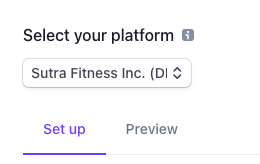
- At the top-left, open the Select Your Platform dropdown and make sure Arketa is selected before you change anything (it may still appear as "Sutra")
- Toggle on the methods you want — direct bank-account transfer options are near the bottom of the list
- Send yourself a test invoice, open the payment screen from the email, and confirm the new options appear
Some methods activate immediately; others take a few minutes to a few hours to connect. If a new option doesn't appear right away, wait a bit and check again.
Once you've sent yourself a test invoice, open the payment screen from the email to confirm the new options appear:
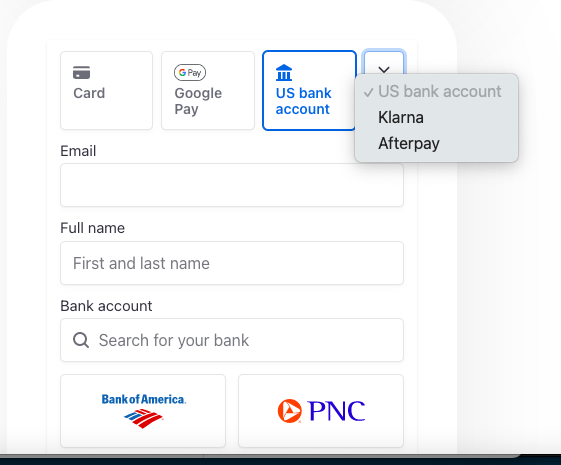
Enable Klarna at checkout
To offer Klarna on checkouts, go to Settings → Payments, click Edit under Payment Settings, expand Disabled Payment Methods, and switch on Klarna.
Set up recurring ACH invoices
To run recurring charges off a bank account instead of a card, create an invoice for a client for a subscription-style charge. If they pay that invoice via ACH, Stripe can charge the recurring payments to their bank account going forward.
Subscriptions can only be paid with a card or a bank account. Buy-now-pay-later methods (Affirm, Afterpay, Klarna) aren't supported for subscriptions.