
Checkout flow
How the point of sale checkout process works for staff and clients.
Staff checkout from the POS
- Search for the client (or start a walk-in sale)
- Add items to the cart — classes, packages, retail, gift cards
- Apply any promo code, gift card, or account credit
- Select payment method — card, cash, terminal, account credit, or Send payment link (client pays on their own device)
- Complete the transaction
The client receives an email receipt automatically.
For Send payment link, POS shows a waiting screen with a countdown while the client pays. See Send payment links.
If you zero out a price at checkout for a client who qualifies for an automated dollar-amount discount, remove the discount at the bottom of the cart first. Left in place, the discount is still deducted from $0 and creates a positive account balance on the client's profile.
Staff checkout from the check-in screen
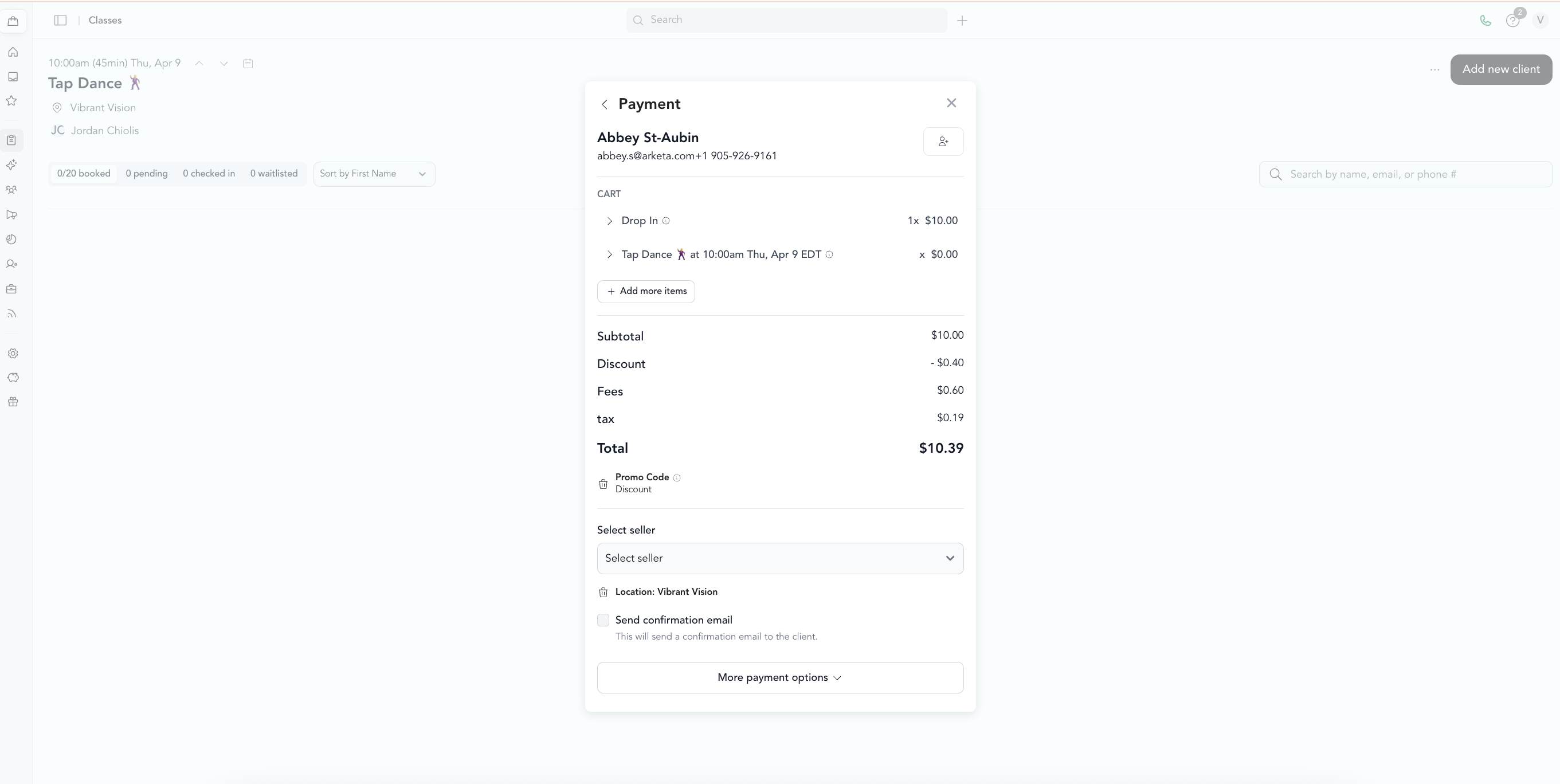
When you add a client to a class from the check-in screen and they need to purchase a drop-in or package, the POS opens automatically within the check-in flow. You complete the purchase there without leaving the check-in screen.
Client self-checkout (online)
When clients book through your website or app:
- They choose a class or pricing option
- They see applicable pricing at checkout (based on what's connected to that class)
- They enter payment or select an existing method
- Booking is confirmed, confirmation email sent
Payment options at checkout
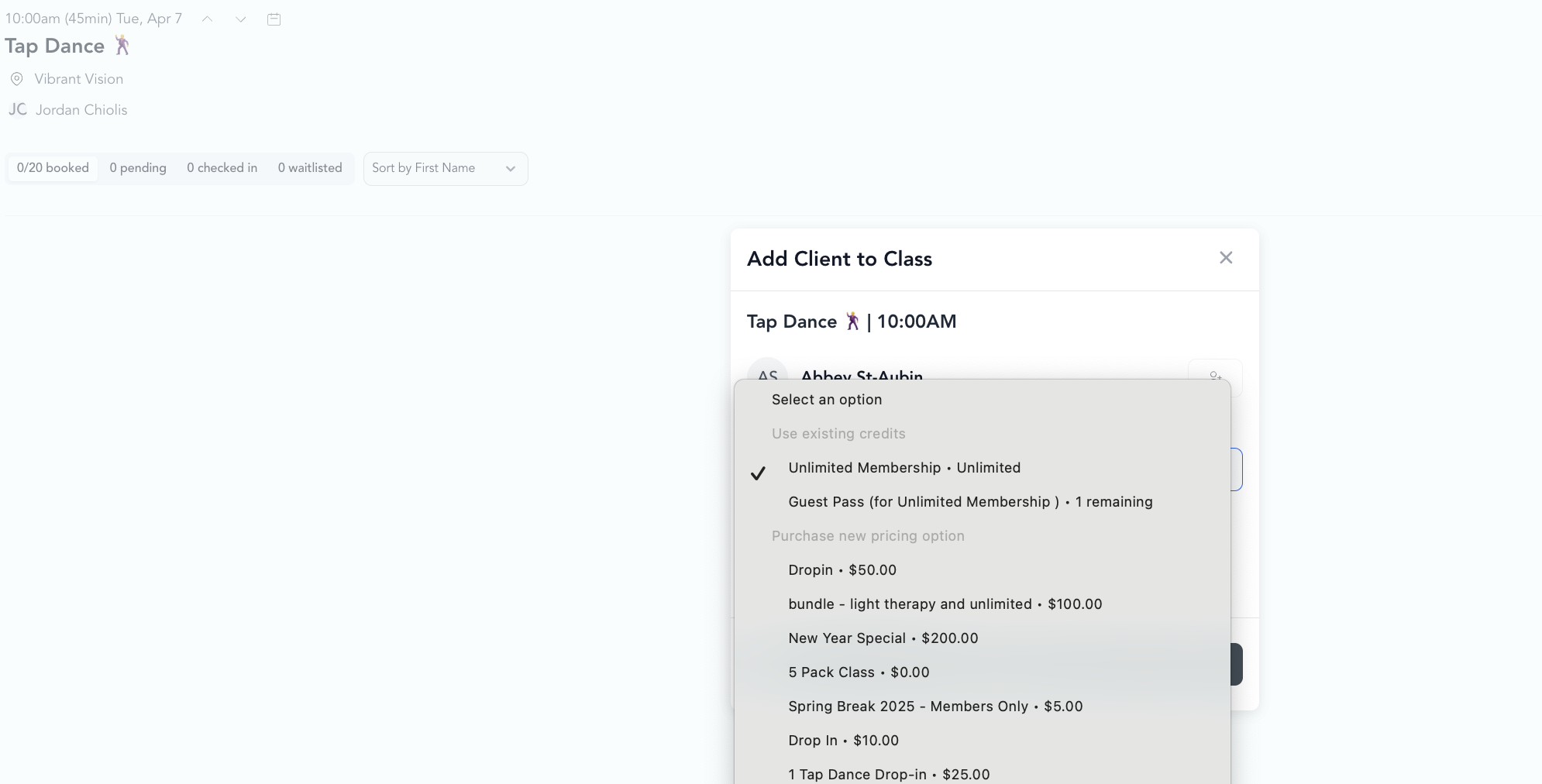
When a client has multiple payment options on file (e.g., an active pack and a card), Arketa selects the best match for the class being booked. Clients can switch the payment method if needed.
Adding multiple items in one transaction
From the POS, you can add multiple items in a single transaction — for example, a class drop-in + a retail item + a gift card. Everything goes in one cart, one payment, one receipt.
Transaction confirmation
After completing a transaction:
- Client receives an email receipt
- The transaction appears in your All Payments report
- Any class bookings are added to the class roster automatically
Resend a receipt for a past payment
If a client didn't receive their receipt, or asks for another copy, you can resend it on demand for any specific past payment:
- Go to Customers > Clients and search for the client
- Open the client's Payments tab (or use the actions sheet and select Send Receipt)
- Tap into the specific payment
- Select Send Receipt
- Choose the client's email address to send it to, then confirm Send Receipt

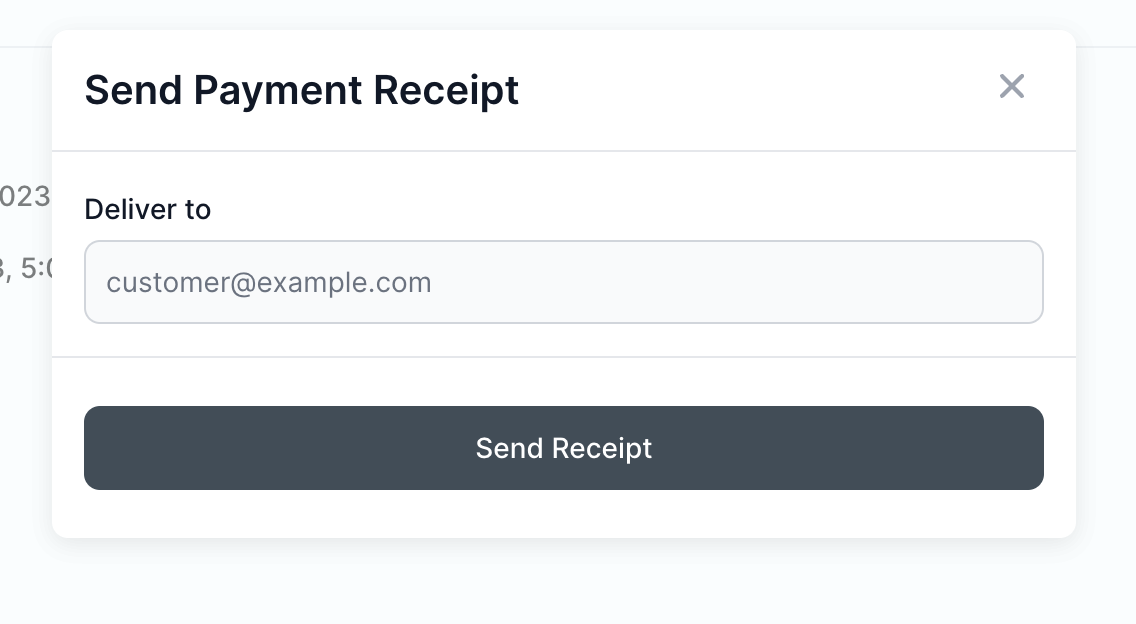
Shortcut: In the client's Payments section, tap the email icon next to a payment to send that receipt directly — no need to open the payment first.
