
Manage payment methods
Add, update, or remove payment methods on a client's account.
Add a card to a client's account
Client-initiated: Clients can add cards themselves from their account → Payment Methods.
Staff-initiated: From the client's profile or during a POS transaction, you can enter a new card. Arketa stores it via Stripe (no raw card data stored in Arketa).
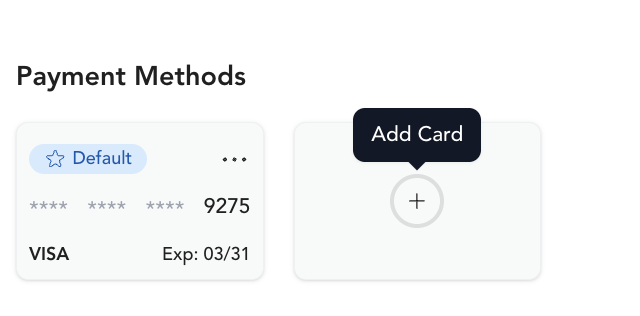
Update a client's card
When a client's card expires or they get a new card:
- Open the client's profile
- Click the Payment Methods section (or find it in their subscription)
- Add the new card
- Set as default if needed
Alternatively, send the client a payment update link from their profile — they'll get an email with a secure link to update their card themselves.
For subscriptions with failed payments
If a subscription payment fails due to an expired or declined card:
- Open the client's profile
- Find the subscription
- Click Update payment method
- Select a new card or have the client update theirs
After updating, retry the failed payment. See failed payments.
Remove a payment method
From the client's profile → Payment Methods, you can remove cards that are no longer needed.
Arketa blocks the removal when it would leave a client with no usable card while they have an active subscription. The rule is about the last usable card, not specifically the default one: if the client has another card saved that hasn't expired, removing a card (including the default) is allowed. To replace the only card on file, add the new card first, then remove the old one.
This protection applies to both you and your clients. Staff removing a card from the client's profile are held to the same rule as a client removing their own card from your booking page or app.
Arketa can only enforce this on cards removed through Arketa. If you or anyone on your team detaches a card directly in your Stripe dashboard, Arketa can't prevent it, and the membership is left with nothing to bill at the next renewal. Always remove cards from the client's profile in Arketa rather than in Stripe. If you find an active membership with no card on file, check your Stripe dashboard's event log for the customer to see when the card was detached.
Security
Arketa uses Stripe for all payment processing. Card details are tokenized and stored by Stripe — Arketa only stores a token reference. Your team never sees full card numbers.