
Invoices
Create, send, and manage invoices for custom billing.
Invoices are for billing clients outside of standard pricing options — custom amounts, one-off projects, or any situation where you need to send a bill with specific line items.
Invoices and payments
An invoice is the request for payment — the document that lays out what's owed. A payment is the record of the attempt to settle it. Every invoice has exactly one payment associated with it, and that payment updates in response to what the client does when they go to pay (or the result of an automated charge).
Invoices aren't only something you create by hand. Arketa also generates one automatically about 1 hour before each subscription renewal and each package charge, then charges the client's default payment method. An invoice "opens" either when you send it manually or right before a package or subscription is charged.
So whether a charge is manual or automatic, the same two records are always at work: the invoice asking for the money, and the payment tracking whether it came through.
Create an invoice
-
Go to Beyond Classes → Invoices or from a client's profile
-
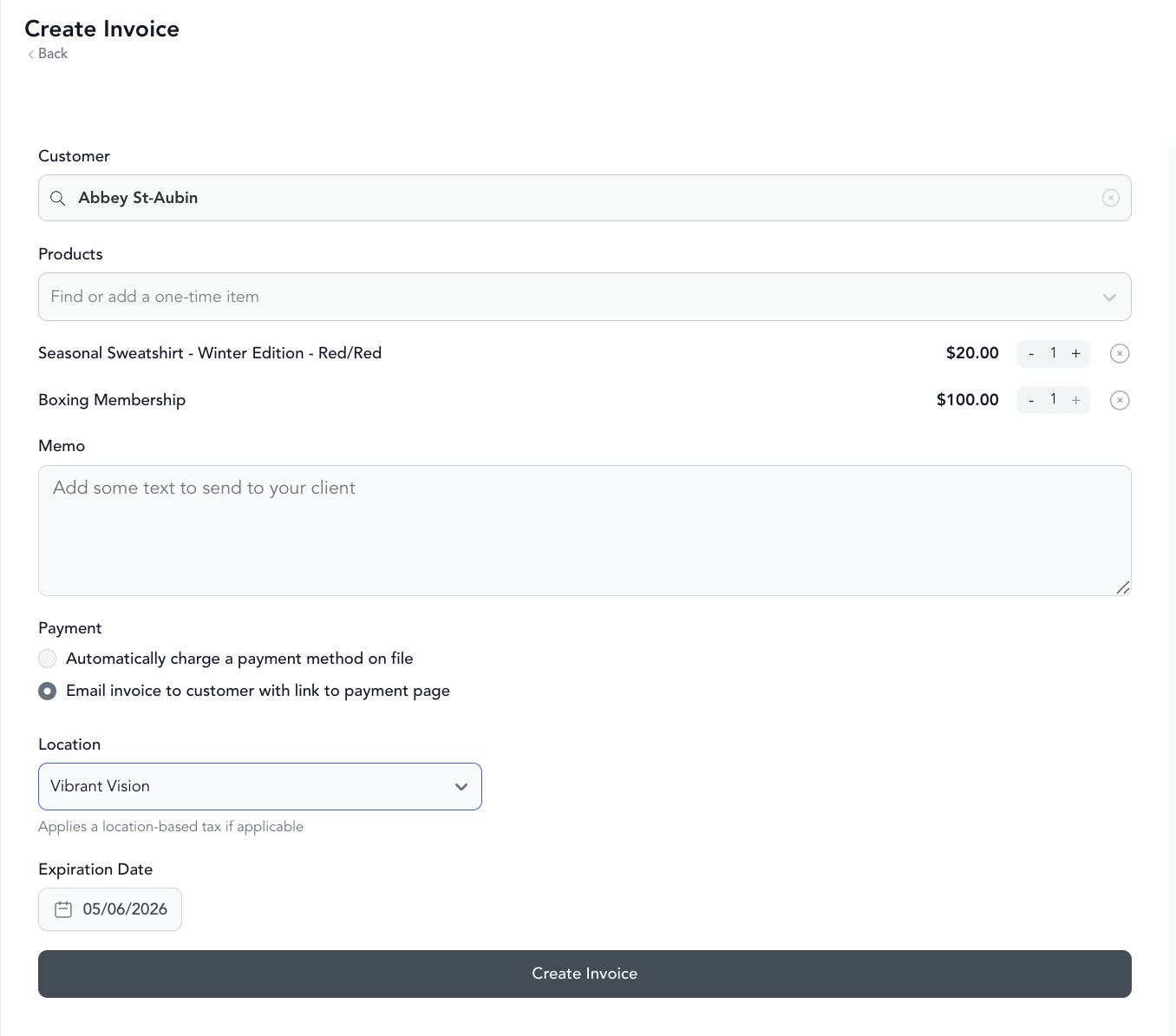
Click Create Invoice
-
Add:
- Recipient — search for an existing client or enter an email
- Line items — description and amount for each item
- Due date — when payment is expected
- Notes — any instructions or context
-
Click Send Invoice
The client receives an email with the invoice details and a link to pay by card.
Invoice statuses
| Status | Meaning |
|---|---|
| Sent | Invoice delivered to the client |
| Viewed | Client opened the invoice email |
| Paid | Payment received |
| Overdue | Past due date without payment |
| Partial | Some payment received, balance remaining |
| Voided | Invoice canceled |
Mark as paid manually
If a client pays by cash, check, or bank transfer:
- Open the invoice
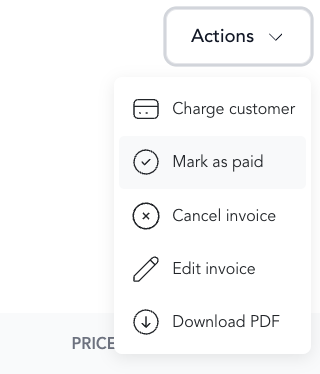
- Click Mark as paid
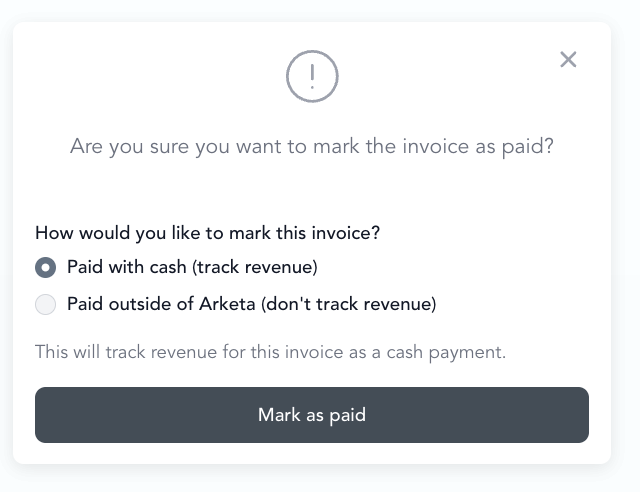
- Select the payment method and date
On Studio plans with payment method types enabled, you can pick a custom label (for example Check or Zelle) instead of only Cash.
This updates the invoice status without charging their card.
Viewing outstanding invoices
Go to Reporting → All Payments and filter by payment type "Invoice" to see all invoices and their statuses. You can also see invoices on individual client profiles.
Recurring invoices
For clients you bill on a regular schedule, consider creating a monthly membership pricing option instead — it handles billing automatically without you needing to send an invoice each cycle.