
Taxes
Set up tax rates for classes, memberships, and retail, including tax-inclusive pricing.
Arketa supports tax collection on pricing options and retail products. Tax rates can be set globally, per location or by item.
How taxes work
When a tax rate is applied to a sale, the tax is calculated on the item price only — not on Arketa's own transaction fees.
Stripe does charge its processing fee on the full transaction amount, including tax. For example:
- Item price: $100
- Tax (10%): $10
- Total charged: $110
- Stripe's processing fee is calculated on $110
Set a tax rate
You can add a tax rate directly on each pricing option or retail product when creating or editing it. Enter the percentage (e.g., 8.5 for 8.5%) in the tax field.
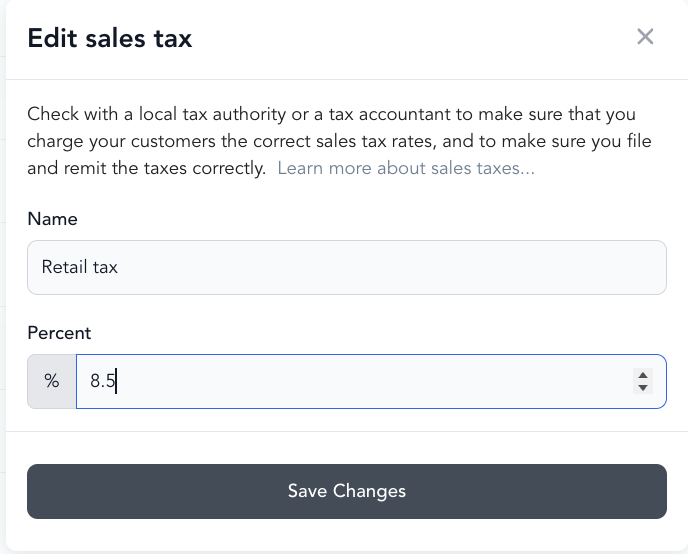
For location-based tax, set a tax rate in Settings → Locations on the specific location. This rate applies to all point-of-sale transactions at that location.
When the same rate applies across many items, creating a named tax in Settings → Taxes and applying it in bulk is usually the better path — see below.
Create a custom tax rate
A custom tax is a reusable, named rate you set up once and apply wherever you need it. It's an alternative to typing a rate onto each item individually, and it's useful when you want tax to apply only to certain types of products or services.
Go to Settings → Taxes
Open Settings → Taxes to see your list of custom taxes.
Create the tax
Click to create a new tax, then enter a Name and the tax percentage. The name is what appears on receipts, so keep it clear (for example, Sales Tax or GST).
Save
Save the tax. It now appears in your Taxes list, ready to apply.
Creating the tax doesn't apply it to anything yet — you choose where it applies in the next step.
Apply a tax to your products and offerings
Once a custom tax exists, apply it to the products and offerings that should be taxed.
Open the tax's actions
In Settings → Taxes, click the three dots (Actions) next to the tax you want, then choose Apply to Product.
Choose what to apply it to
Pick one option or mix and match:
- Apply to all retail products
- Apply to all Pricing Options (Packs, Bundles, Subscriptions, and Communities)
- Apply to all Service Types (Classes, Appointments, and Events)
Within each group, you can select or de-select individual items for finer control.
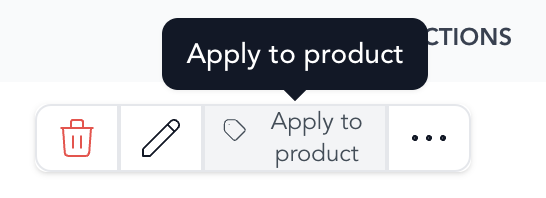
A tax rate applies to future purchases only, from the moment it's applied — it does not retroactively tax past sales. To add a new tax to existing subscriptions, contact the Support team to help with next steps.
Tax-inclusive pricing
When tax-inclusive pricing is enabled, the price shown to clients already includes tax — there's no separate tax line at checkout.
To enable:
- Go to Settings → Business → General
- Scroll to Legal & Compliance
- Toggle on Tax-inclusive pricing

When enabled, a $100 class with 10% tax is displayed as $100 (tax included). The Stripe transaction fee appears as a separate line item at checkout.
Through point of sale, the inclusive tax amount is shown separately in the receipt breakdown.
Taxes and payouts
Taxes collected are included in your gross revenue and passed through with your payouts. Arketa does not withhold or remit taxes on your behalf — that's your responsibility. Consult a tax professional for guidance on your specific obligations.