
Waitlist settings
Configure automated waitlists, credit holds, and waitlist close windows.
When a class fills up, Arketa can offer clients a spot on a waitlist. You control whether waitlist enrollment is automatic or first-come-first-served, and what happens to credits while clients wait.
Enable and configure the waitlist
- Go to Settings → Waitlist
- Toggle Enable Waitlist on
- Choose your waitlist mode and set the close window
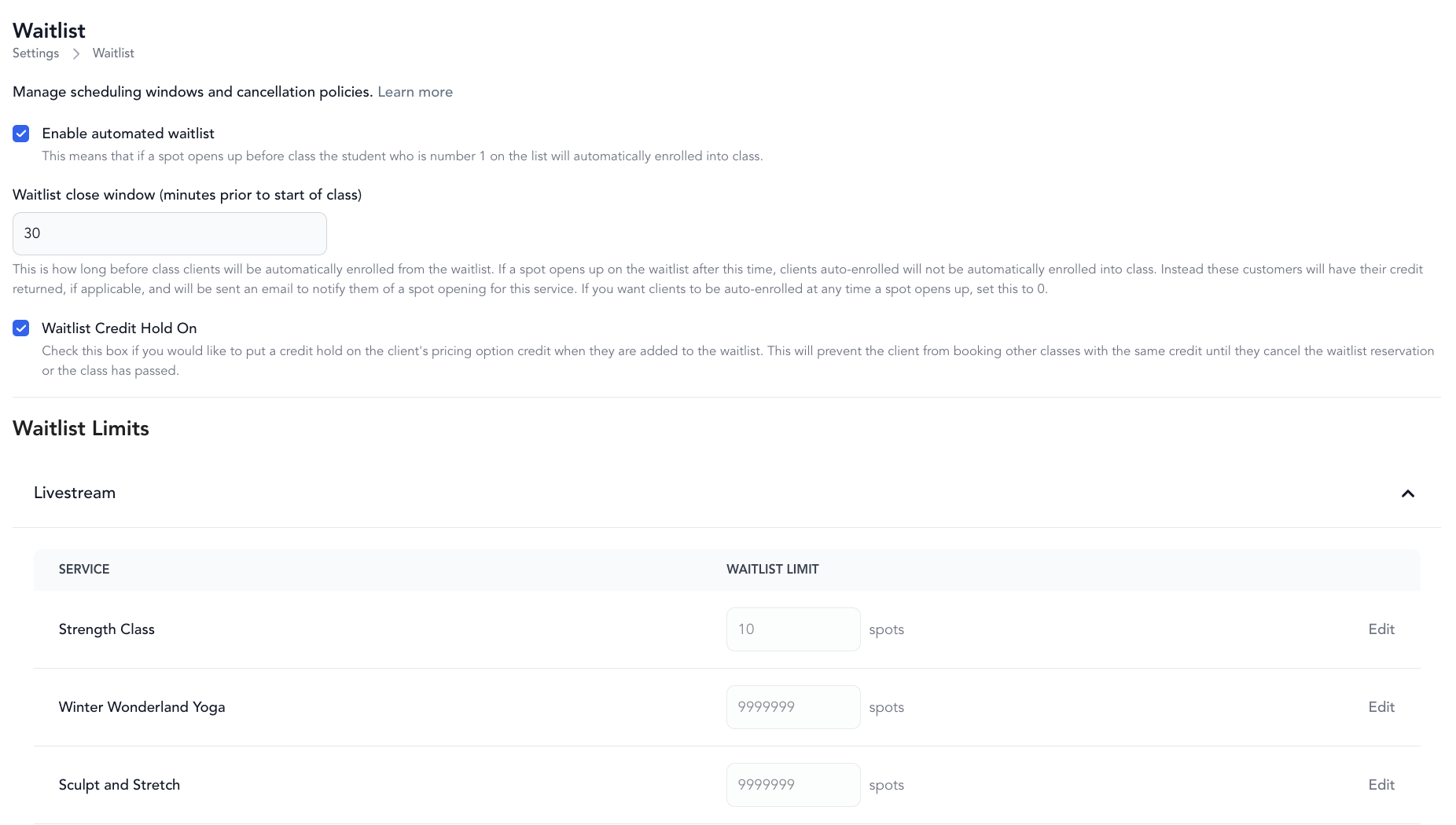
Waitlist modes
Automated waitlist
When a spot opens, the first client on the waitlist is automatically enrolled and charged (if applicable). They receive a notification.
Automated waitlist settings:
| Setting | Description |
|---|---|
| Enable automated waitlist | When on, the #1 waitlisted client is auto-enrolled when a spot opens. Turn off to use manual/first-come-first-served instead. |
| Waitlist close window (minutes before class) | After this point, clients are NOT auto-enrolled even if a spot opens. They receive an email notifying them of the open spot instead. Set to 0 to auto-enroll up until class starts. |
| Waitlist credit hold | When checked, the client's package credit is held when they join the waitlist, preventing them from using it to book another class until they cancel the waitlist spot or the class passes. |
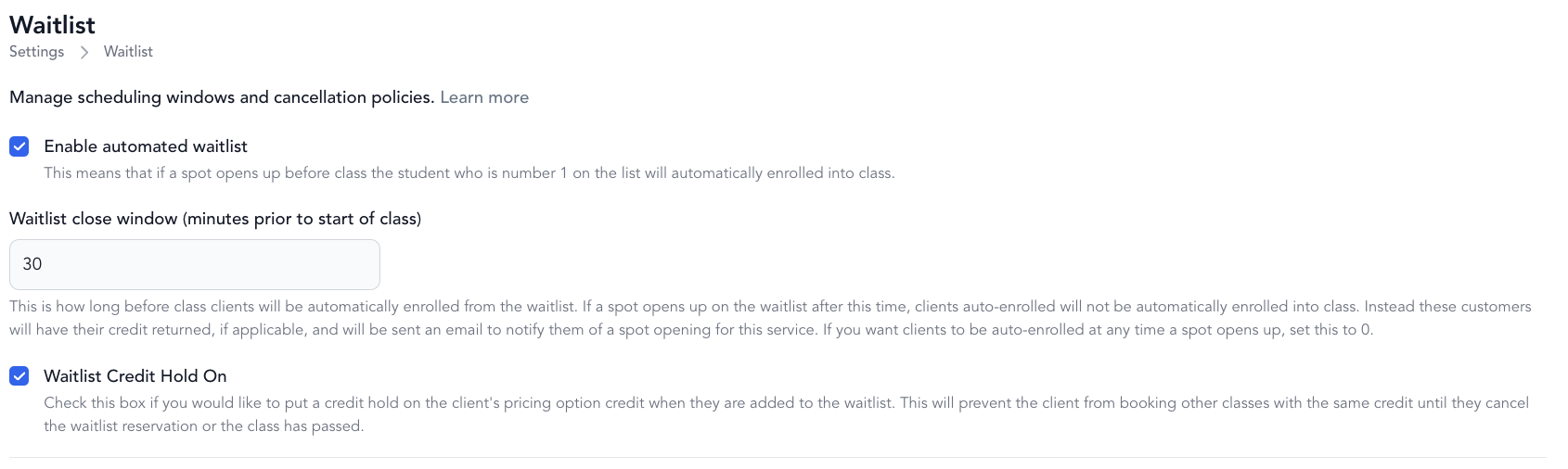
We recommend setting the close window to at least 30 minutes so auto-enrolled clients have enough notice.
Basic waitlist
All waitlisted clients receive an email when a spot opens. It's first-come-first-served from there — whoever books first gets the spot.
Waitlist limits
To cap how many clients can join a waitlist:
- Go to Settings → Waitlist
- Click Edit next to the service type
- Enter the maximum number of clients allowed on the waitlist
When the limit is reached, additional clients see "waitlist closed."
Allow overlapping waitlist reservations
Toggle Allow overlapping reservations on to let a client join waitlists for multiple classes at the same time slot. Useful for clients who want to catch any open spot for a popular time.
How clients join the waitlist
When a class is full, the booking button changes to Join Waitlist. Clients tap it and go through a normal checkout flow. Their position in line is shown on their booking screen.
Canceling off the waitlist
Clients can cancel their waitlist reservation from their account's bookings tab, just like a regular booking.
Viewing the waitlist
Open any class page in your dashboard to see the full waitlist, including each client's position.