
Wellhub integration
Connect to Wellhub (formerly Gympass) to offer classes to corporate wellness clients.
Wellhub (formerly Gympass) is a corporate wellness platform that connects employees to fitness studios. When integrated with Arketa, your classes appear on the Wellhub platform and reservations sync to your Arketa roster.
Enable the integration
- Go to Settings → Integrations
- Find Wellhub and click Enable
- Click Open Wellhub Settings

Set up with a single Wellhub product
If all your classes use one Wellhub product:
- Leave Show advanced settings unchecked
- Find the location you want to enable
- Enter your Gym ID (provided by Wellhub)
- Select the Wellhub product to apply to all classes
- Save — your classes will appear on Wellhub within a few minutes
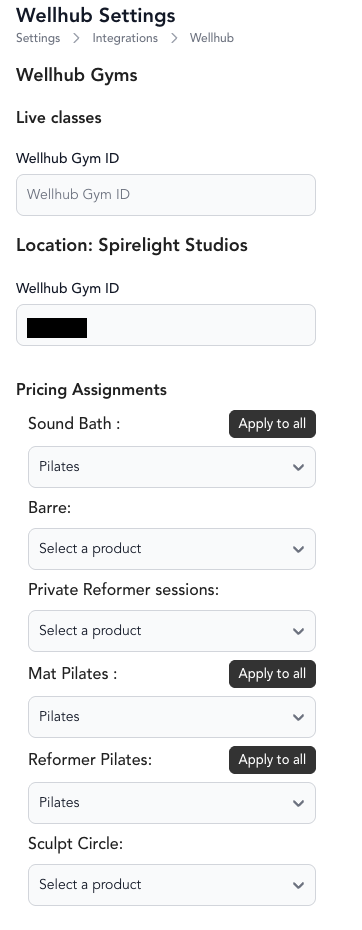
Set up with multiple Wellhub products
If you have different Wellhub product tiers for different classes:
- Check Show advanced settings
- Enter your Gym ID for the location
- All your classes will appear in a list
- Assign a Wellhub product to each class
- Save — classes sync to Wellhub within a few minutes
Create classes for Wellhub
Once your Wellhub integration is configured:
- Go to your class schedule and add a new class
- Select a class type that you've set up in Wellhub
- Complete the class creation steps normally
- After about 5 minutes, the class syncs to Wellhub
Wellhub clients on your roster
Wellhub bookings appear on your Arketa class roster with a From Wellhub tag so you can identify them. First-time Wellhub clients are marked with a star.

Troubleshooting
Error shown under the "Info" tag for a client: This typically means the service type isn't configured with the correct location. Go to the service type settings → Scheduling, and add the correct location(s).
Double booking error: If a client has an existing Arketa reservation and then tries to book the same class through Wellhub, they'll see an error that they're already booked.
A Wellhub client shows as not checked in / no-show: A Wellhub booking is only marked as checked in on your Arketa roster once Wellhub sends Arketa a validated check-in for that booking. A client seeing the class as Completed in their Wellhub history is not the same signal — that reflects the booking itself, not a validated check-in, so on its own it won't mark the client as checked in on your roster. If a client checked in through Wellhub but still shows as not checked in, you can check them in manually from the class check-in screen by clicking the check mark next to their name.