
Cancellation policy
Set your cancellation window, late cancel fees, and no-show charges.
Your cancellation policy determines how far in advance clients can cancel and receive a refund or credit back, and what happens when they cancel late or don't show up.
Set the global cancellation window
- Go to Settings → Business Settings (or Settings → Booking Windows)
- Update the cancellation hours — this is the number of hours before class that a client can cancel
- Click Save Changes

Per-service-type cancellation policies
You can set different cancellation rules for different service types using booking windows. For example:
- Group classes: 12-hour cancellation window
- Private appointments: 24-hour cancellation window
When editing a booking window, the Cancel closes field controls this. Assign that booking window to the relevant service type.
A service type's booking-window cancellation setting overrides your global cancellation window. When a service type has a booking window assigned, its Cancel closes value — not the global cancellation hours — decides when a cancellation counts as late. For example, if a service type's booking window closes cancellations 24 hours before start, a client who cancels 18 hours ahead is a late cancel and won't get their credit back, even if your global cancellation window is only 8 hours. Always check the booking window assigned to a service type before assuming the global hours apply.
Late cancellations and no-shows
When a client cancels outside your cancellation window or doesn't show up, you can charge a late cancel or no-show fee from the class roster or the Late Cancels & No Shows report.
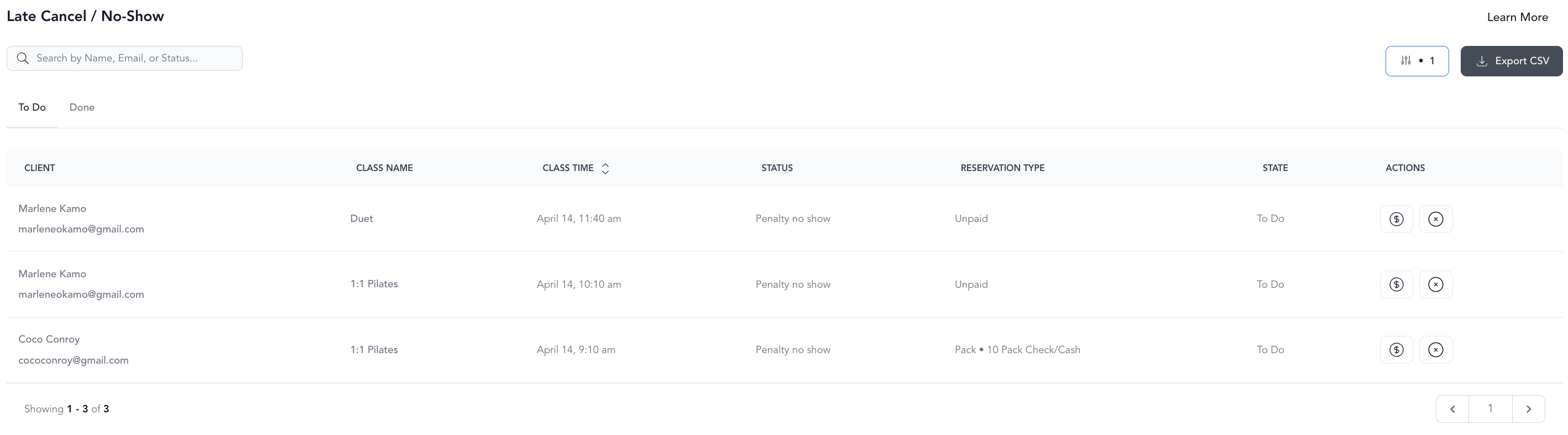
To waive a fee instead, click the × next to the charge.
Exemptions (grace period)
When setting up a late cancel or no-show policy, you can give clients a set number of exemptions — for example, 3 times within 6 months. An exemption means the client isn't charged even though they late-canceled or no-showed.
The exemption window is a rolling trailing period measured back from each class, not a window that starts on the date you created the policy. So for a 6-month allowance, Arketa looks at the client's exempted late cancels (or no-shows) over the 6 months leading up to that class — which can include ones from before you set the policy up. Once a client has used all their exemptions within that trailing window, the next late cancel or no-show is charged.
Only late cancels and no-shows count toward exemptions — ordinary cancellations made within your cancellation window don't use one up.
Block client cancellations entirely
If you don't want clients to cancel on their own at all, check Block cancel in the booking window settings. Clients will see a message telling them to contact your studio directly. See booking windows for setup steps.
What clients see
When a client tries to cancel:
- Within the window: They can cancel and receive their credit or refund
- Outside the window: They see a message that the cancellation window has passed and are prompted to contact you
- Cancellations blocked: They see a message to contact the studio directly
Clients can manage their bookings from their account in your booking widget or mobile app.
What an on-time cancellation returns
A cancellation made inside your window always returns something. What comes back depends on how the booking was paid for:
- Booked with a class pack, membership, or challenge credit: the credit goes back to that pricing option.
- Booked as a paid drop-in: the payment is refunded to the client's card. Events and workshops are not redeemable with a class pack, so they are usually booked as drop-ins and are refunded to the payment method.
Your No Show/Late Cancel Fees policies do not change this. A policy's Refund the customer (if prepaid)? setting applies only when a client cancels late or no-shows, so setting it to No cannot make an on-time cancellation non-refundable.
If you don't want on-time cancellations to send money back to the card, you have two options:
- Go to Settings → Business Settings and turn on Enable refund with account credit. Cancellation refunds then go to the client's account credit balance instead of their payment method.
- Check Block cancel in the booking window for that service type, so clients cannot cancel on their own and must contact you. See booking windows.