
Self check-in
Set up a client-facing check-in screen for your front desk or studio entrance.
The self check-in screen is a kiosk-style page clients use to check themselves into class — no staff involvement needed. Load it on an iPad or computer at the front of your studio.
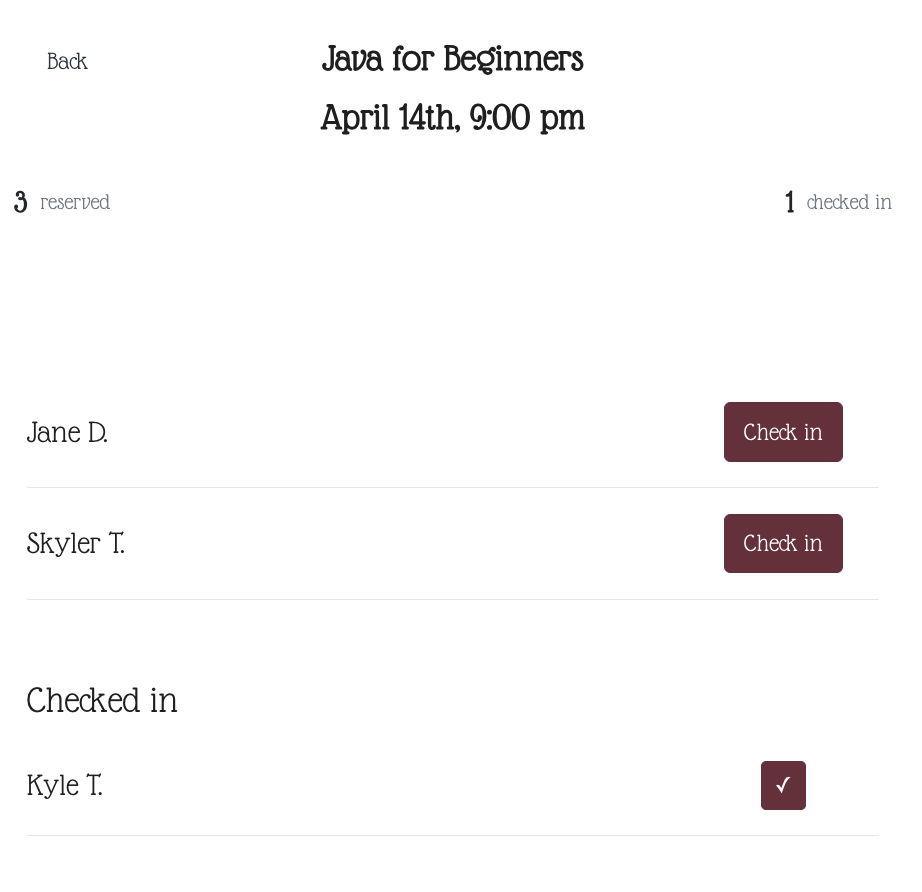
Set up the check-in screen
- Go to Sales Channels → Website Integration
- Scroll down to Check In Screen
- Click Open Link
- Load that URL in a browser on your iPad or front desk computer
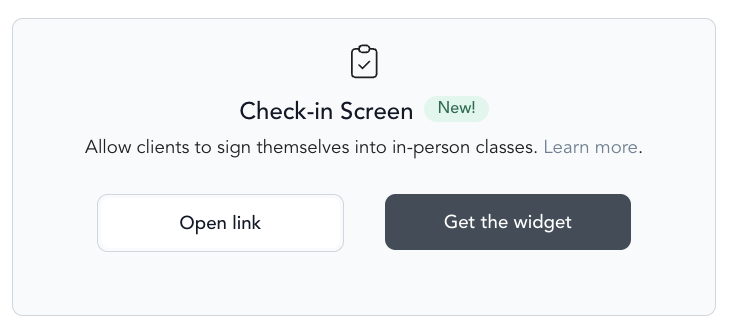
The page shows today's classes automatically. No login required for clients.
How clients use it
- The screen displays all classes scheduled for today
- Client taps the class they're checking into
- They find their name (shown as first name + last initial, sorted by first name)
- They tap Check In
Clients who haven't checked in appear at the top of the list. Checked-in clients move to the bottom.
Unpaid reservations
If a client has an unpaid reservation, the screen shows an error and prevents check-in. They'll need to see a staff member to resolve payment first.
Reverse a check-in
- Tap the checkmark next to the client's name in the checked-in section
- Confirm the prompt
- The check-in is reversed and the client moves back to the unchecked section
App self check-in
Clients can also check in through your branded mobile app. They'll see a Check In button on their booking confirmation or class detail screen.
Prop an iPad on a stand near your studio entrance so clients can check in as they walk in. It keeps your front desk free during busy class starts.
Frequently asked questions
Can I view past or future days on the check-in screen? No — the screen only shows today's classes.
Can clients see each other's full names? No — only first name and last initial are shown for privacy.
What if a client's name isn't on the list? They don't have a reservation for that class. They'll need to book through the widget or speak with staff to be added.
Can I check in ClassPass clients? Yes — ClassPass bookings appear on the Arketa roster. You can check them in through Arketa; no separate ClassPass check-in needed.