
Organization Sharing
Build automations and email templates once and roll them out to every studio in your organization.
Organization Sharing lets a business with several studios on Arketa build an automation or an email template once and roll it out to every studio — without rebuilding it by hand in each account.
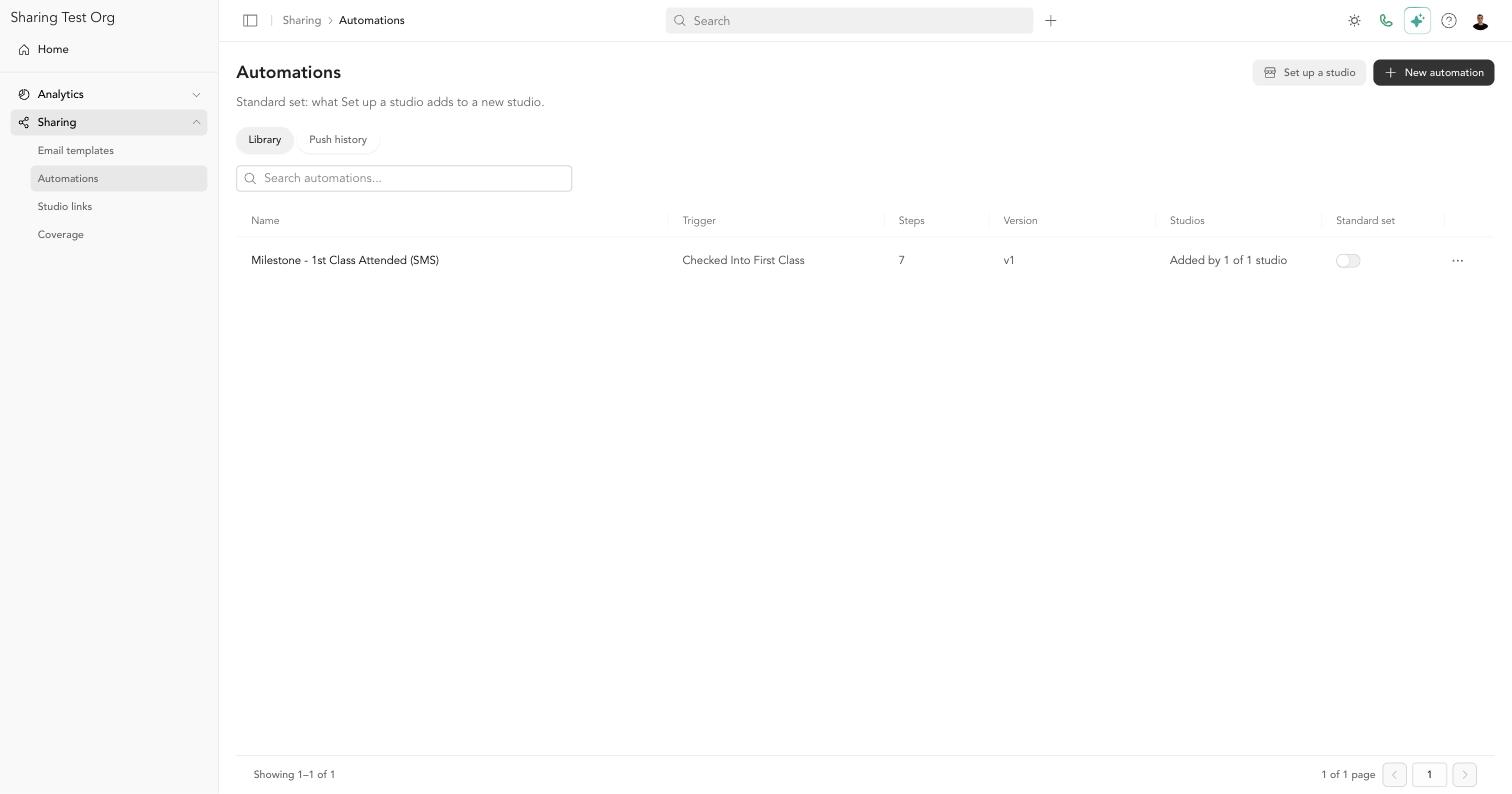
Your organization keeps a shared library. An organization admin adds automations and email templates to it, then pushes them to all studios or only the ones that need them. Studios can also add items from the library themselves. Every studio ends up with its own copy, set up for its own pricing options, tags, and links, and nothing turns on or sends until someone at that studio turns it on.
Organization Sharing is available to businesses whose studios are grouped into an organization on Arketa. Contact Arketa support to turn it on for your organization. Shared automations also need the Marketing Suite add-on at each studio that receives them.
How it works at a glance
- Build it once. An organization admin builds an automation or email template in the organization's template studio (or any studio), then shares it to the organization library.
- Send it to your studios. Push it to the studios you choose, or let each studio add it from its Organization library.
- Each studio finishes setup. Arketa matches anything studio-specific — pricing options, service types, tags, forms, locations — by name. Anything it can't match shows up as Needs setup, with a checklist of exactly what's left.
- Each studio turns it on. Copies always arrive as drafts. The studio reviews the copy and turns it on when it's ready.
Key terms
| Term | What it means |
|---|---|
| Organization | Your group of studios on Arketa. Each studio keeps its own account, clients, and payments. |
| Organization admin | A person who can share, push, and manage the library. Other organization members can view the library. |
| Template studio | The studio your organization builds library automations in. Arketa support sets this for you. |
| Organization library | The shared automations and email templates your organization has saved. |
| Push | Sending a library item to one or more studios. Each studio receives a draft copy. |
| Studio links | Links that are different at each studio — like a booking page or intro offer — used in emails and texts as {{{studioLinks.introOffer}}}. Studio links → |
| Standard set | The items every new studio should start with. Set up a studio adds them in one step. Set up a new studio → |
| Coverage | A grid showing which studios have each library item, and whether it's a draft, live, or paused. |
| Push history | A log of every push and what happened at each studio. |
Where to find it
Switch to your organization from the account menu in the top-right corner of your dashboard. With sharing turned on, your organization's sidebar shows a Sharing section:
- Sharing → Email templates — your organization's email template library
- Sharing → Automations — your organization's automation library
- Sharing → Studio links — each studio's own links
- Sharing → Coverage — which studios have what
Studios find shared automations under Marketing → Automations → Organization library, and shared email templates in the Organization templates section of their template picker.
What you can share
- Automations — the trigger, behavior settings, and every step, including conditions, emails, texts, tasks, tags, and time delays.
- Email templates — drag-and-drop, plain-text, and HTML templates. Templates can pick up each studio's own logo, colors, and fonts.
Forms and segments aren't shared. If an automation's condition uses a segment, the segment's rules are copied into the condition itself.
Why every studio gets its own copy
Shared items are copies, not a live connection. That's deliberate:
- Studios aren't identical. Each studio has its own pricing options, service types, tags, and links. A copy can be matched to each studio's own items; a single shared automation couldn't.
- Nothing surprises a studio. A push never turns anything on and never sends to clients. Each studio decides when its copy goes live.
- A studio's live automation is never overwritten. To roll out a change, share the updated automation again (it becomes a new version) and push it. Studios with a live copy keep it running until they choose to replace it.
Guides
- Share and push automations — for organization admins
- Set up a shared automation at your studio — for studio owners and staff
- Share email templates
- Studio links
- Set up a new studio