
Manage automations
Edit, pause, and monitor your running automations.
Automation statuses
| Status | What it means |
|---|---|
| Live | Active — new clients who meet the trigger will be enrolled |
| Off | Inactive — clients won't be enrolled and no actions will run |
An automation set to Off stays in your list and can be turned back on at any time.
Edit an automation
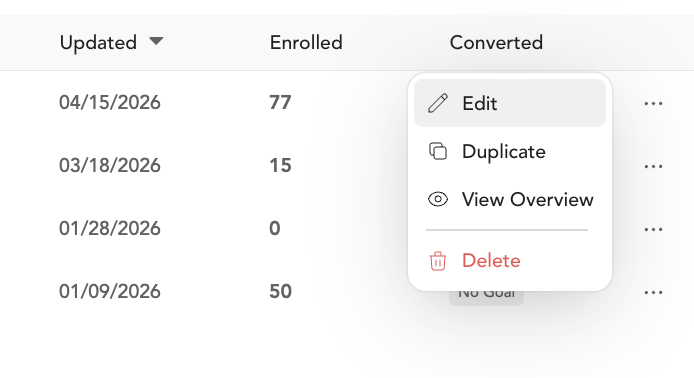
- Go to Marketing → Automations
- Click the edit pencil under Actions
- Make your changes
- Save
Changes take effect going forward. Clients already mid-sequence aren't affected by edits to steps they've already passed.
Pause or stop an automation
To pause an automation, toggle it Off in the top right corner of the editor. Clients currently in the sequence won't continue receiving actions until you turn it back on.
Re-enrollment
By default, each client can only enter an automation once. If you want clients to re-enter the sequence when they trigger the event again (e.g., purchase again, reach another milestone), toggle Re-enroll on in the trigger step.
Existing automations created before this setting existed have re-enrollment turned on by default. New automations have it off by default — you'll need to explicitly enable it if you want repeat enrollment.
Communication hour restrictions
To avoid sending SMS or emails at odd hours, you can restrict when communication actions go out:
- Open the automation editor
- Go to the Behavior step (step 2)
- Toggle on Restrict communication actions to specific hours
- Enter your allowed window in 24-hour format
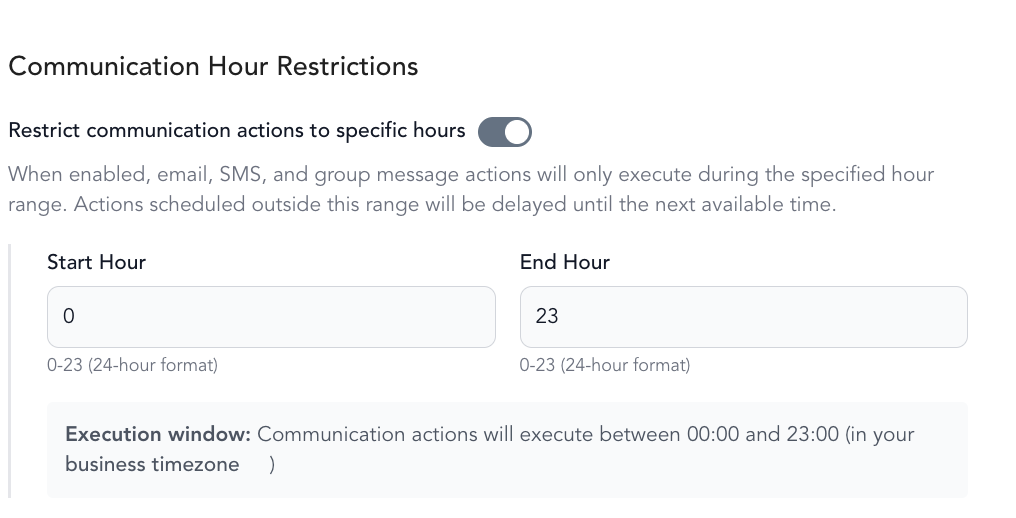
When a message is ready to send outside the allowed window, it waits until the next valid time. On the enrollments page, you can see which clients are waiting for a communication step.
Hour restrictions apply to email and SMS only — tasks and tag actions aren't affected.
View enrolled clients
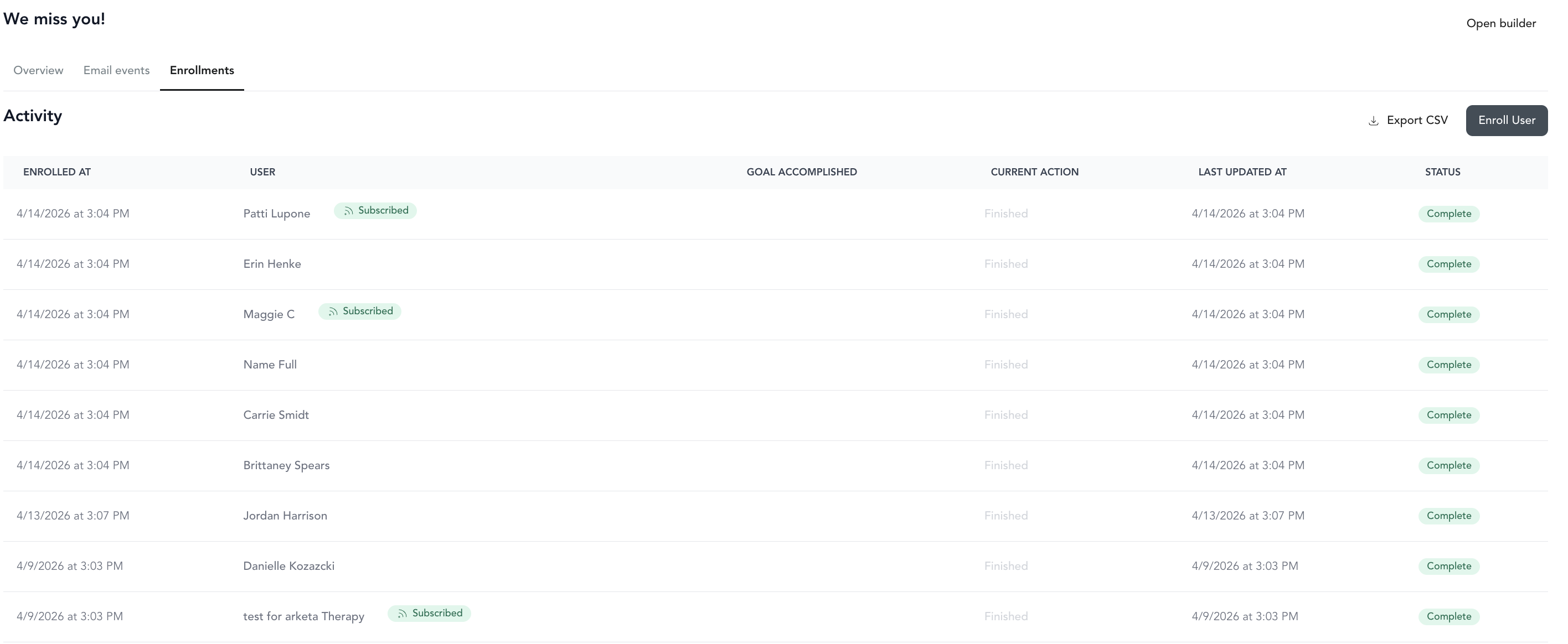
From the automation's detail view, you can see which clients are currently enrolled, what step they're on, and whether they've completed the goal (if set).