
Share email templates
Give every studio in your organization on-brand email templates — in their template picker, or pushed as their own copy.
Share email templates across your organization so every studio sends on-brand, up-to-date emails — in broadcasts and in automations.
There are two kinds of shared templates:
- Library templates built in your organization appear in every studio's template picker automatically. No push needed.
- Pushed templates are copied into a studio's own templates, where the studio can edit them.
Build a template for every studio
Organization admins build library templates in the organization itself.
- Switch to your organization and go to Sharing → Email templates
- Click New template
- Enter a Template name, choose a Format (Drag and drop, Plain text, or HTML), and click Create and edit
- Build the email and save
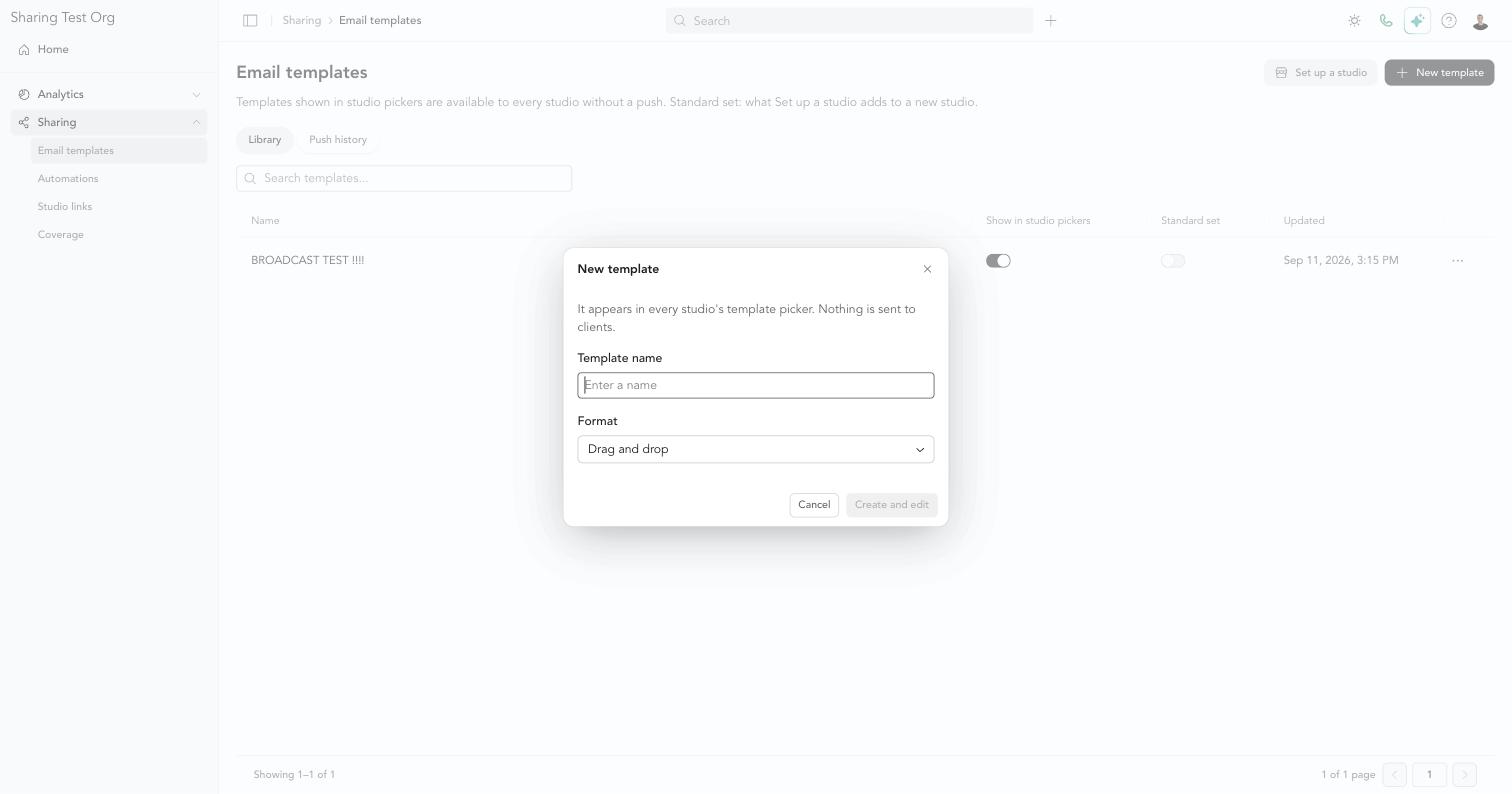
The template appears in every studio's template picker under Organization templates. Nothing is sent to clients.
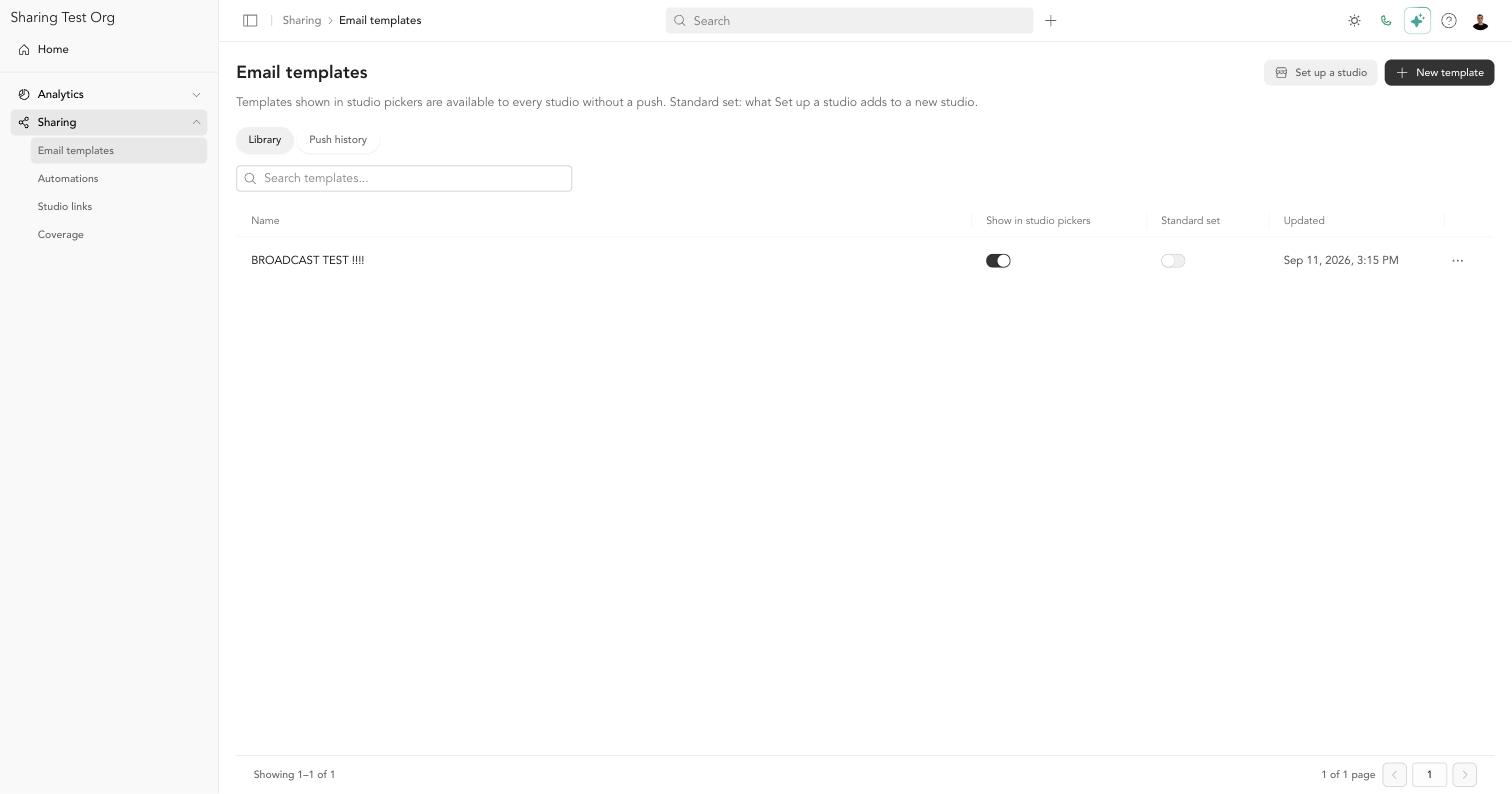
Show or hide a template in studio pickers
Use the Show in studio pickers switch to control whether studios can pick a template. Turn it off to keep a template in the library without studios seeing it — for example, while you're still working on it.
Use each studio's own branding
Organization templates are stored without any one studio's branding. In the email builder, the Brand group of merge tags inserts each studio's logo, button color, background color, text color, and fonts. When a studio uses the template, those tags fill in with that studio's branding.
Colors you pick by hand in the drag-and-drop builder's color picker stay the same at every studio. To use each studio's own colors, insert the Brand color tags instead.
Share a template a studio already has
An organization admin can share any studio's email template up to the library from that studio's email templates. The library keeps a copy; later edits at the studio don't change it.
Push a template to studios
- Go to Sharing → Email templates
- Click ⋯ on the template, then Push…
- Choose the studios and click Push to [n] studios
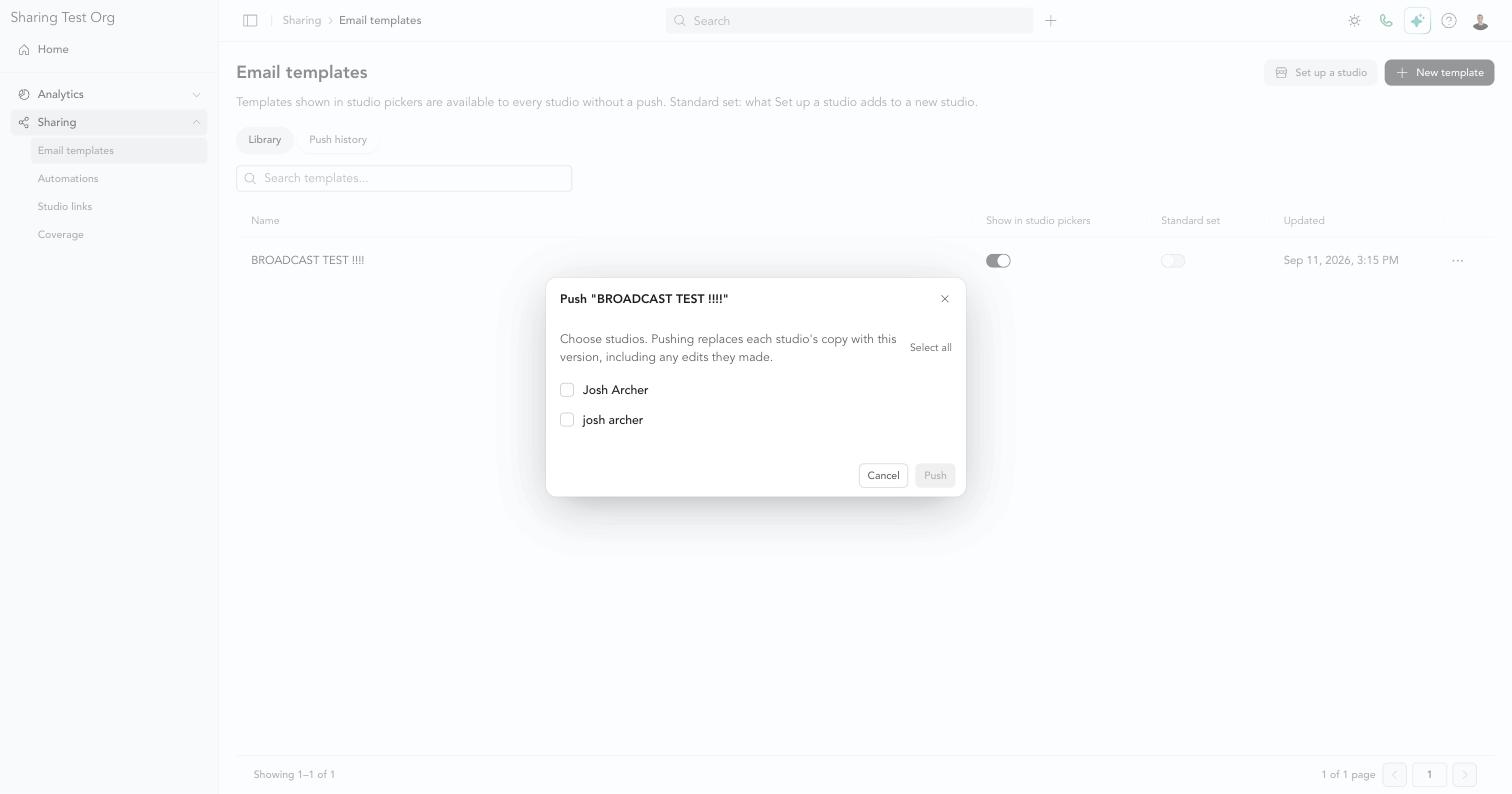
Pushing replaces each studio's copy with this version — including any edits the studio made. If a studio has edited its copy, the Push dialog shows Edited by the studio on [date] and asks you to confirm before overwriting it.
What studios see
- In the template picker: an Organization templates section when creating a broadcast or an automation email, or under Marketing → Email templates. Picking one makes a copy in the studio.
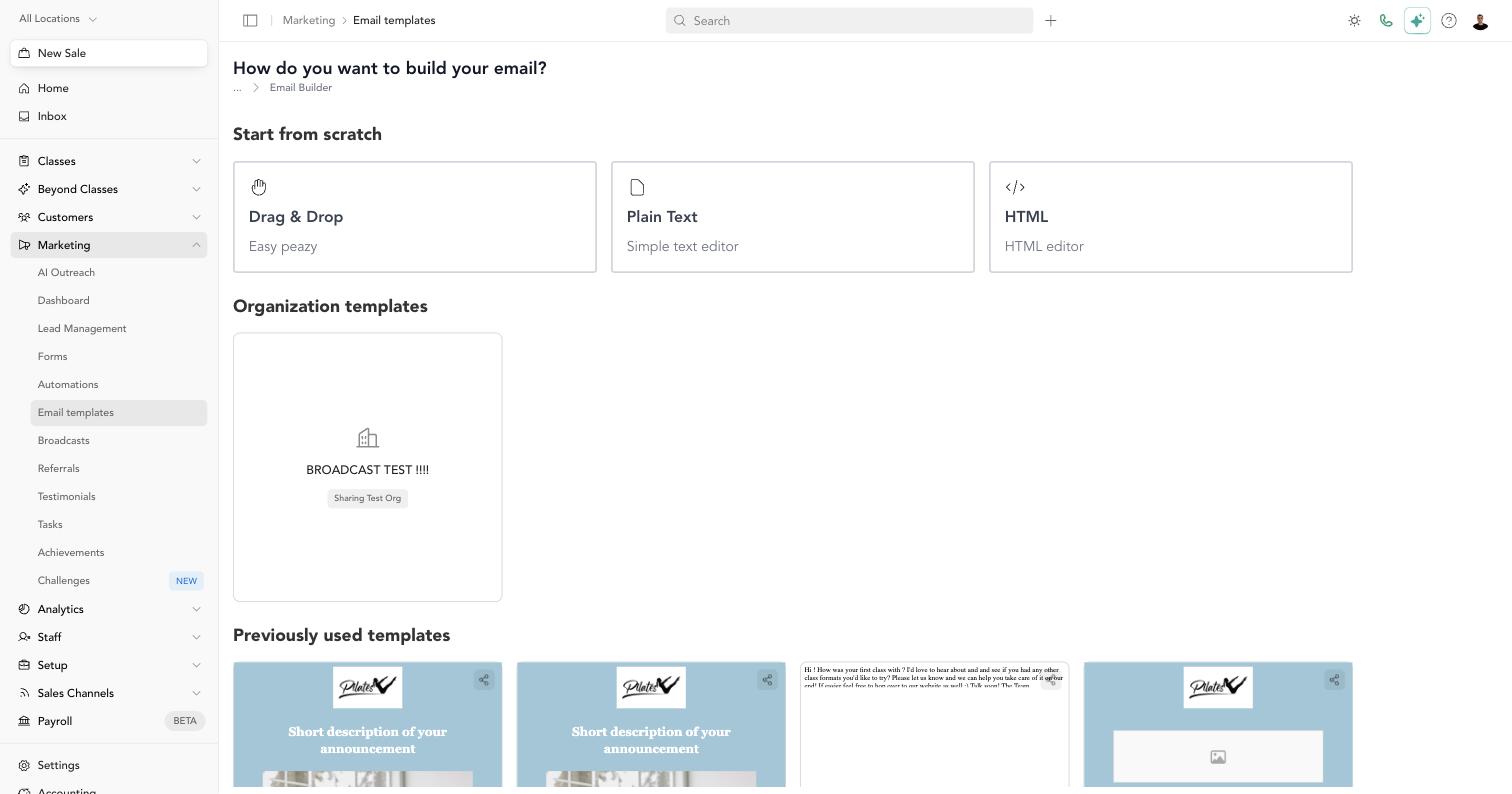
- On a copy from the organization: a banner says the email came from your organization, and that an update from the organization replaces it, including the studio's edits. Studios that want to keep their own version can duplicate it.
Use shared templates in broadcasts
Studios can start a broadcast from an organization template, then edit and send it like any other broadcast. Studio links in the template fill in with the sending studio's own URLs. Studio links →
Rename or delete a template
Click ⋯ on the template for Edit, Rename…, or Delete. Deleting removes it from the library and from studio pickers. Copies studios already made are theirs to keep.