
Studio links
Give one shared email or text each studio's own link — intro offers, booking pages, review links — filled in when it sends.
Studio links let one shared email or text carry each studio's own link — its intro offer, booking page, review page, or anything else that's different at every studio.
Instead of pasting a URL into a shared template (which would send every studio's clients to the same place), you put a studio link in the template, like {{{studioLinks.introOffer}}}. When the message sends, Arketa fills in the URL for the studio that's sending it.
Why use studio links
- One template works everywhere. Push the same automation or email to 20 studios and each one links to its own page.
- Change a link in one place. Update a studio's URL on the Studio links page and every automation, broadcast, and template that uses it picks up the new link on its next send. No re-pushing.
- No broken links go out. If a studio doesn't have a value yet, Arketa won't let an automation that uses it turn on, or a broadcast that uses it be scheduled, at that studio.
Create a studio link
Organization admins manage studio links.
- Switch to your organization and go to Sharing → Studio links
- Click Create new
- Enter a Label your team will recognize, like Intro offer
- Click Create link
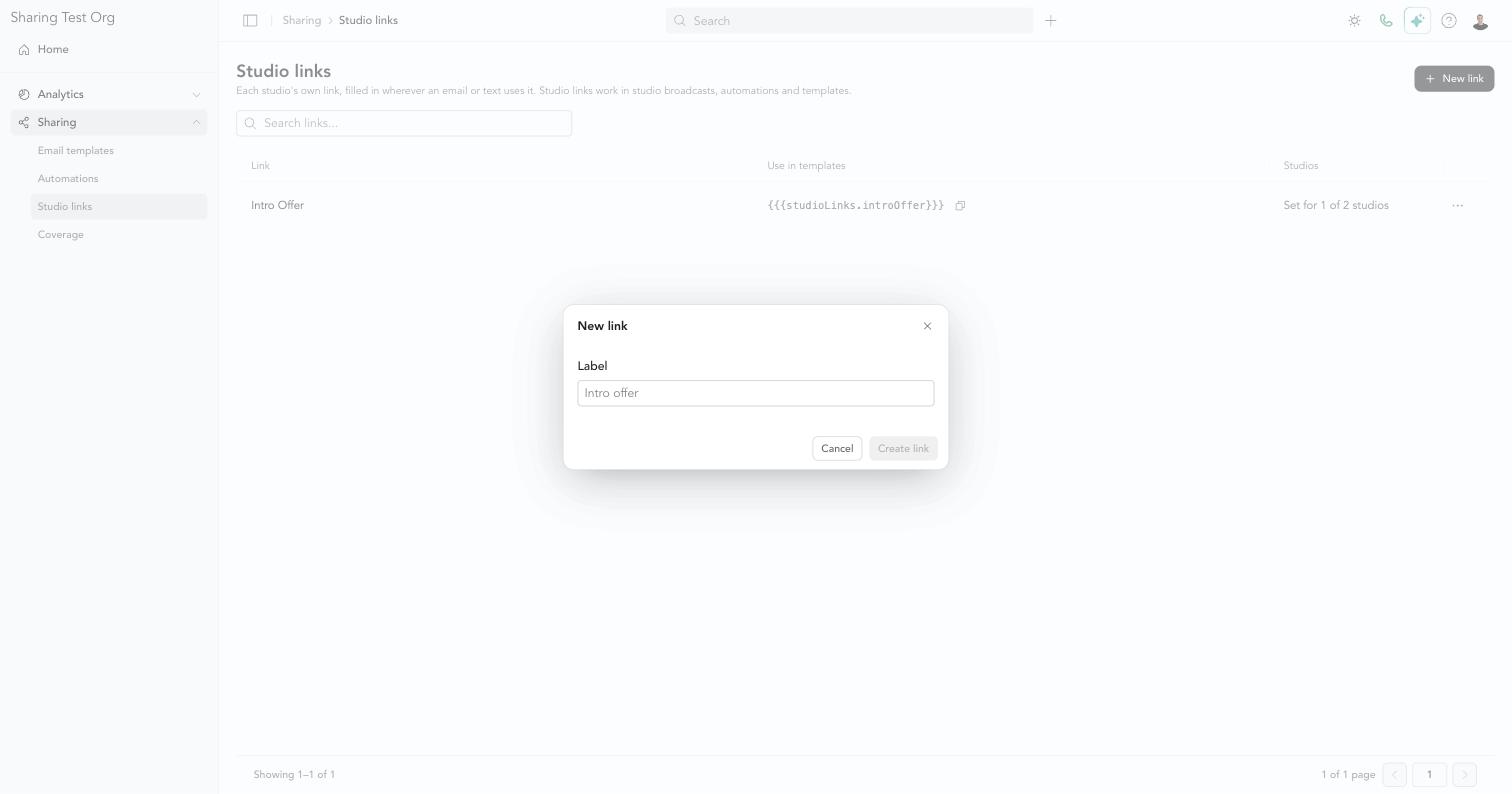
Arketa creates the name used in templates from the label — Intro offer becomes {{{studioLinks.introOffer}}}. That name can't be changed later, because emails and texts already using it would stop working. You can rename the label at any time.
Set each studio's link
- On Sharing → Studio links, click ⋯ on the link, then Edit link
- Enter the full URL for each studio (starting with
https://) - Click Save
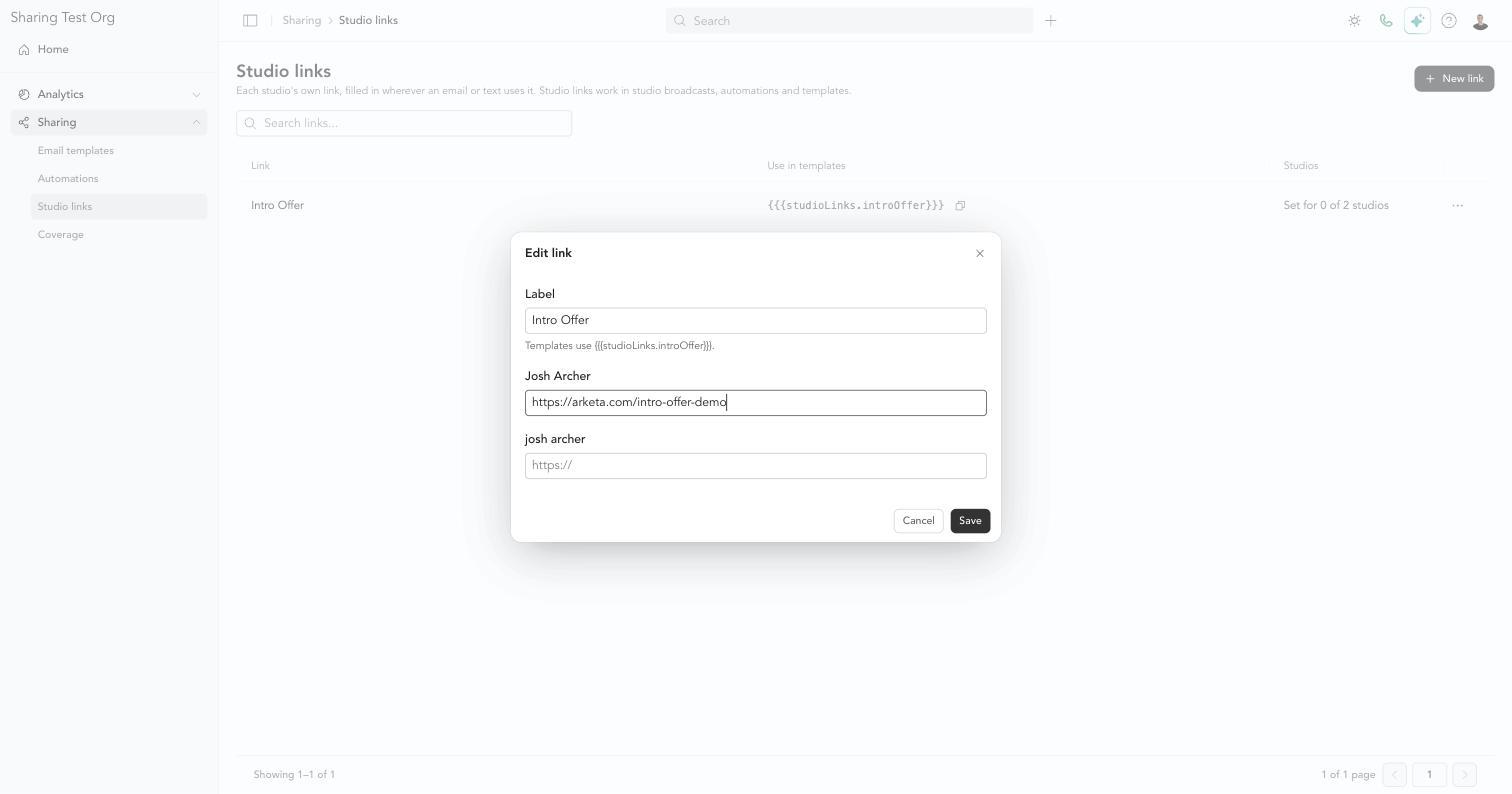
The Studios column shows how many studios have a value, like Set for 1 of 2 studios.
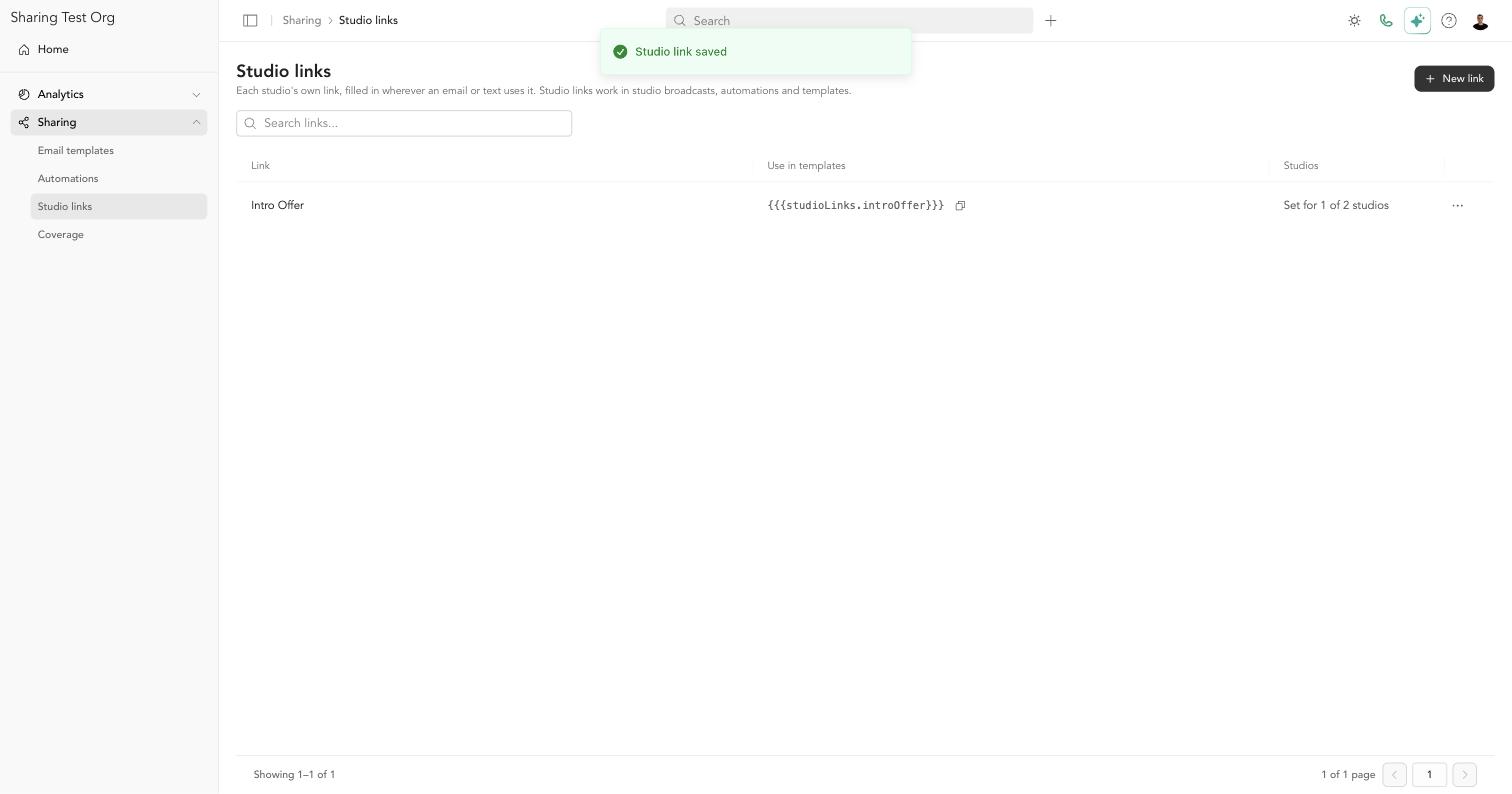
Leave a studio blank only if that studio doesn't need the link. Anything that uses the link can't turn on or be scheduled at a studio until it has a value.
Use a studio link in an email or text
Copy the template name from the Use in templates column on Sharing → Studio links (click the copy icon) and paste it into your email or text — for example {{{studioLinks.introOffer}}}.
Studio staff can also insert one from the message editor: click + Studio link and choose the link. A link that isn't set yet for the studio you're in is marked no value for this studio yet.
In texts, the full URL is filled in when the message sends and counts toward the message length.
What happens when a studio has no value
| Where the link is used | What happens at a studio with no value |
|---|---|
| Automation | The automation shows Needs setup and can't be turned on. Its Setup checklist lists the link under Waiting on your organization admin. |
| Broadcast | The broadcast can't be scheduled until the link is set. |
| Test send | The test sends, with the link left blank, so you can still preview the message. |
| Push | Before you push, Arketa warns you which studios are missing a value for a link the item uses. The push still goes ahead. |
Once you add the missing value, the studio can turn the automation on right away — nothing needs to be re-pushed.
Where studio links work
Studio links work in a studio's broadcasts, automations, and email templates. They don't work in broadcasts sent from the organization itself, because the organization isn't one studio and has no link of its own to fill in — Arketa won't let you schedule an organization broadcast that uses one.
Change or delete a studio link
- Change a URL: edit the link and save. New sends use the new URL within about a minute.
- Delete a link: click ⋯ → Delete link. Automations that are already live and broadcasts that are already scheduled will send with that link blank, so replace it in those messages first.