
Set up a shared automation at your studio
Find automations your organization shared with you, match them to your studio, and turn them on.
This guide is for studio owners and staff. When your organization shares an automation with your studio, you get your own copy as a draft. Here's how to find it, finish setting it up for your studio, and turn it on.
Find shared automations
Shared automations reach your studio in two ways:
- Your organization pushes one to you. It appears in Marketing → Automations on the Inactive tab, with a Draft status and a From [organization] badge.
- You add one yourself. Go to Marketing → Automations and click Organization library.
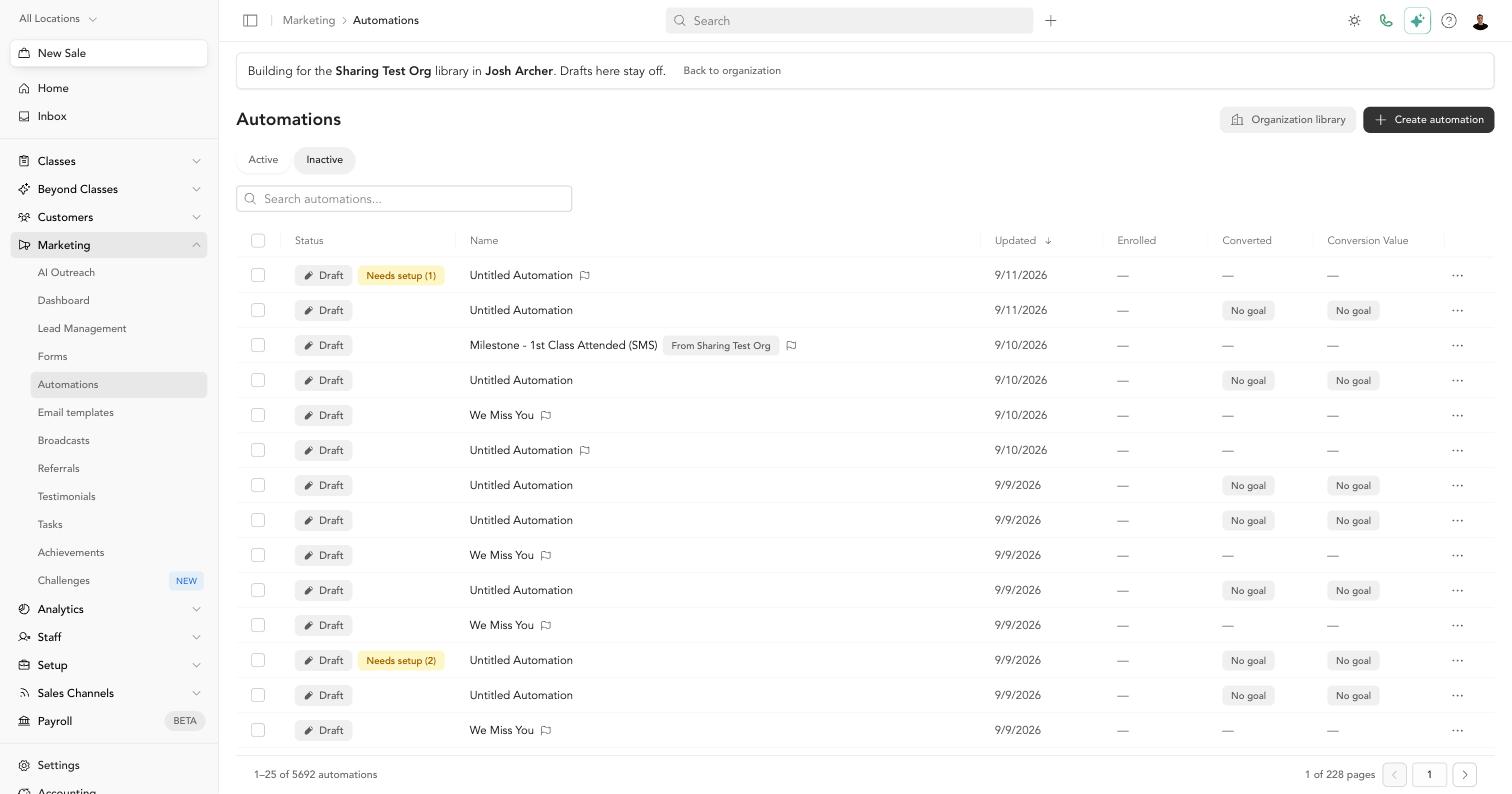
Add an automation from the Organization library
The Organization library lists every automation your organization has shared. Click Add to my studio to add a draft copy to your studio. Nothing turns on until you turn it on.
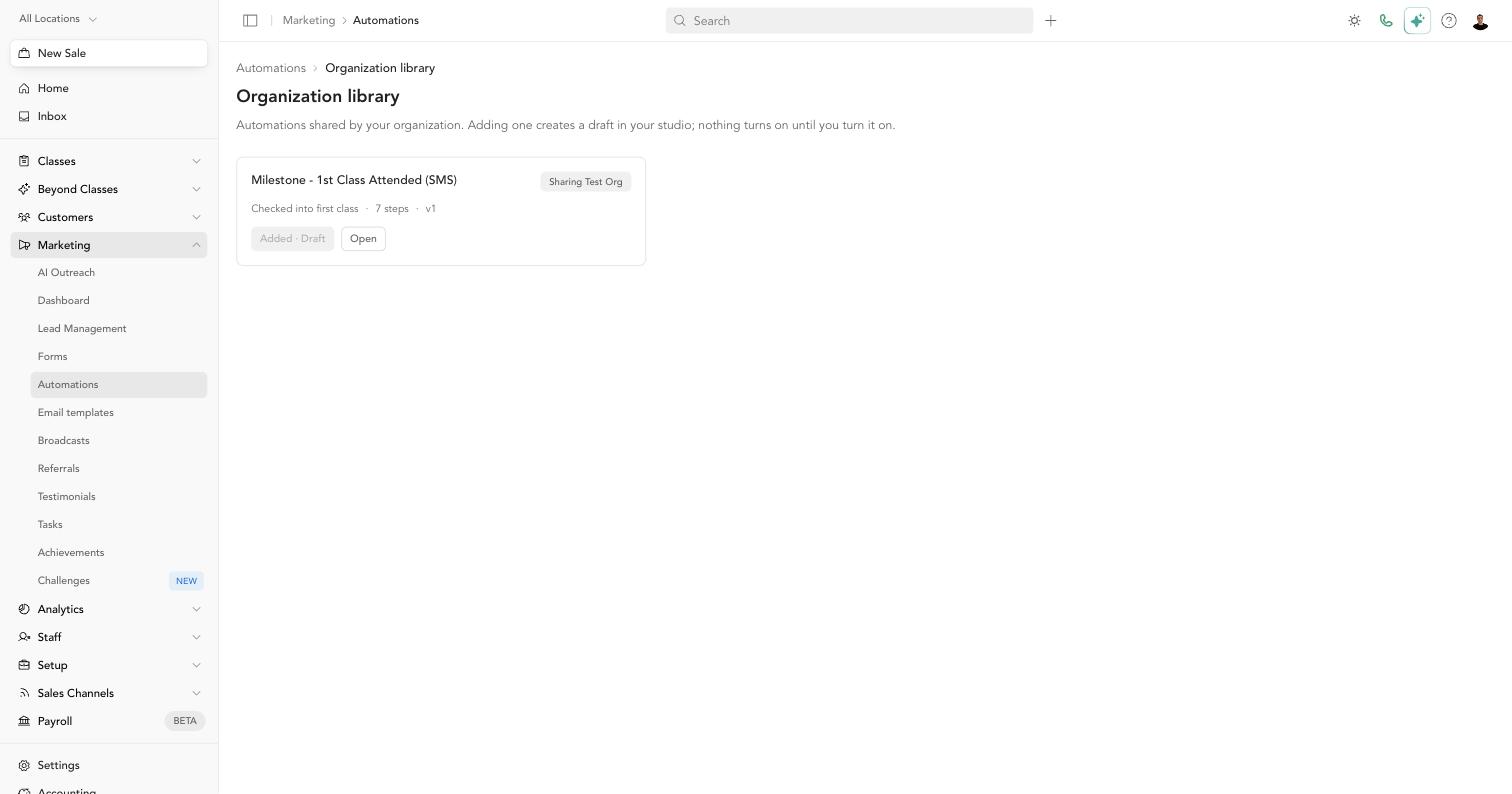
Each card tells you where you stand:
| Button | Meaning |
|---|---|
| Add to my studio | You don't have this automation yet |
| Added · Draft (or Live, Paused, Needs setup) | You already have a copy. Click Open to go to it |
| Update available (v2) | Your organization shared a newer version. Adding it creates a new draft; your current copy keeps running until you turn it off |
If you try to add an automation you already have, Arketa asks whether to Open it or Add another copy.
Needs setup: what's left before it can turn on
An automation from your organization was built at another studio, so it can mention things your studio calls something different — a pricing option, a service type, a tag, a form, or a location. Arketa matches these to your studio's items by name automatically. Anything it can't match is left for you.
When something is left, the automation shows a yellow Needs setup (n) badge. Hover over it to see what's left.
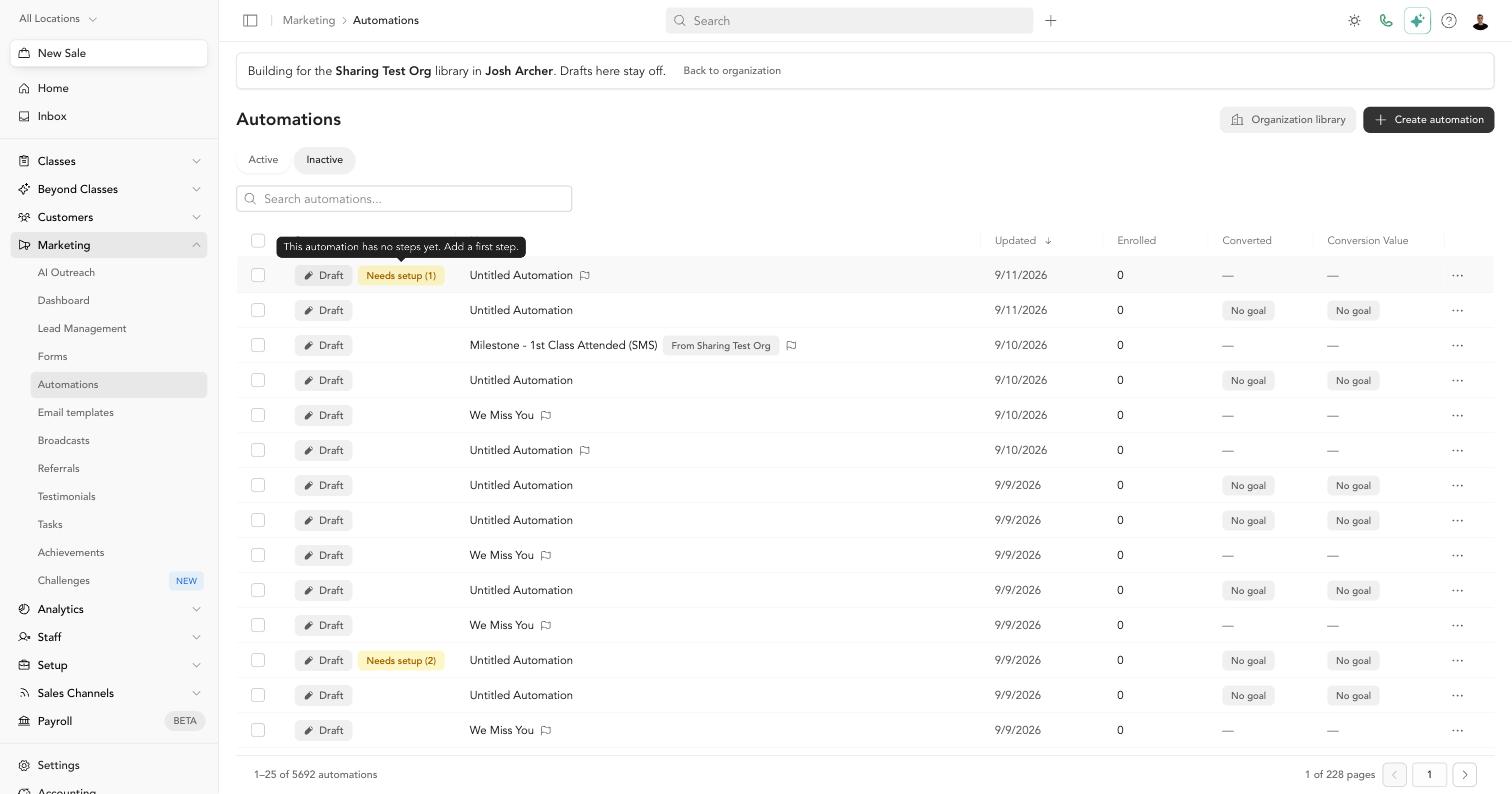
Needs setup also appears on any draft you're still building — for example, one with no steps yet. It's the same check: it lists everything that stops the automation from turning on.
The Setup checklist
Open the automation. When anything is left, a banner at the top says Not ready to turn on, with how many items you can fix and how many are waiting on your organization admin. Steps that need attention are marked on the canvas.
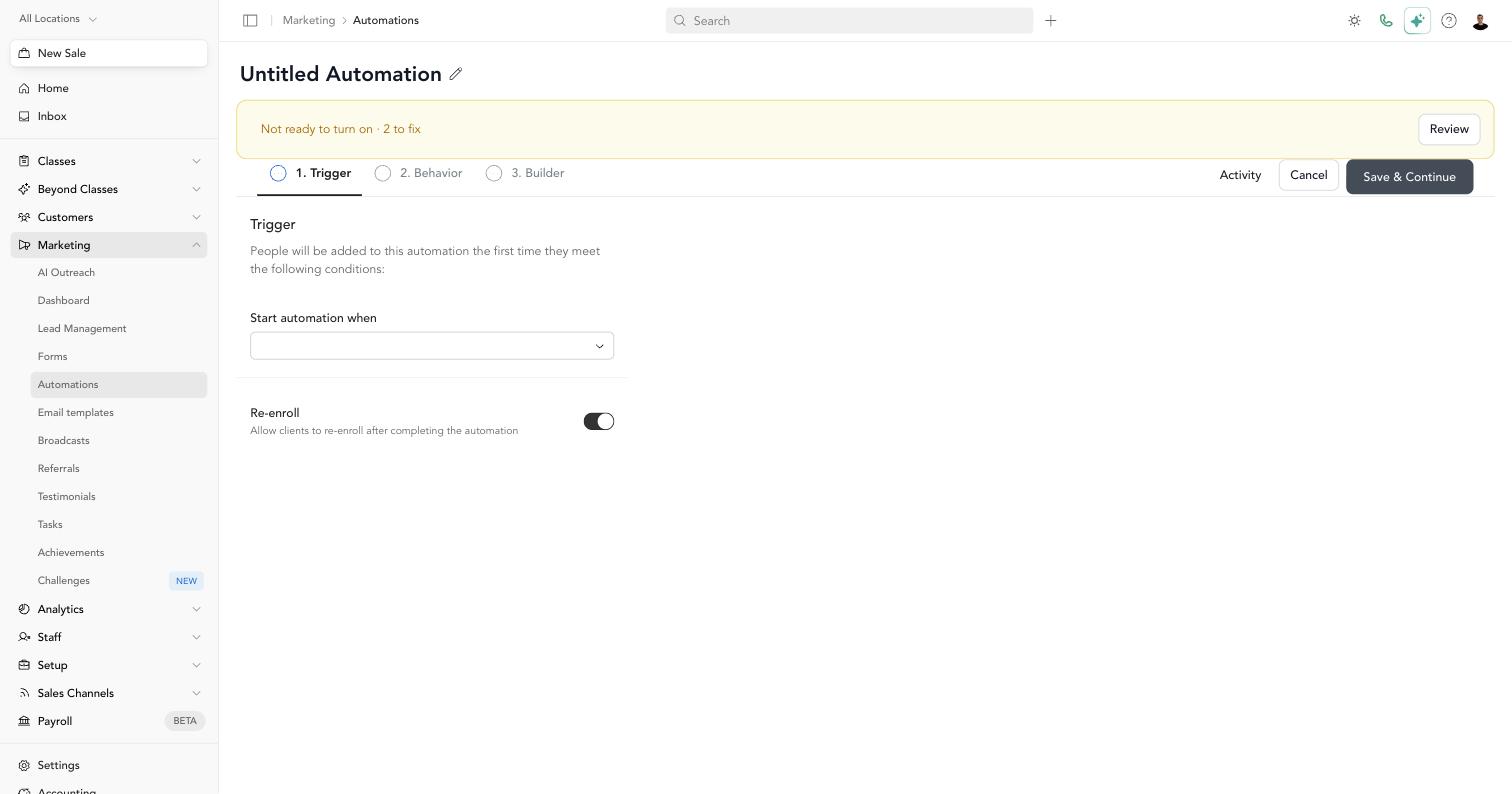
Click Review to open the Setup checklist and see everything in one place, grouped by who fixes it:
- You can fix — items to match, and steps to review. Every row links straight to the trigger, goal, or step it's about.
- Waiting on your organization admin — things only your organization admin can fix, like a studio link that isn't set for your studio yet. Click Check again after they've fixed it.
- Worth checking — suggestions that won't stop the automation from turning on, like an email step with no sender chosen (it sends from your studio's default address).
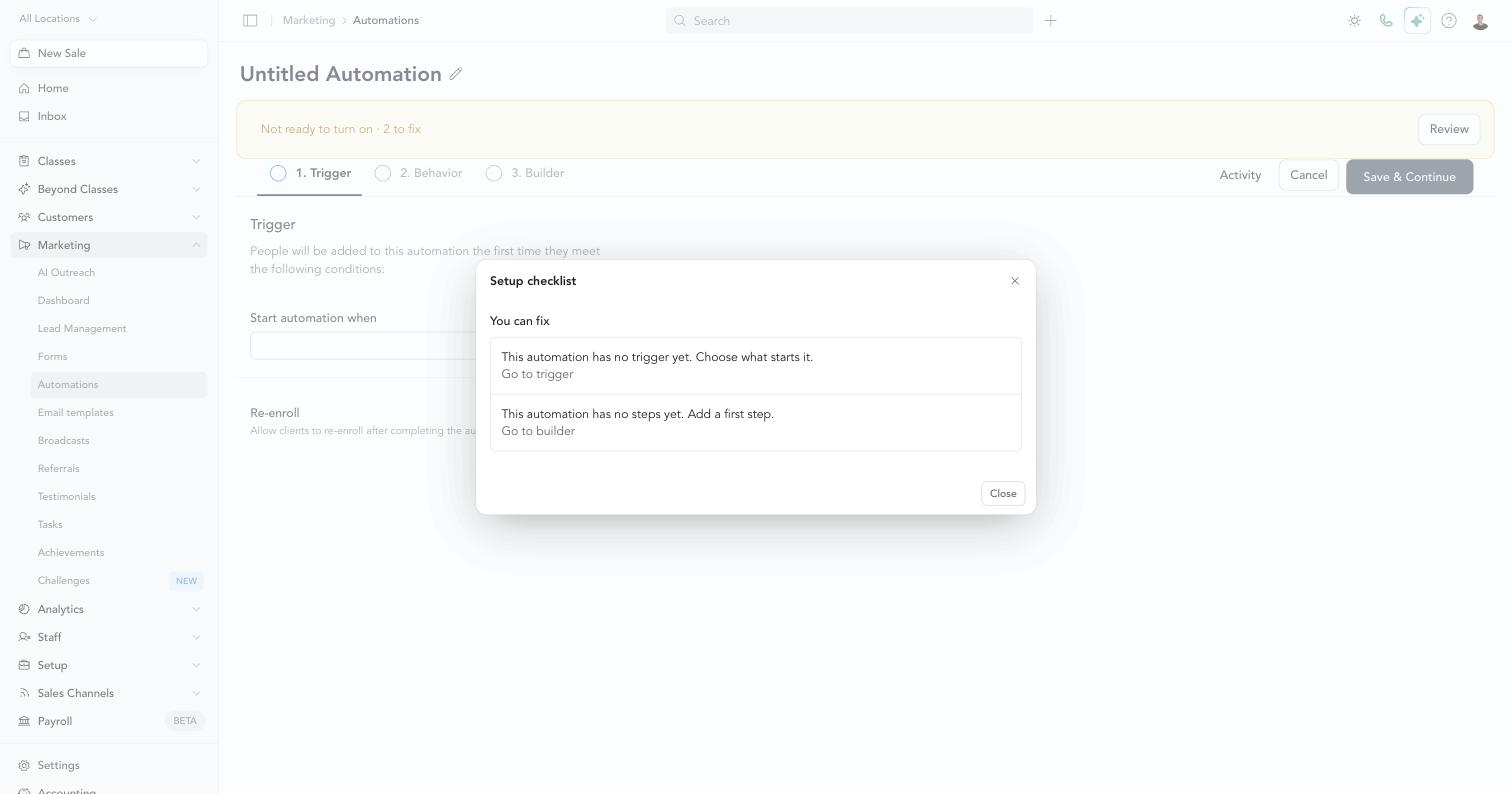
When everything is done, the checklist says Everything is set up. You can turn this on.
Match items to your studio
Click Match items in the Setup checklist. For each item, pick the one at your studio it should use:
| Item type | What you can choose |
|---|---|
| Pricing option, service type, form, location, lifecycle stage | Any of your studio's matching items |
| Tag | Any of your tags, or Create tag with the same name |
| Any item in a list | Not used at this studio, to take it out |
Items you leave blank can be matched later — the automation just stays off until everything is matched.
Not used at this studio takes an item out of a step. You can't remove the last item from a list, because an empty list would match every client. Pick a real item instead, or edit the step.
Arketa remembers your matches
When you save, keep Use these matches next time checked. The next time your organization sends your studio an automation with the same items, Arketa uses your earlier matches automatically. To undo one, open Saved matches on the automation and click Forget — the item goes back to needing a match. (Turn the automation off first if it's on.)
Condition steps to review
A condition step — like has purchased or has booked — can have rules Arketa can't safely match on its own. These appear in the checklist as steps to review:
- Click the link to open the step in the builder
- Update the rules for your studio and save the step
- In Match items, check I've updated and saved this step
Arketa checks that the step's rules actually changed. If you tick the box without editing the step, nothing is saved and Arketa tells you which step still needs updating. This stops an automation from quietly targeting another studio's clients.
Items that belong to another studio
If a step still points at a pricing option, service type, or tag from another studio, the checklist lists it as an item from another studio. Match or remove it before turning the automation on.
Turn it on
Once the checklist is clear, click Set to active in the builder (or turn the automation on from your Automations list). If anything is still left, Arketa opens the Setup checklist instead of turning it on, so you can see exactly why.
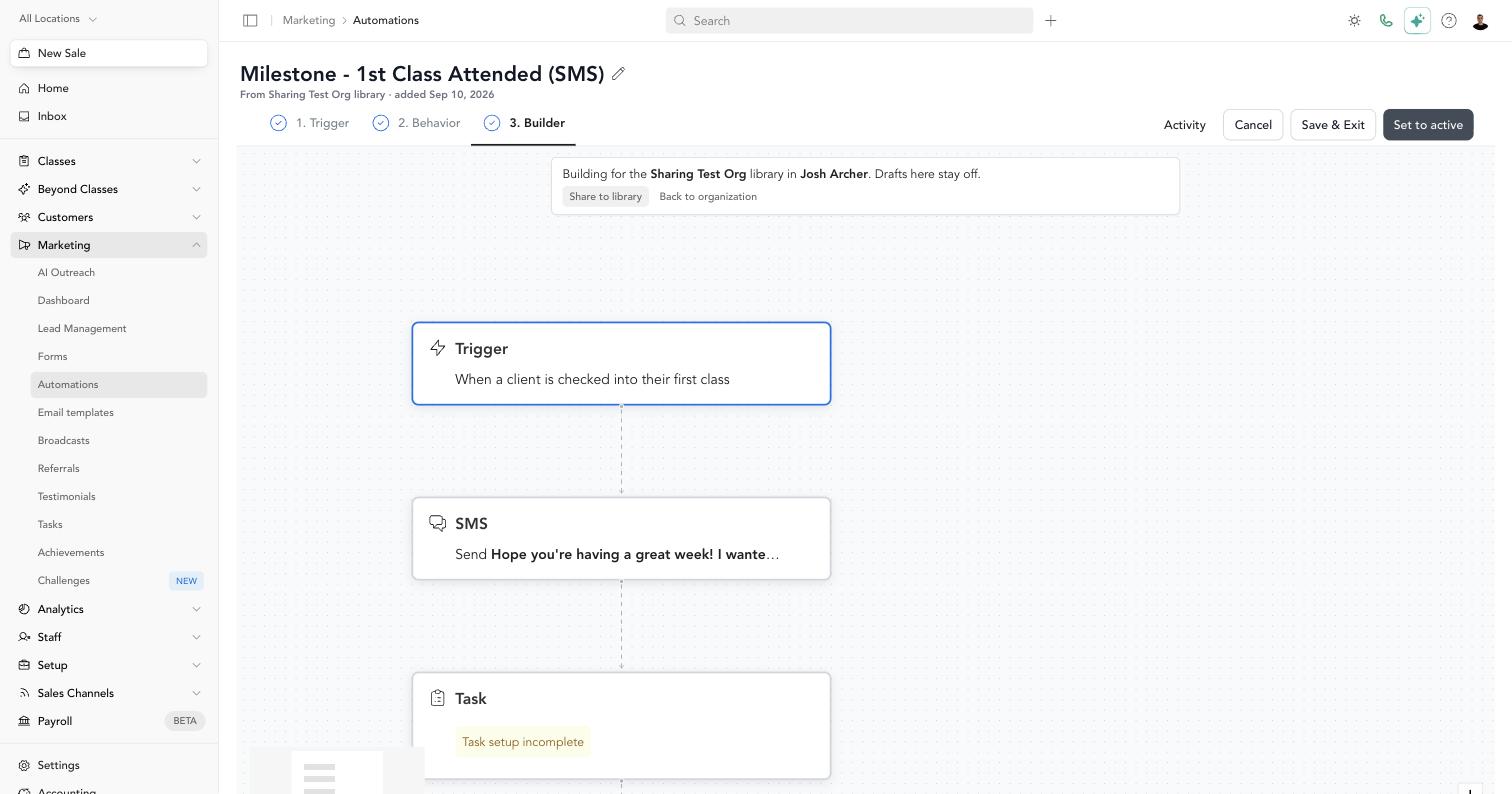
Your copy is yours
- Edit it however you like. Changes you make only affect your studio.
- Your live copy is never replaced. Your organization can send you a newer version, but it arrives as a new draft or replaces only a copy you haven't turned on.
- Share it back. If you're an organization admin, click ⋯ → Share to organization on any automation to add it to the library.