
Set up Zoom
Connect your Zoom account to Arketa so classes automatically get unique meeting links.
Arketa integrates directly with Zoom to create a unique, password-protected meeting link for each class automatically. You never have to create a Zoom meeting manually or worry about sharing the same link for every class.
Connect Zoom
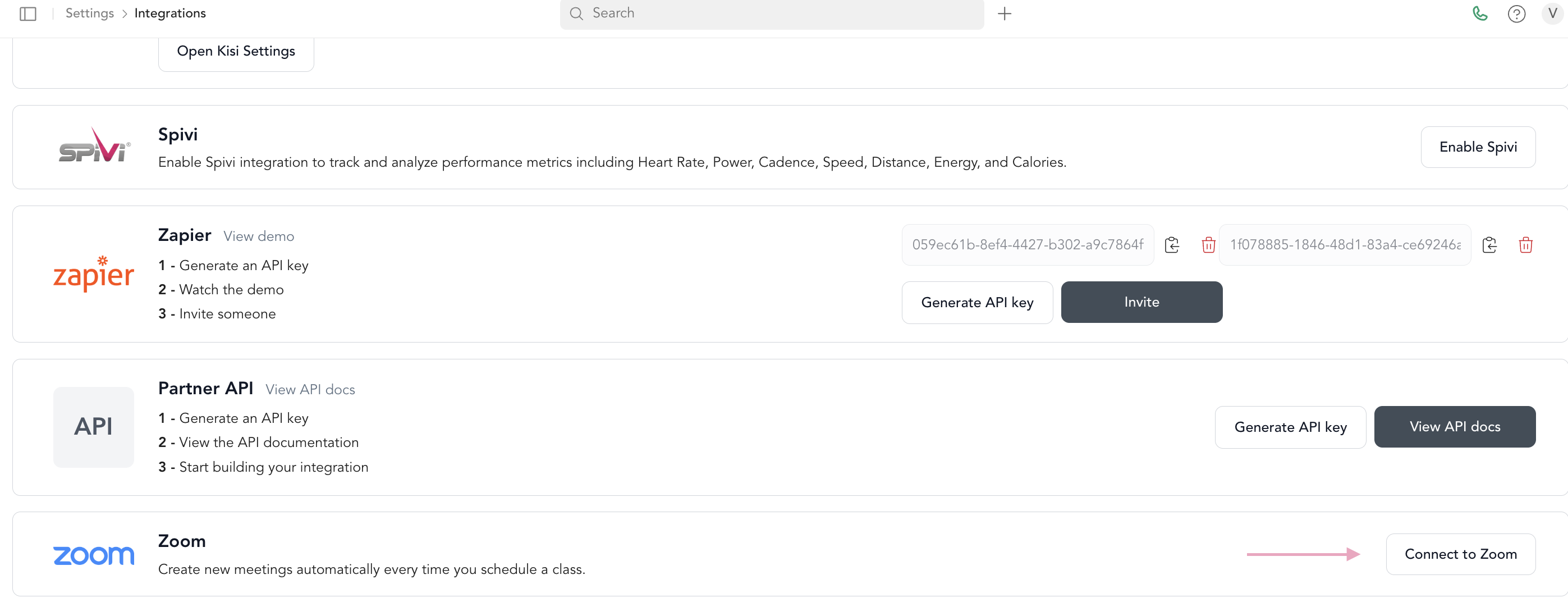
Go to Settings → Integrations
Navigate to Settings → Integrations in your dashboard.
Sign in and authorize
You'll be redirected to Zoom. Sign in to your Zoom account and click Authorize to connect it to Arketa.
That's it. Going forward, when you create a virtual class using the Zoom integration, Arketa automatically creates a unique Zoom meeting for that class.
How the Zoom integration works
- Zoom meetings are created approximately 24 hours before each class start time
- Each meeting has a unique, password-protected link
- The password is embedded in the link, so clients just click and join — no separate password needed
- Meetings also appear in your Zoom account dashboard
Because meetings are only created 24 hours out, you won't see upcoming class meetings in your Zoom account more than a day in advance. This is normal.
Auto-upload recordings
You can set Arketa to automatically upload your Zoom class recordings to your on-demand video library after class ends.
In Settings → Integrations → Zoom, enable Automatically upload Zoom recordings to video library.

Learn more about auto-uploading recordings →
Configure your Zoom settings before connecting
Arketa pulls your current Zoom settings when creating meetings. Make sure your Zoom account is configured the way you want before you start connecting classes:
- Passwords — enable meeting passwords so links are secure
- Waiting room — configure whether you want a waiting room
- Recording — set cloud recording preferences if you want auto-upload to work
- HD video — enable HD if you're teaching on camera
All meeting settings (password protected, waiting room, etc.) are all controlled within your Zoom account directly.
Disconnect Zoom
To disconnect your Zoom account, go to Settings → Integrations and click the disconnect option next to Zoom.
Disconnecting Zoom won't affect classes that already have Zoom links. New virtual classes you add after disconnecting will need a manual Zoom link.