
Modify or cancel a booking
Edit, move, or cancel a client's reservation from their profile or from the schedule.
You can modify or cancel a client's booking from either the class roster/check-in screen or directly from the client's profile.
Cancel a booking
From the class roster:
- Go to Full Schedule → click the class
- Find the client in the roster
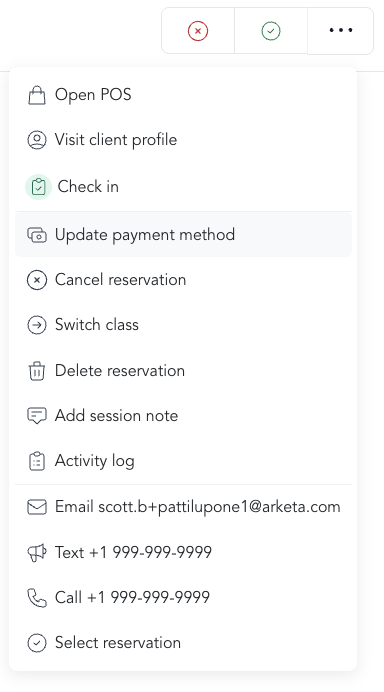
- Click the ... next to their name
- Select Cancel reservation
From the client's profile:
- Open the client's profile → Bookings tab
- Find the booking
- Click the actions menu → Cancel
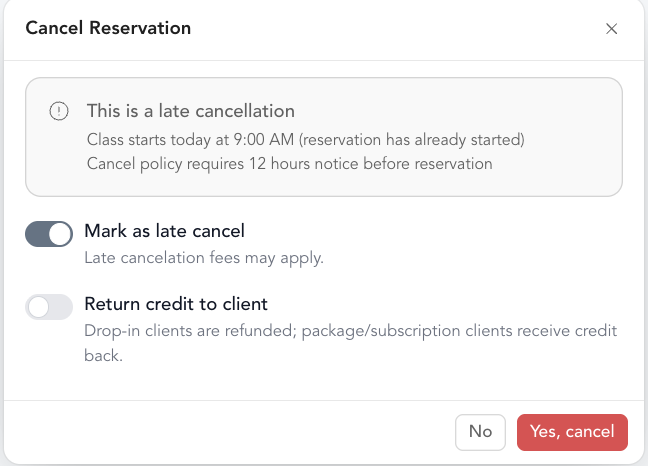
When canceling, you'll be asked whether to refund. What "refund" means depends on how the client paid:
- Paid (drop-in) — the client paid dollars, so the refund returns money to their credit card
- Credit-based (package or subscription) — the client used a credit, so cancellation returns the credit to their package or membership balance (no money goes back to their card)
- No refund — removes them from the class without any credit or monetary refund
Move a client between classes
You can move a client to a different class without losing their payment:
- Go to the class → click ... next to the client
- Select Move to another class
- Choose the new date and class
- Select Unpaid as the payment method for the new class
- After confirming, return to the original booking and process any refund/credit there
The credit freed from the original booking can then be applied to the new class. See move between classes for the step-by-step.
Late cancel a booking
If you cancel a booking inside your cancellation window, you can mark it as a late cancellation. This is for record-keeping and reporting — it doesn't automatically charge a fee. If you want to charge a late cancel fee, do that separately through the point of sale or set up a late cancel policy to auto charge.
Modify payment on a booking
If a client paid with the wrong method (e.g., used a drop-in when they have a package):
- From the class roster, click ... next to the client
- Select Update payment method
- Choose the correct pricing option
See roster management for more options.