
Availability overrides
Temporarily change your availability for specific dates without altering your regular schedule.
Overrides let you make one-time changes to your availability for a specific date — closing early for a holiday, opening on a day you're normally closed, or blocking off a morning for a meeting. Your regular weekly hours stay the same; the override only applies to the date you specify.
How overrides work
Your regular weekly hours define your default availability. An override replaces those hours for a single date. The day before and day after are unaffected.
Example: Your regular Monday hours are 9am–6pm. You have a dentist appointment on Monday April 14th and can only take clients from 1pm–6pm that day. Set an override for April 14th with hours 1pm–6pm, and that Monday will show reduced availability without changing every other Monday.
Create an override
Overrides can be set for both team members and locations.
For a team member:
-
Go to Setup → Team
-
Click on the team member → Availability
-
Scroll to Overrides
-
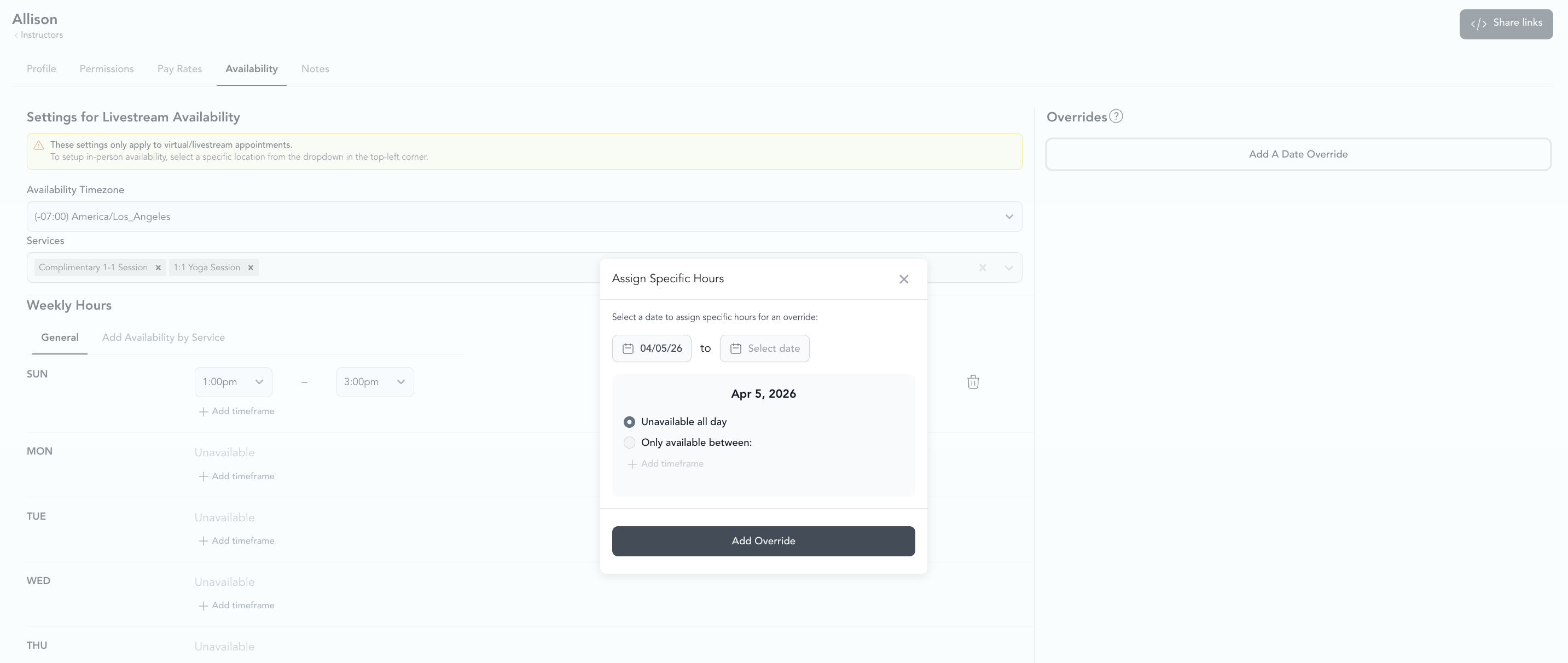
Select the date
-
Choose either:
- Unavailable all day — blocks the full day
- Only available between — set specific hours for that date
-
Save
For a location:
- Go to Settings → Locations → [location] → Hours
- Scroll to Overrides
- Same date + availability options as above
A location override applies to the entire location — every appointment and service type booked there follows it for that date. Even though you set Weekly hours for individual service types, date overrides are not scoped to a single service type, so the same override shows on every service type at that location. To limit availability for just one service type, adjust that service type's Weekly hours instead.
Delete an override
Click the trash can icon next to the override to remove it. The regular weekly hours will apply again for that date.
Common uses
- Holiday closures
- Vacation days
- Team member out sick or traveling
- Special events with different hours
- Staff training days
Close your studio for a holiday or break
Closing your studio for a holiday, renovation, or planned break takes two separate steps. A location override only controls appointment booking availability — it has no effect on group classes — so you'll block appointment bookings with an override and cancel any group classes on the schedule separately.
Setting a location override does not automatically cancel appointments that were already booked before you added it — cancel those manually from the appointment calendar if the studio will be closed. It also has no effect on group classes — cancel those separately in Step 2.
Block new appointment bookings
Set a location override for your closure date(s) using the steps in Create an override above. Choose Unavailable all day for a full closure, or set specific hours for a partial-day closure. Once saved, clients visiting your booking page won't see any appointment availability on those dates.
Cancel group classes during the closure
Location overrides don't touch group classes, so cancel each one on the schedule separately. Go to Classes → Full Schedule, open each class that falls within your closure dates, and select Cancel Class. Cancelling notifies enrolled clients by email — choose to issue refunds so their credits are returned. See Cancel a class for the full flow.
Have a lot of classes to cancel? Use bulk class editing to cancel multiple sessions at once instead of opening each one individually.
Reopen after the closure
When you're ready to reopen, remove the override — click the trash can icon next to it — to restore your standard weekly appointment hours for those dates immediately.
Overrides vs. canceling a class
Studios sometimes use these interchangeably, but they do different things. During a closure you'll use both: an override to stop new appointment bookings, and a cancellation for every group class already on the schedule.
| Action | What it does | Affects existing bookings? |
|---|---|---|
| Date override | Blocks new appointment bookings on the chosen date(s) | No — appointments already on the calendar stay booked, and group classes are unaffected |
| Cancel class | Removes a specific group class from the schedule, notifies enrolled clients, and returns their credits | Yes — use it for every group class scheduled during a closure |