
Block time
Block off time slots on the appointment calendar so clients can't book during that period.
Blocking time is the quickest way to make yourself unavailable for a specific window without changing your regular availability settings. Use it for lunch breaks, prep time, internal meetings, or anything else that takes you off the calendar temporarily.
How to block time
- Go to Classes → Appointments
- On the calendar, click into the time slot you want to block
- Select Block time (instead of booking an appointment)
- Add a note for yourself if helpful (clients don't see this)
- Save
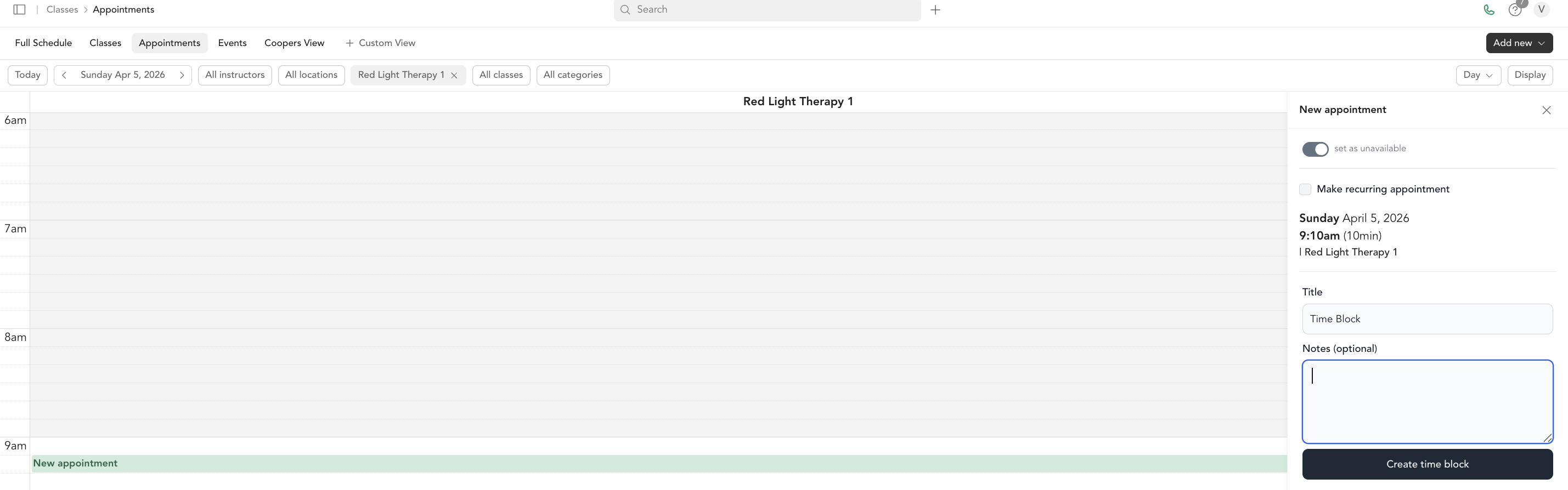
The blocked time appears on the calendar and won't show as available for booking during that window.
Difference between blocking time and overrides
| Block time | Availability override | |
|---|---|---|
| Best for | Quick, one-off blocks | Changing hours for an entire day |
| Where it's set | Appointment calendar | Team or location availability settings |
| Repeating | No | No (per-date) |
| Visible on calendar | Yes | Reflected as no available slots |
Recurring blocked time
For regular blocks that happen every week (like a standing lunch break), add them to your weekly availability hours instead. Set a break window during your weekly hours and it will apply automatically every week.
Removing a blocked slot
Click on the blocked time on the calendar and delete it to make that slot bookable again.
Was this helpful?