
Location availability
Set business hours, per-service availability, and room capacity for each location to control when and where clients can book appointments.
Location availability settings are available on Studio plans.
Location availability sets the business hours for a specific location. Clients can only book appointments at a location during the hours you've set here — even if an instructor is available, slots outside location hours won't show.
Set up location availability
- Go to Settings → Locations
- Click into the location
- Click Hours
- Configure:
| Setting | What it does |
|---|---|
| Availability timezone | Timezone for this location's hours |
| Start time increments | How often appointment slots appear (e.g., every 30 min) |
| Weekly hours | Your regular hours for each day of the week |
| Overrides | One-off changes for holidays, special events, or maintenance |
- Save
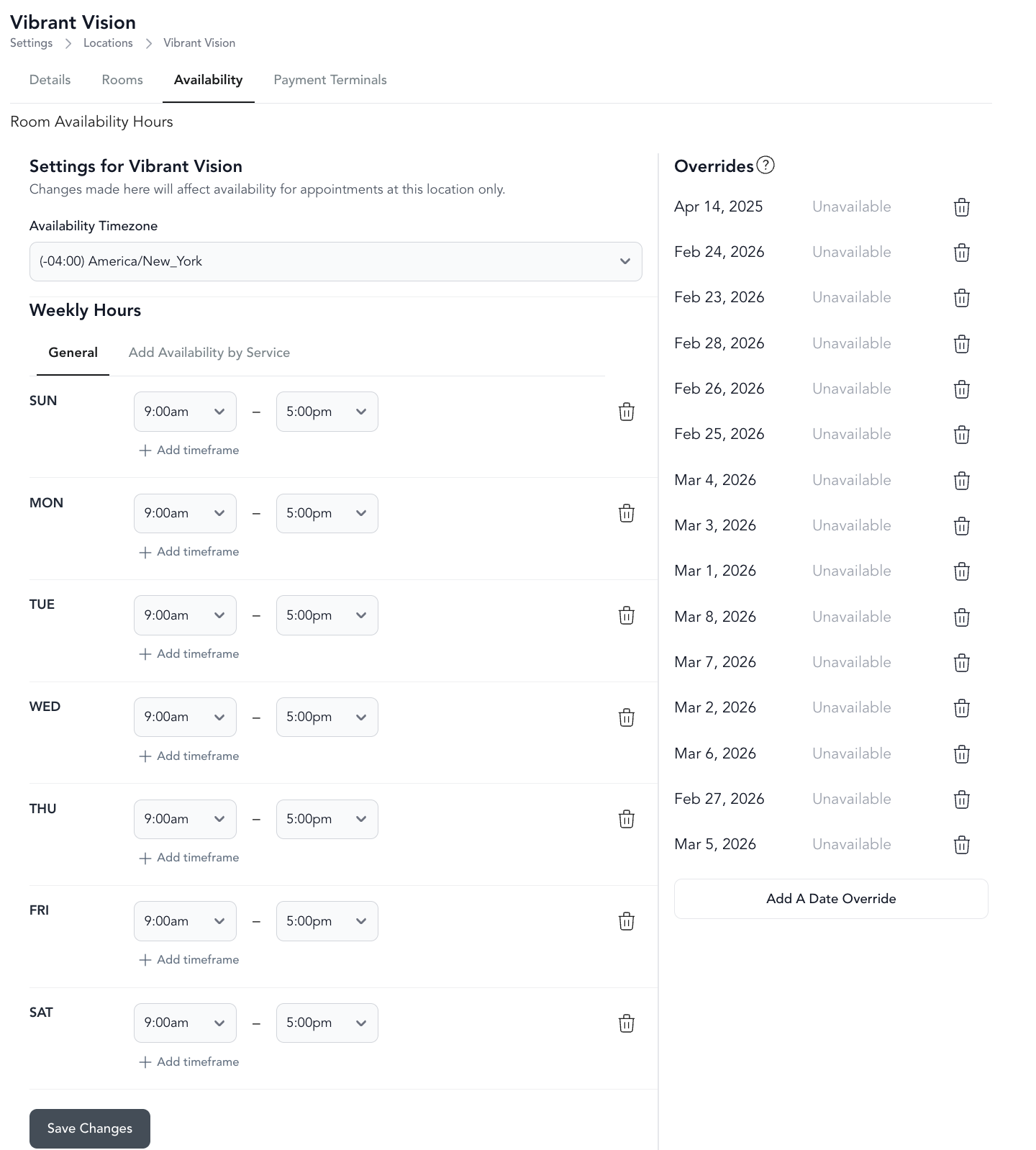
Weekly hours
Set the days and time ranges for each day of the week. To mark a day as closed, click the trash icon next to that day.
Start time increments
This controls how appointment slots are spaced on the booking page. A 30-minute increment means slots appear at 9:00, 9:30, 10:00, etc. A 15-minute increment gives more granular scheduling — useful for shorter sessions or when you want more flexibility.
Overrides
Override your regular hours for specific dates — like closing early for a holiday or extending hours for a special event. See availability overrides for details.
Service availability (services without a team member)
Some services run on their own schedule and don't need a trainer — a sauna, cold plunge, room rental, and similar. Set their bookable hours per service so clients can only book each one during the times you've chosen.
- Go to Settings → Locations → Availability
- Set General hours for the location to your overall hours of operation
- Click Add Availability by Service
- Add hours for each service that doesn't require a team member (sauna, cold plunge, room rental, etc.)
- Save
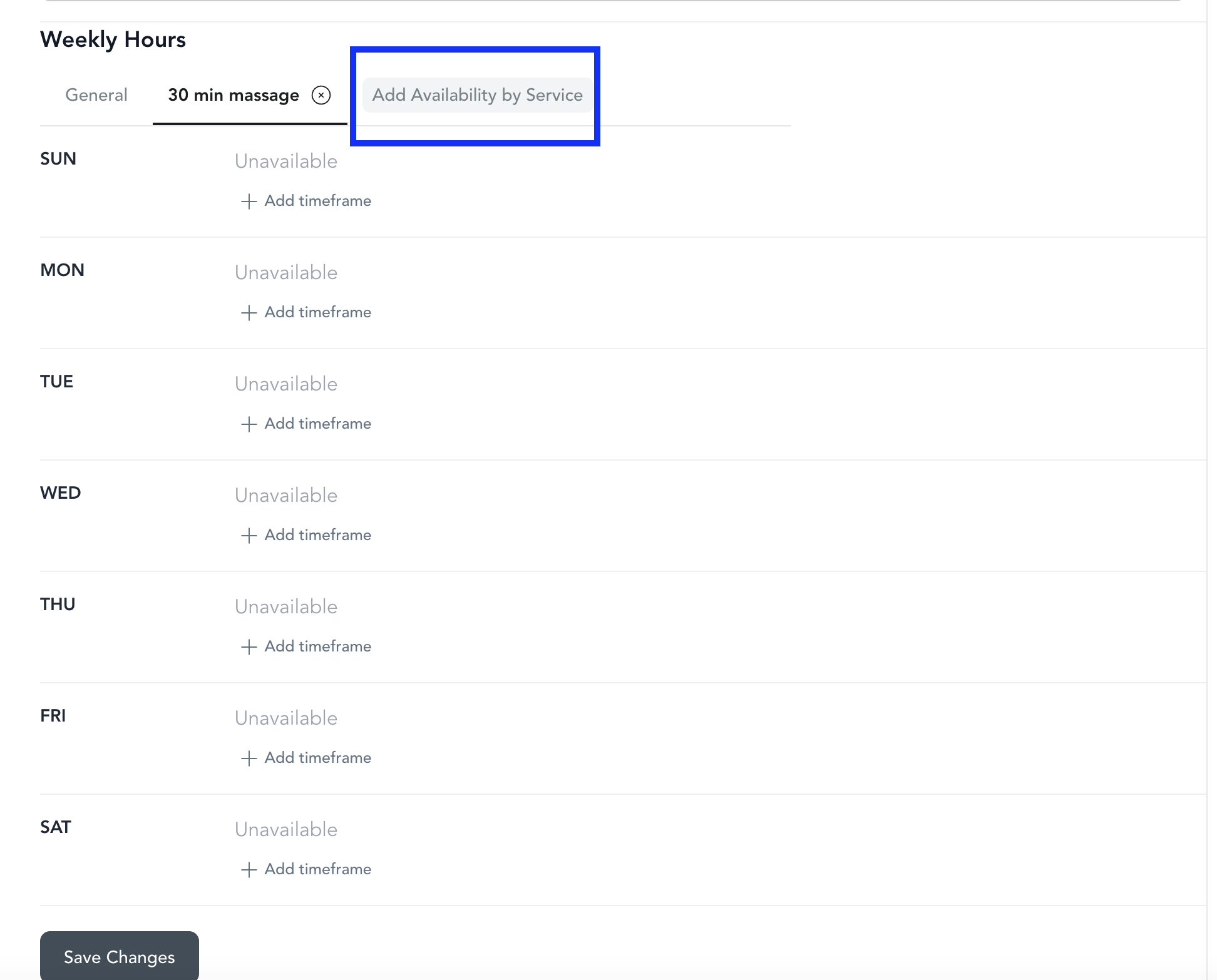
For each service, you can set:
| Setting | What it does |
|---|---|
| Available days | The days (Mon–Sun) the service can be booked |
| Start and end times | The bookable hours for each day |
| Breaks or blackout times | Optional windows to block off, like a 2–3pm lunch |
| Overrides | One-off changes for holidays or special events |
Use the availability preview to check the upcoming bookable times for each service. Conflict validation flags problems such as the studio being closed or no trainer assigned during that window.
Each service is configured on its own, so their hours can differ. For example: the sauna stays open until 11pm on weekdays, personal training must end by 10pm, and discovery calls are only offered on Wednesday mornings.
For services that need a specific trainer, set availability per team member instead — see team member availability.
Room capacity for overlapping bookings
Room capacity lets multiple private bookings happen at the same or overlapping times in one room — key for shared services like a sauna.
- Go to Settings → Locations
- Click into the location
- Select the Rooms tab
- Create your room (or rooms)
- Set the room's capacity to the number of private bookings allowed at the same or overlapping times
Once capacity is set, that many clients can book overlapping times for a private service in the same room. For example, a sauna with 4 seats: set the sauna room's capacity to 4, and 4 clients can book the same time slot.
Classes do not hold to room capacity — they hold to the class's own capacity. Room capacity applies only to private, appointment-style service bookings.
See rooms and resources for more on setting up rooms and equipment.