
Team member availability
Set weekly hours and the services offered for each team member who takes appointments.
Each team member who takes appointments needs their availability configured. This tells the system when they're bookable and which services they offer.
Start time increments are not part of this screen. They're a single business-wide setting: go to Settings → Schedule → Appointments and set Appointment increments. This controls the spacing of the start times clients see across all of your services, so a 25 minute service on 60 minute increments only offers top-of-the-hour times. If you don't see Appointment increments there, your business is still on the earlier availability setup, where the increment is set on each team member's Availability tab instead.
Before you start
Make sure your location's Availability Timezone is set correctly:
- Go to Settings → Locations
- Click into the location
- Set Availability Timezone
This ensures appointment times display correctly for clients.
Set up a team member's availability
- Go to Setup → Team
- Click on the team member
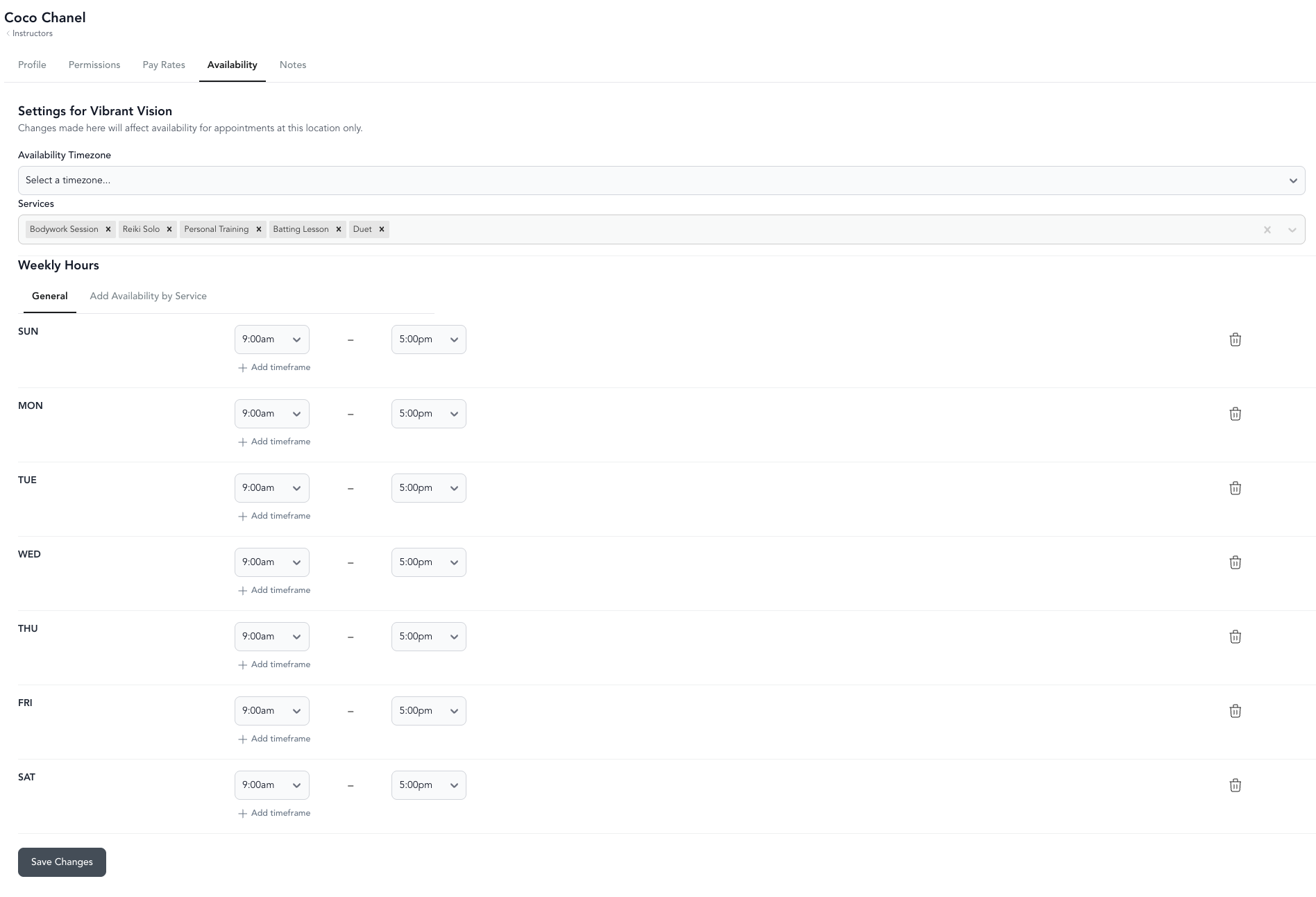
- Go to the Availability tab
- Make sure you're viewing the correct location (toggle in the upper left — note: "All Locations" is for livestream availability)
- Fill in:
| Setting | What it does |
|---|---|
| Availability timezone | Timezone for this location's schedule |
| Services | Which appointment types this team member offers |
| Weekly hours | Their regular weekly schedule — days and times they're bookable |
| Overrides | One-off changes to their regular hours (holidays, special events) |
- Click Save changes
How instructors manage their own availability
Team members can update their own availability without going through admin:
- Log in to the dashboard
- On the Home page, click Edit Availability on the right side
- Make changes and save
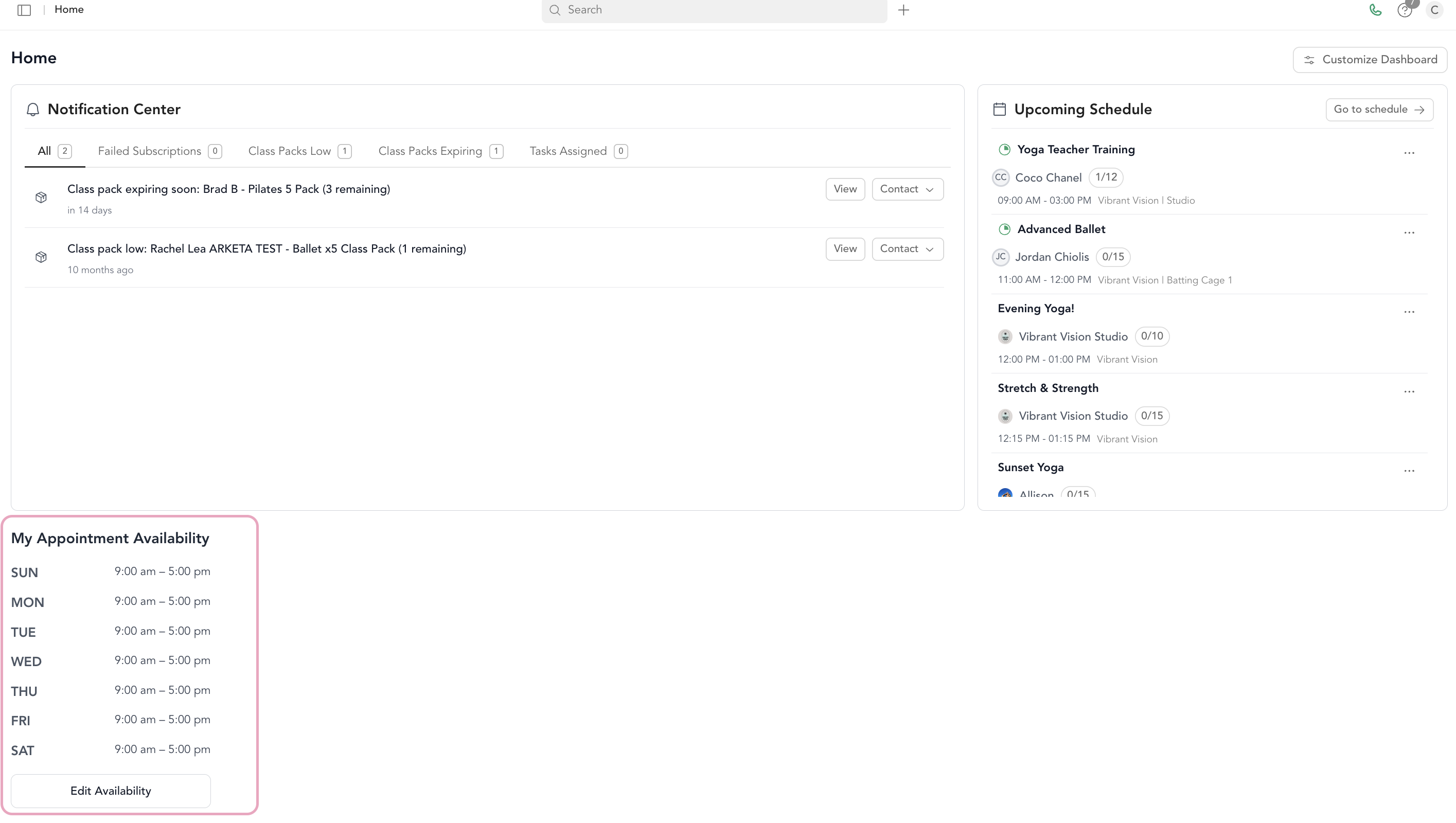
This is great for instructors who manage their own schedules.
Calendar indicators
When viewing the appointment calendar in the dashboard:
- Grey background = instructor is unavailable (due to their availability settings or business hours)
- White background = instructor is available
Setting availability per location
Availability can be configured separately for each location a team member works at. This is useful for instructors who teach at multiple studios with different schedules at each.