
Team member availability
Set up when each team member is available to take appointments.
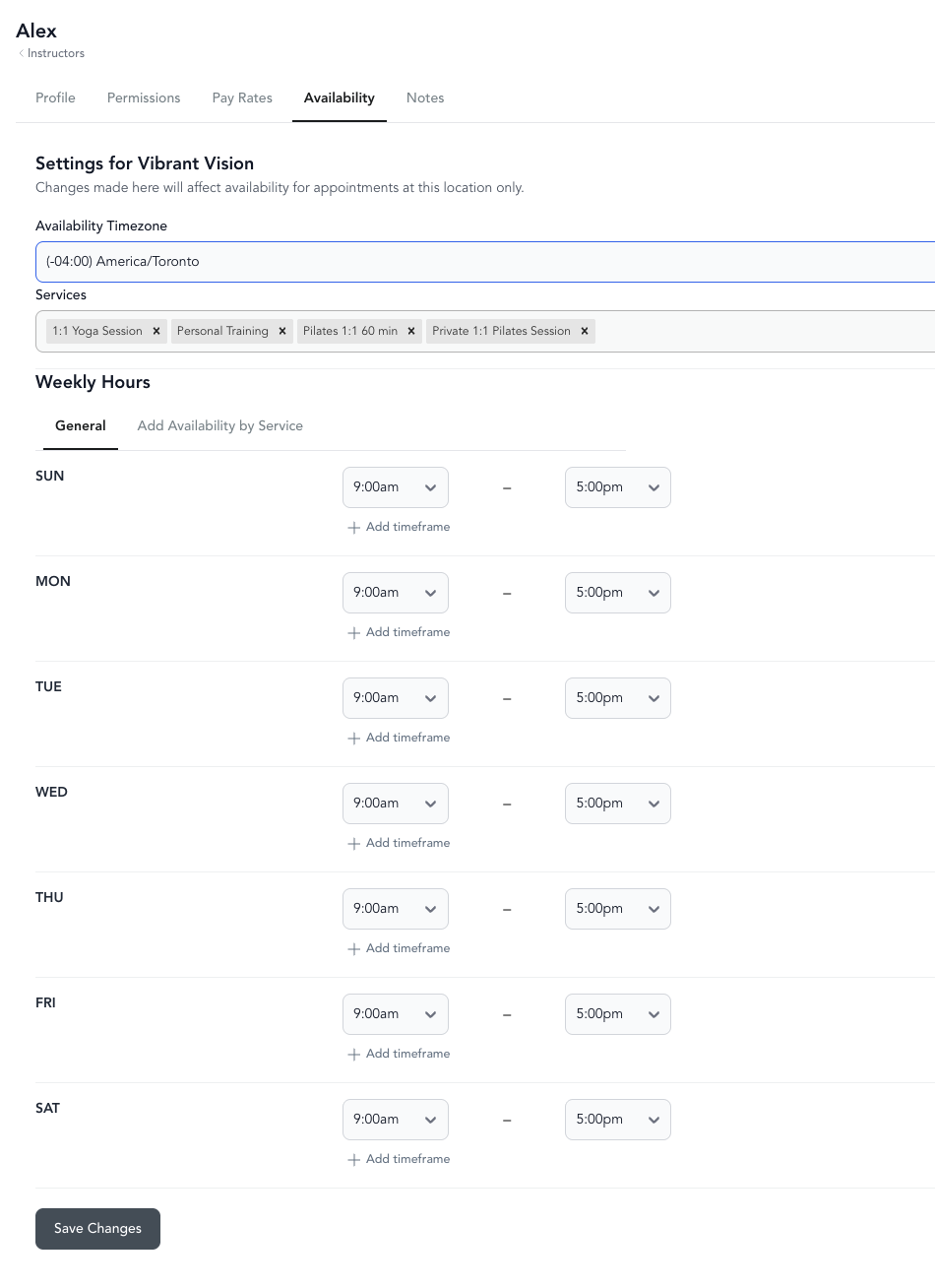
Team member availability controls when clients can book appointments with a specific instructor. Each team member has their own availability schedule, including weekly hours, timezone, and any overrides for days off or unusual hours.
Team member availability is a Studio plan feature for appointment-based services.
Set up availability
- Go to Staff → Team
- Click on the team member's name
- Go to the Availability tab
- Fill in the fields:
| Field | Description |
|---|---|
| Availability timezone | The timezone for this team member's schedule — must match the location timezone |
- Save
You must set up availability within the selected location for each team member. Toggle in the upper left off of All Locations (which denotes livestream availability only) and select the Location before saving availability. If multiple locations, set availability per location.
Instructor self-management
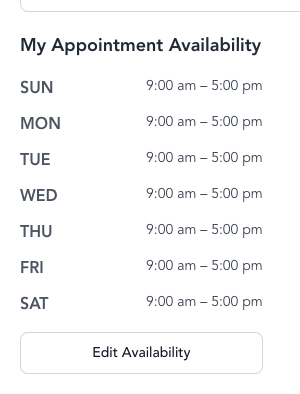
Team members can update their own availability:
- On the dashboard homepage, click Edit Availability (right side)
- Make changes
- Click Save Changes
This lets instructors manage their own schedule without needing admin access to do it for them.
Important prerequisites
- Location timezone must be set first — go to Settings → Locations → [location]. If the location's timezone is missing, availability won't display correctly even if the team member's timezone is set.
- Services must be selected — if no services are checked, the team member won't appear as an option for any appointment type.
For more on overrides, see date overrides.