
Instructor subbing
Allow instructors to request and pick up substitutions when they can't teach a class.
Instructor subbing lets instructors request a substitute for classes they can't teach and allows other eligible instructors to pick up those classes — either automatically or with manager approval.
Enable subbing
-
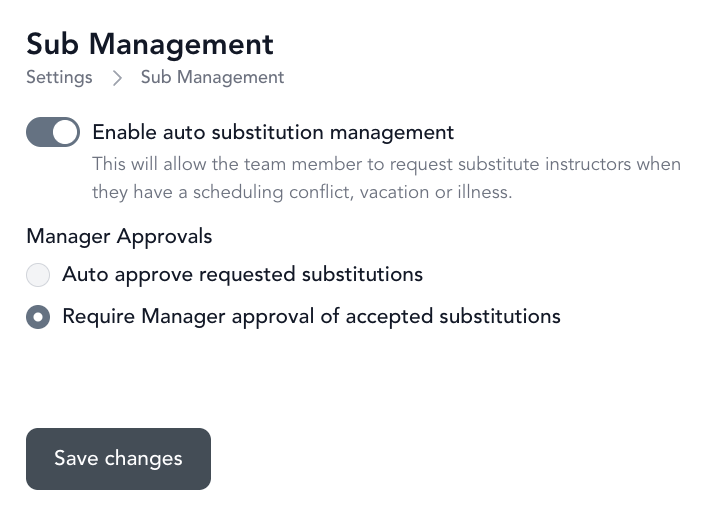
Go to Settings → Sub Management (under Business Settings)
-
Check Enable auto substitution management
-
Choose your approval setting:
- Auto-approve — any eligible instructor can pick up a sub automatically
- Require manager approval — all sub pickups need admin review before going through
Configure eligible instructors
You set which instructors can sub for a given class type in two places:
On the service type:
- Go to Setup → Service Types
- Edit the service type
- Under Step 2 (Scheduling), add Eligible Team Members
On the team member profile:
- Go to the instructor's profile in Setup → Team
- Scroll to the bottom of the profile
- Add the service types they're approved to sub for
Both must be configured for subbing to work.
How to request a sub (instructor)
- Click on the class that needs a sub
- Click More → Request Substitution
- Enter a comment (optional) explaining the situation
- Submit the request
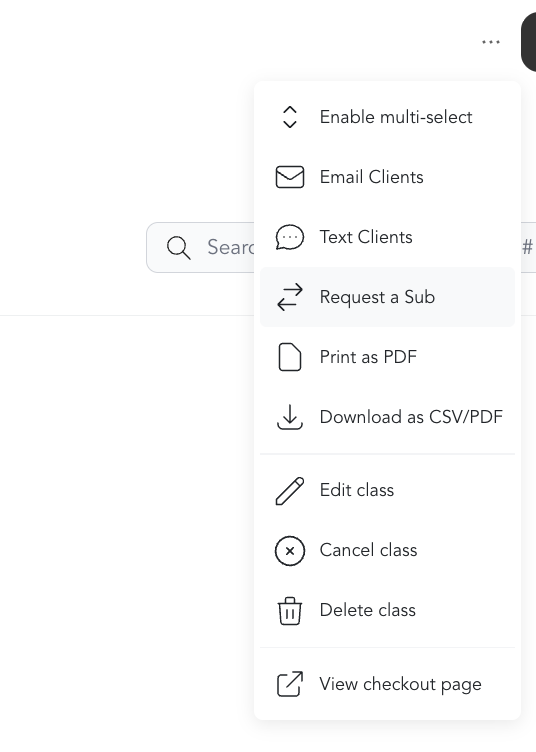
Once submitted, eligible instructors can see and claim the sub.
Who gets notified about a sub request
When a sub is requested, Arketa emails the team members whose profile approves them for that service or category, plus the instructor who made the request. The email exists so someone can pick the class up, so the recipients are the people eligible to teach it.
Owners and admins do not receive sub-request emails, and the studio's own account is never on the list. There is no setting that adds another address to it.
To keep an eye on sub requests as an owner or admin, go to Classes → Sub Requests, where every open, pending, and completed request is listed.
How to pick up a sub (instructor)
Eligible instructors can claim a sub from:
- The Sub Requests tab in their dashboard
- Directly from the class view
Auto-approved: After claiming, the instructor sees a confirmation and they're immediately assigned to the class.
Manager approval required: After an instructor claims the sub, it moves to Pending Approval. An admin reviews and approves or rejects it — either from the class view or the Pending tab under Sub Requests.

After the sub is approved
The class updates to show the substitute instructor. The original instructor is no longer listed. Payroll reporting reflects who taught the class.