
Payroll setup
Configure how Arketa calculates instructor pay before running payroll reports.
Before running payroll, you need to configure pay rates for each instructor and service type. Arketa uses these rates to calculate what each team member earned during a given period.
Prerequisites
Before adding pay rates, make sure all your service types are set up. Pay rates are organized by service type, so the service types need to exist first.
Pay rate types
Arketa supports pay rates for three contexts:
| Type | Used for |
|---|---|
| Group class rate | Group fitness classes |
Each context has its own rate structure and fields.
Create a pay rate
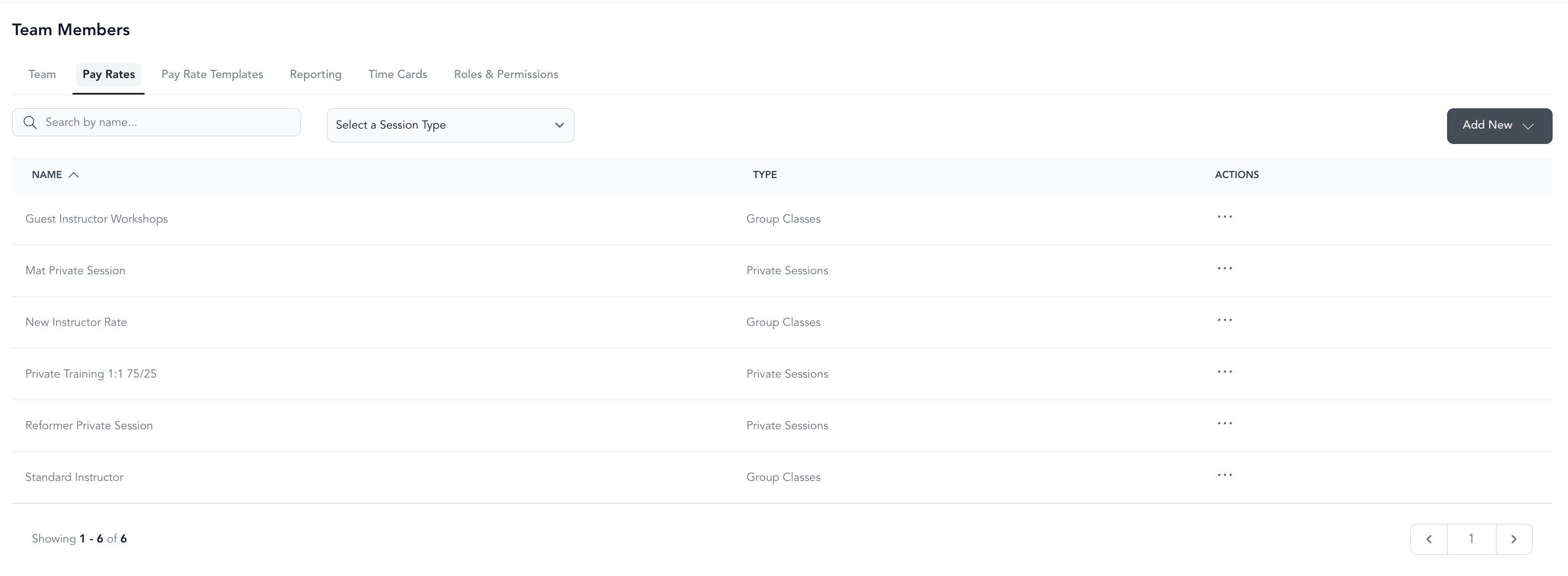
- Go to Team → Pay Rates
- Click Add New
- Select the rate type
- Fill in the fields (see below)
- Save
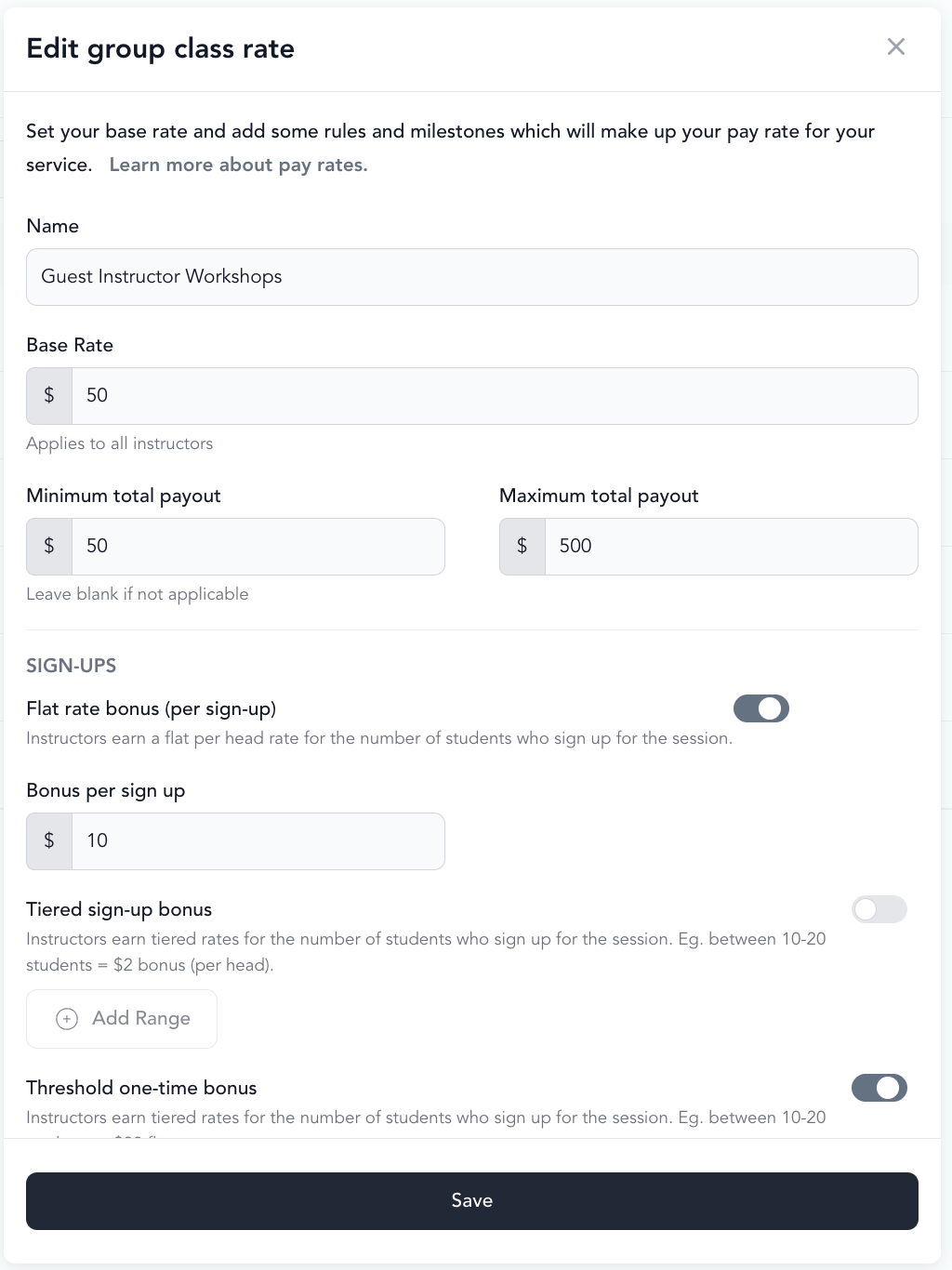
Group class pay rate fields
| Field | What it does |
|---|---|
| Name | Internal label for the rate |
How attendance ranges work
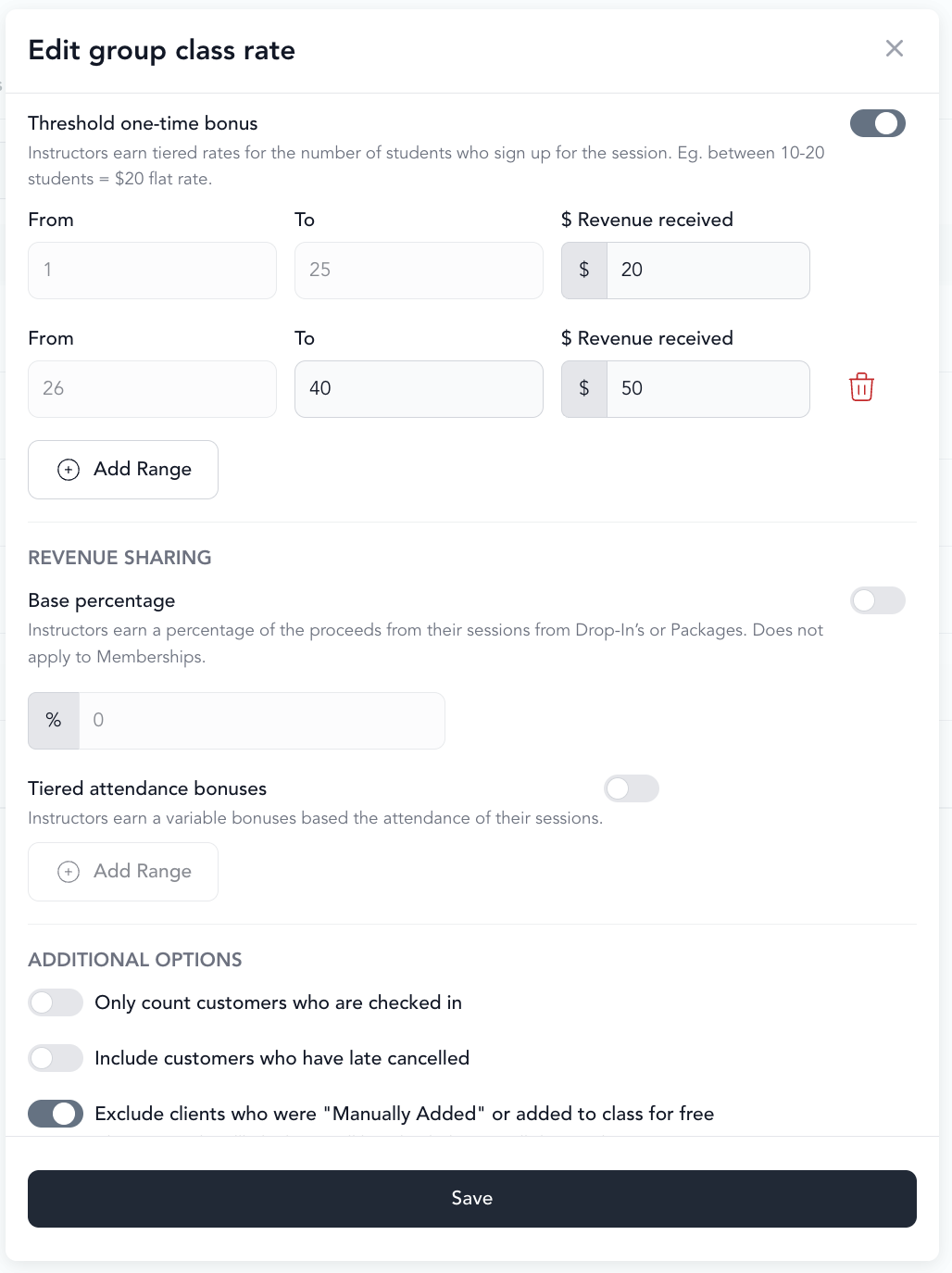
The range-based fields — Range bonus, Range bonus per sign-up, and Single bonus per sign-up — only pay within the From–To range you set. If a class's counted attendance lands above the highest range you defined, that bonus is not paid for the class at all.
For example, if Single bonus per sign-up is set to 1–12 clients = $25, a class with 13 or more counted clients earns $0 from that bonus, not $25. Set the top of your highest range above the largest class capacity you run, or use Base rate for an amount you want paid on every class regardless of attendance.
Counted attendance is what your other settings leave behind, so Only count checked-in clients, Include late cancels, and Exclude manually added / free clients all change which range a class falls into.
By default, clients who cancel before attending are not counted in payroll. Subscription bookings are not included in revenue share calculations — only drop-in and package bookings count toward revenue. Add Revenue per credit in Pricing Option setup to account for membership revenue per booking.
Appointment and video pay rate fields
Appointment and video rates are simpler:
- Total rate — flat rate per session or video
- Revenue share — percentage of revenue from drop-ins and packages
Assign rates to instructors
- Go to Staff → Team
- Click on the instructor
- Click the Pay Rates tab
- Select the applicable rate for each service type
- Save
Pay rate templates
If multiple instructors share the same pay structure, you can create a pay rate template and apply it in bulk:
- Go to Team → Pay Rate Templates
- Click Create Template
- Name it and select the pay rates that apply
- Click Create Template
To apply a template to an instructor:
- Go to their Pay Rates tab
- Select the template from the Apply a pay rate template dropdown
The template applies all included rates at once.