
Automatic waitlisting
Set up Arketa to automatically move clients from the waitlist into class when a spot opens.
Automatic waitlisting moves the next person on the waitlist into class and processes their payment as soon as a spot opens — with no manual action from you.
Requirements
Automatic waitlisting only works under these conditions:
- The class is set to Package and Subscription payment only (not drop-in, free, or donation)
- A pricing option is directly connected to the class
- The waitlisted client has a valid payment method or active credit on file
This is because automatic waitlisting needs to charge the client when they're added to the waitlist — it can't prompt them for a payment method mid-process.
Drop-in classes don't support automatic waitlisting, because a payment needs to be collected for a pricing option before the spot is filled.
Automatic waitlisting also respects each client's booking limits. If moving a client off the waitlist would exceed the booking limit on their pricing option for the period — for example, they've already booked another class that day and their plan allows one booking per day — Arketa skips that client and leaves them on the waitlist. If they're the only person waitlisted, the spot stays open. To take the earlier class instead, the client can cancel their other booking for that period, or you can add them manually from the class roster.
Set your class to Package & Subscription only
For a single class:
- Go to Full Schedule
- Edit the class
- In Pricing Settings, set the payment type to Package and Subscription
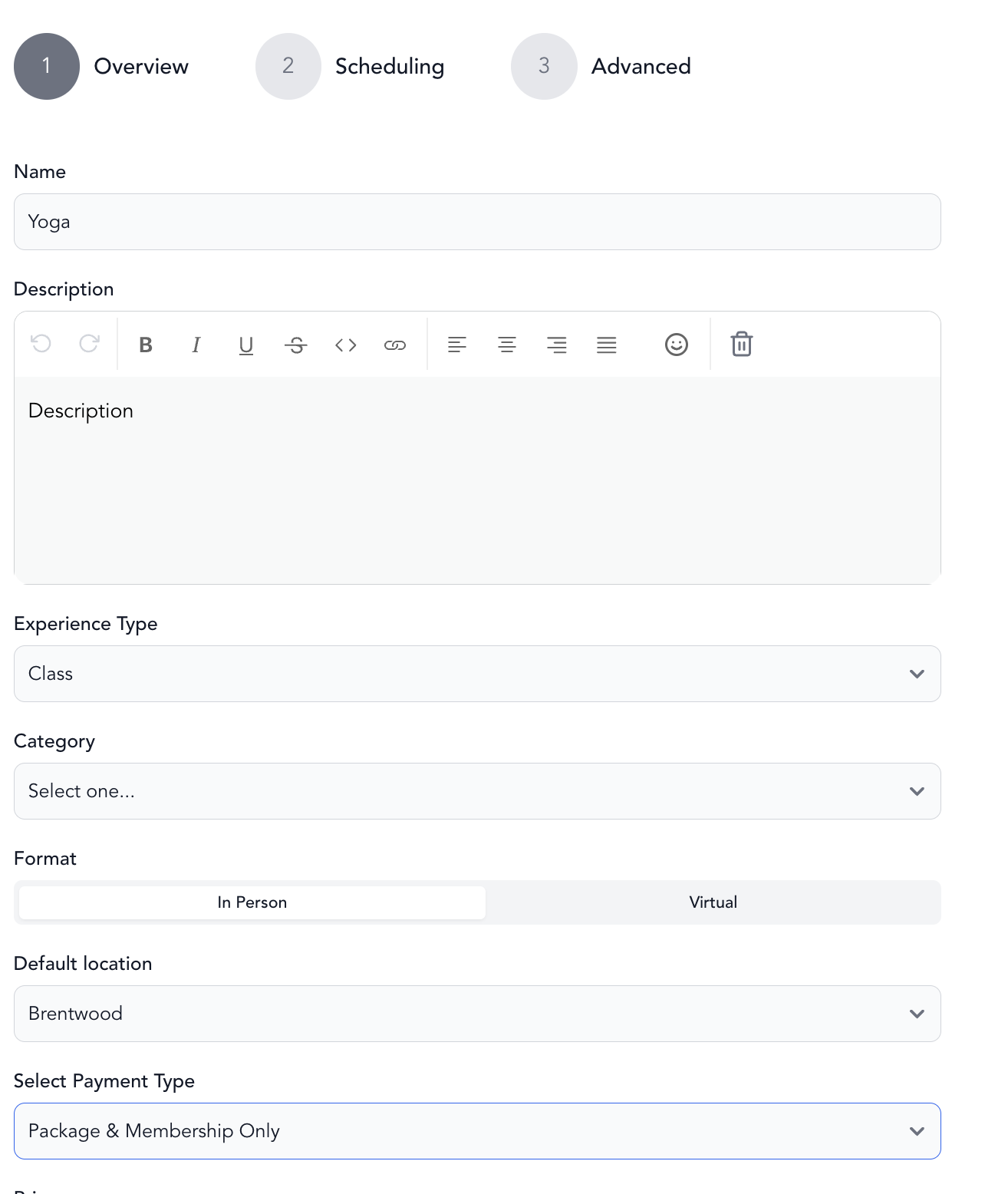
For all classes of a service type:
- Go to Setup → Service Types
- Edit the service type
- On the first page (Overview), set the payment type to Package and Subscription
For specific instances within a service type:
- Go to Setup → Service Types → click into the service type
- Select the specific class instances you want to change
- Edit each one and update the pricing setting
What happens when a spot opens
- The client at the top of the waitlist is automatically moved into class
- Their payment is processed (the credit is used from their package/subscription)
- They receive a confirmation email that they've been added to class
- The waitlist moves up
Free classes with a waitlist
Automatic waitlisting doesn't work natively with free classes. As a workaround:
- Create a $0 class package with 1 credit
- Connect that package to the free class
- This gives clients a "credit" to use, which satisfies the payment requirement
Auto-assigning a spot when a client comes off the waitlist
If your class uses spot booking, Arketa can automatically assign the next available spot to the client when they move off the waitlist — so they're not just added to the class with no spot picked.
This is off by default. You need to opt in.
Turn it on:
- Go to Settings → Waitlist
- Make sure Enable automated waitlist is on
- Toggle on Auto-assign spot when converting from waitlist
- Click Save changes
How it works once on:
- Applies to both automatic and manual waitlist conversions
- Only triggers when the class has a spot map (spot booking enabled)
- Assigns the first available spot in the room — there's no preferred-spot logic
- If no spots are available or spot booking isn't enabled for that class, the client is still moved into class, just without a spot assigned
If you leave this off, clients moved off the waitlist will be in class with no spot, and you (or the client) will need to assign one from the class roster.
Turning off automatic waitlisting
If you prefer the manual flow (clients are notified and must claim the spot themselves):
- Go to the class or service type settings
- Disable automatic waitlisting
With this off, when a spot opens, the first client on the waitlist receives an email notification. They have a limited time to book before the notification goes to the next person on the list.