
Change the instructor
How to update the instructor on a single class or notify a sub.
You can change the instructor on a class directly from the Full Schedule or from the check-in screen.
Change instructor on a single class
From Full Schedule:
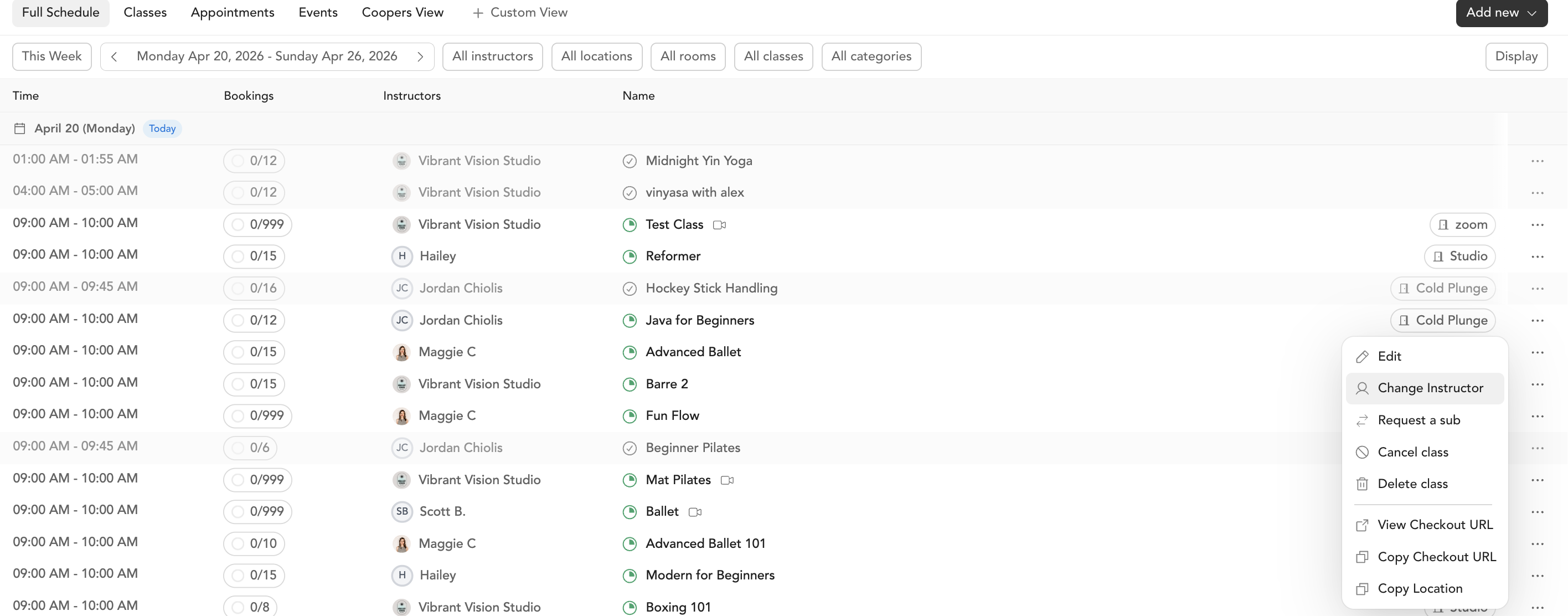
- Go to Classes → Full Schedule and find the class
- Click Change Instructor
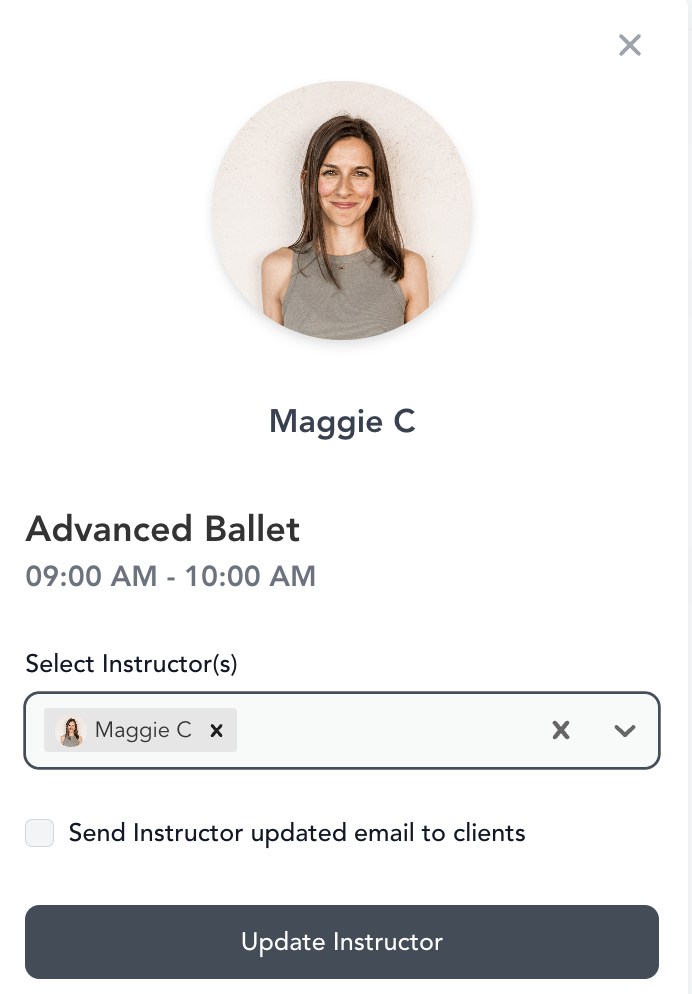
- Select the new instructor from the dropdown
- Click Update Instructor
From the check-in screen:
- Open the class check-in screen
- Click on the instructor's name
- Select the new instructor from the dropdown
Changing the instructor on a single class doesn't affect other instances in the same recurring series. To update all future classes in a series, edit the recurring series from Setup → Service Types.
Instructor subbing
If you need to manage subs more formally — tracking sub requests, approvals, and sub history — use the Instructor Subbing feature in the Team section.
Was this helpful?