
Cancellation reports
Track canceled subscriptions and those set to cancel at end of period.
Canceled Subscriptions report
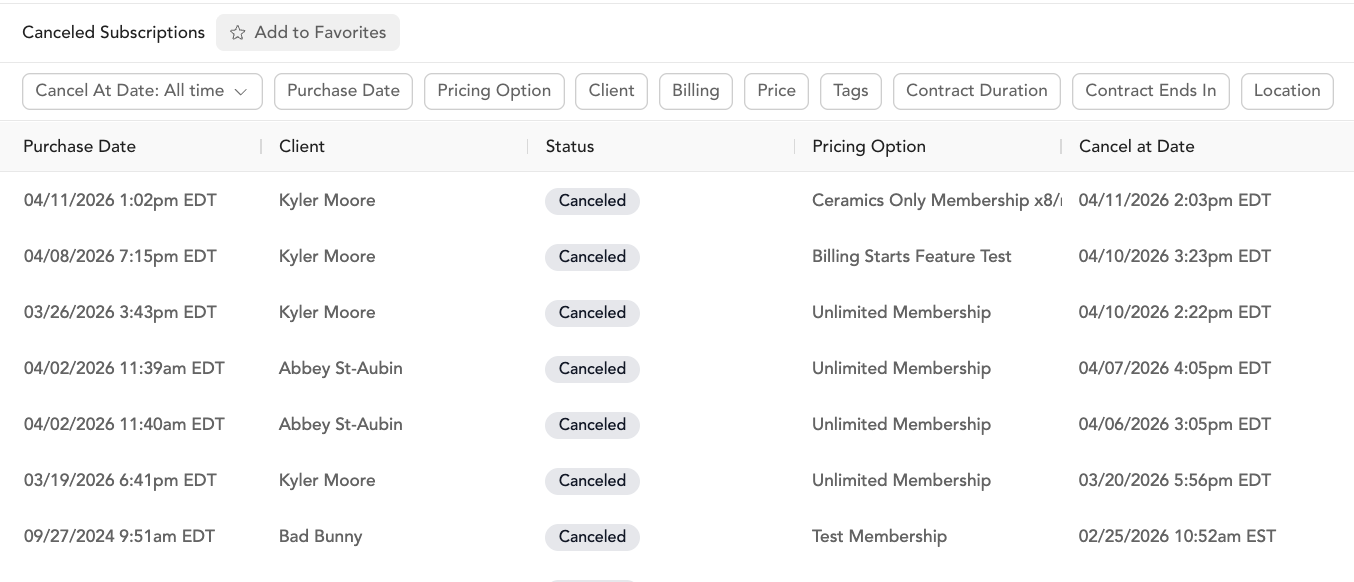
Shows all subscriptions that have been canceled.
Columns: Purchase date, client, pricing name, email, billing type, cancellation date.
Filters: Date range, subscription name, customer name.
Use this to track monthly churn — how many clients canceled in a given period. High cancellation rates in a specific subscription product may indicate pricing or value issues.
Subscriptions to Cancel report
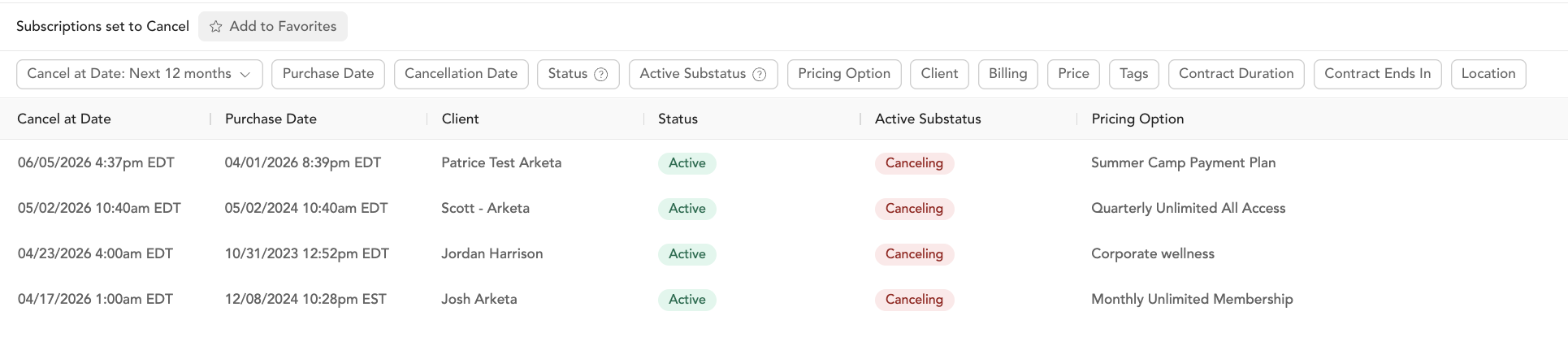
Shows subscriptions still active but set to cancel at the end of their current period — clients who have already requested cancellation but haven't lost access yet.
Columns: Cancel-at date, purchase date, client, status, pricing name, email, billing type, next renewal date.
Use case: This is your win-back list. These clients have decided to leave but are still accessible — reach out before their cancellation date with an offer or a personal conversation.
Cancellation flow automation
Consider setting up a cancellation automation (see pre-made automations) with the Subscription canceled trigger to automatically send a "sorry to see you go" email followed by a team task to call the client.