
Use a video in place of a livestream
Swap a scheduled livestream class for an on-demand video — useful when you're traveling or pre-recording content.
If you can't teach a live class but still want it on the schedule, you can pre-record the session and set it up to play as the "livestream." Clients book the class as normal and get access to the on-demand video instead.
How to set it up
- Record your class and upload it to your on-demand library
- In the video settings, set the rental price to $0 (or leave pricing settings so it's accessible to packholders/members)
- Check the Hidden box — this hides it from your public library so clients only access it through the class link
- Save the video and copy the Checkout URL
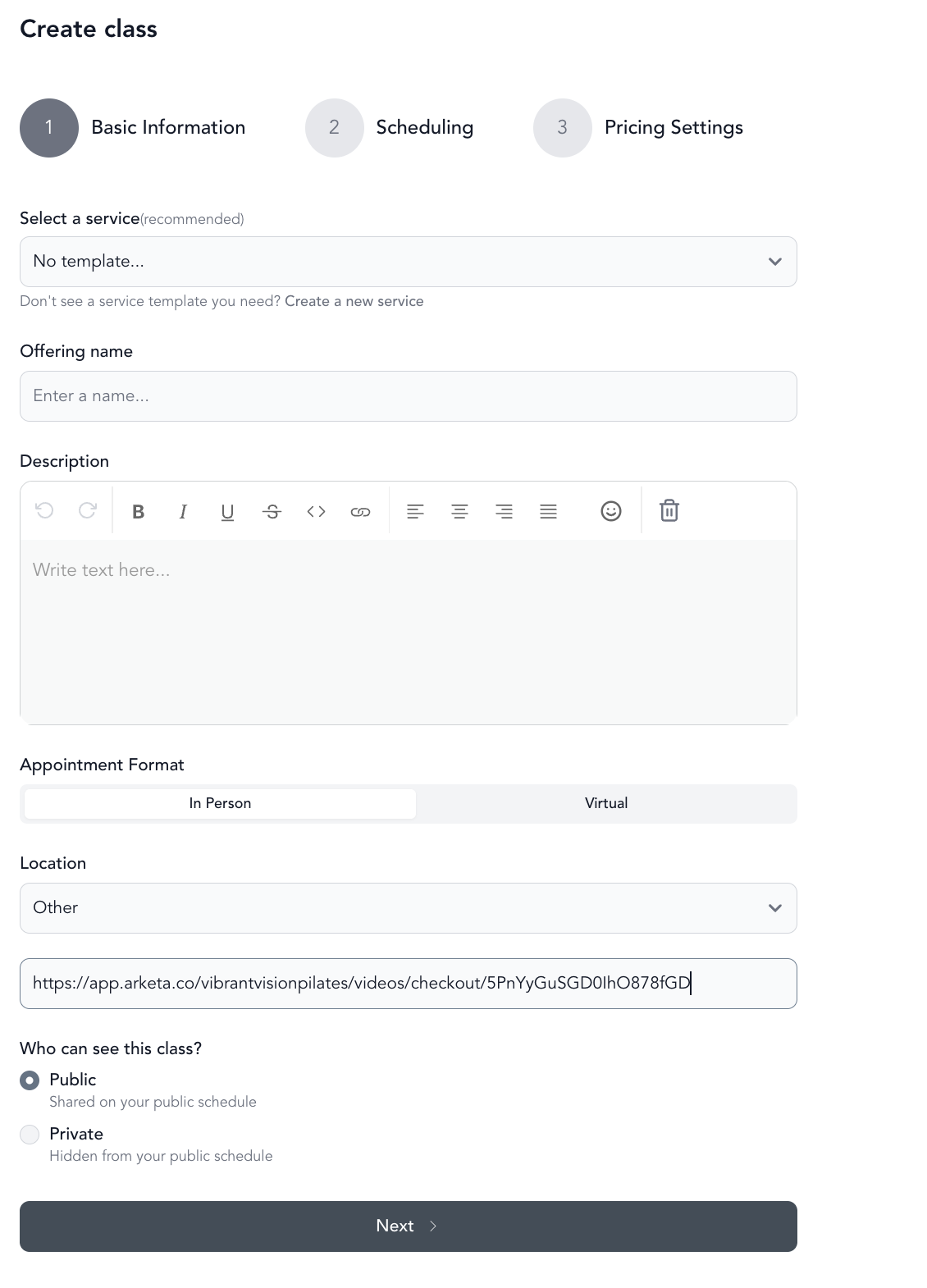
- When scheduling your livestream class, set the location to Other and paste in the video's Checkout URL as the location link
When clients click to join the class at the scheduled time, they'll go directly to the on-demand video.
Who can access it
Anyone who's booked the class and is on the roster will have access to the video. The video stays available to them until the expiration date you set (or indefinitely if you don't set one).
Set an expiration date on the video to match when you'd normally take down a class recording — this keeps clients from watching it months later when it might be outdated.
Alternative: Automatic Zoom recording upload
If you teach live via Zoom and want to automatically make recordings available afterward, see upload Zoom recordings to your library for the automatic setup.