
Video comments
Turn on comments so members can discuss and give feedback on your on-demand videos, and moderate them from your dashboard.
Comments let members build community around your content and give you direct feedback on individual videos. When they're on, a comment section appears under each video, so members can share what they thought, ask questions, and reply to each other.
How video comments work
Comments are a lightweight way to add discussion to your on-demand content:
- Members can talk about your videos. They can post a comment under a video and reply to other members to start a thread.
- You get feedback. Comments give you a read on which videos land, what people want more of, and where they're stuck.
- Only members with access can see them. Comments on a video are visible only to members who have unlocked that video — so the conversation stays inside your paying audience.
- You stay in control. You can view and delete any comment from your dashboard or directly from the video player.
Comments are turned off by default. You enable them for your whole video library, per community, or both — the two switches are separate, so turning one on doesn't affect the other.
Turn on comments for your video library
This is the library-wide switch. Turning it on enables commenting across your entire on-demand video library.
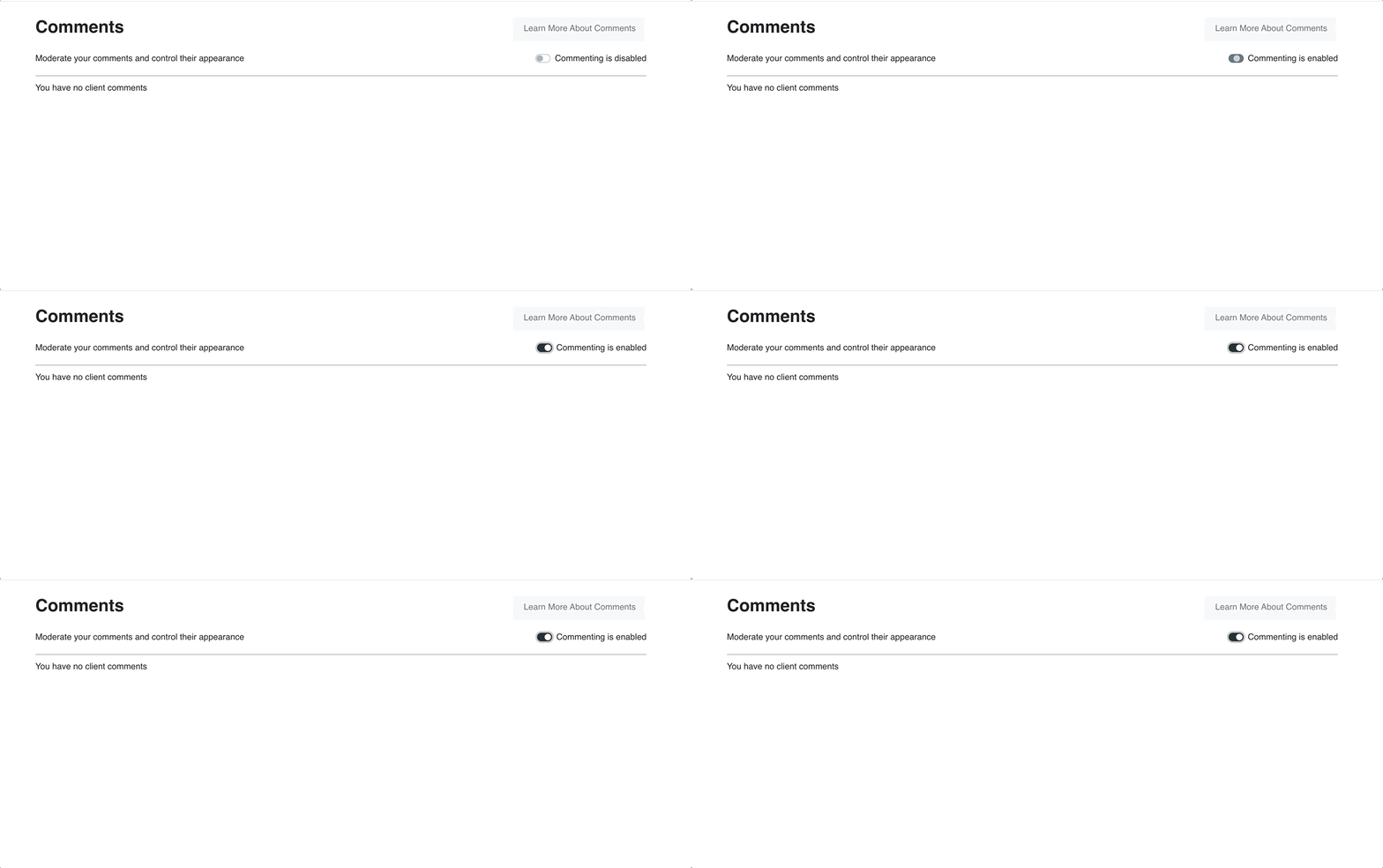
Open Comments
Go to Customers → Comments in your dashboard.
Switch commenting on
Turn on Enable comments in the top-right so members can comment across your on-demand video library.
Once it's on, a comment section appears under each unlocked video in your library.
How clients post comments
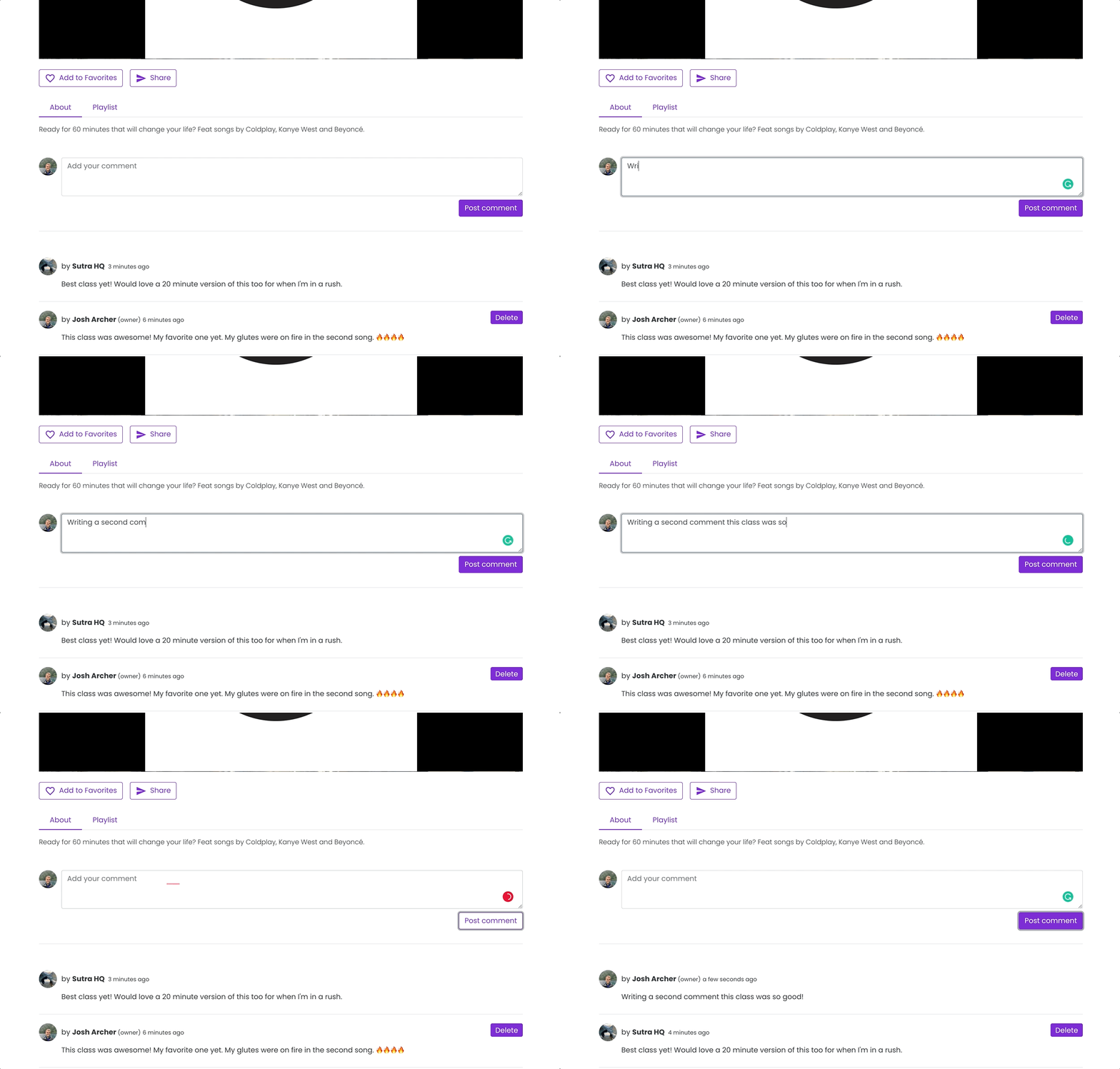
Once you've turned comments on and a member has unlocked a video:
- They can post a comment in the section underneath the video.
- They can reply to another member's comment to start a thread.
- Their comments are visible only to other members who also have access to that video.
There's nothing your members need to set up — the comment section simply appears once you've enabled it and they have access to the video.
Turn on comments for a community
Community videos have their own commenting switch, separate from your main library. Turn it on inside the community's settings.
Open the community
Go to Products → Communities and click the community name.
Open Settings
Go to the Settings tab for that community.
Enable video commenting
Check Display comments beneath videos in this community to turn on comments for that community's videos. This overrides your library-wide setting for that community.
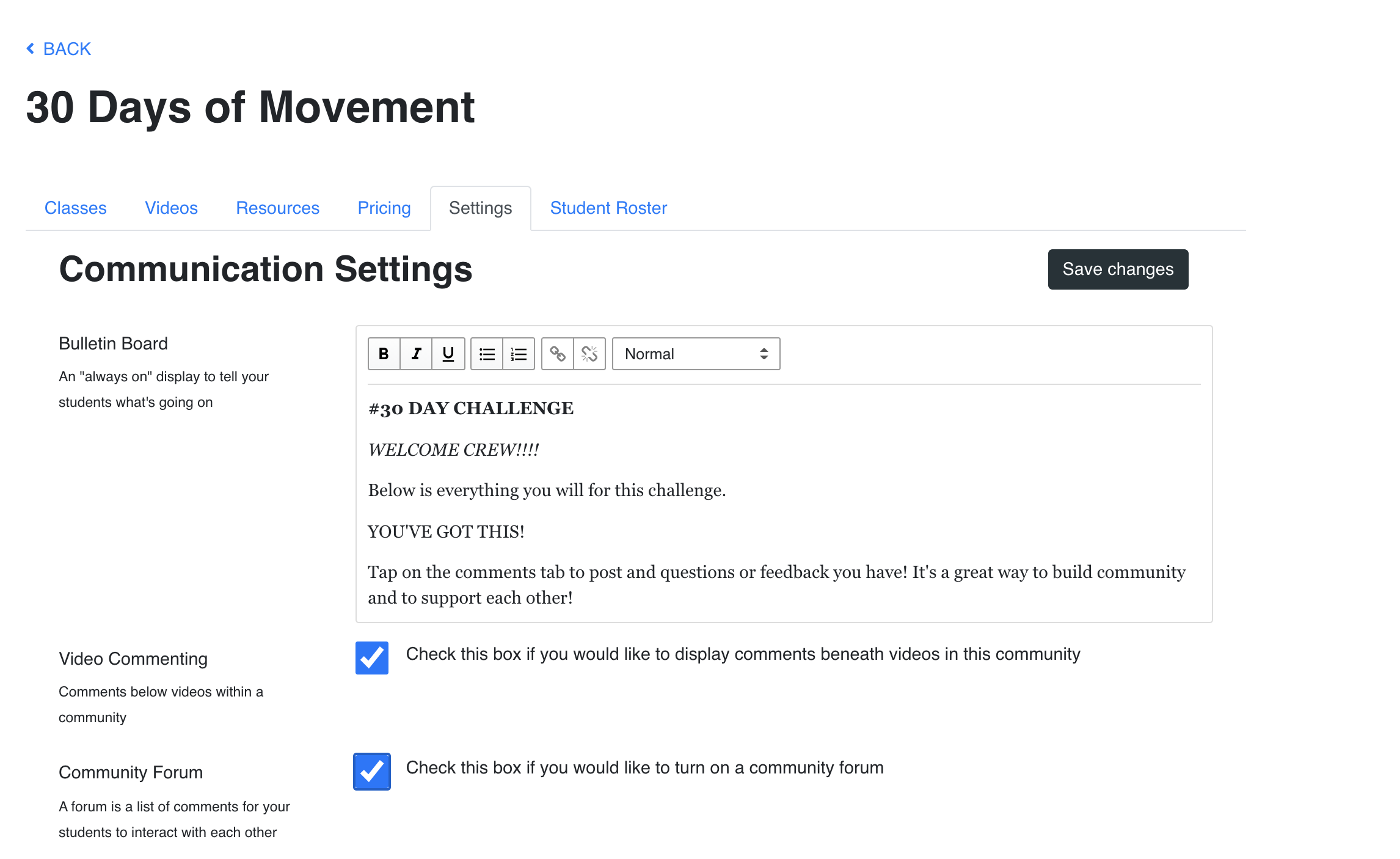
The same settings area has a switch to turn on a community forum — a broader discussion feed for the whole community, separate from per-video comments. See community forum for how it works and when to use it.
View, moderate, and delete comments
You can review and remove comments in two places — both work the same way.
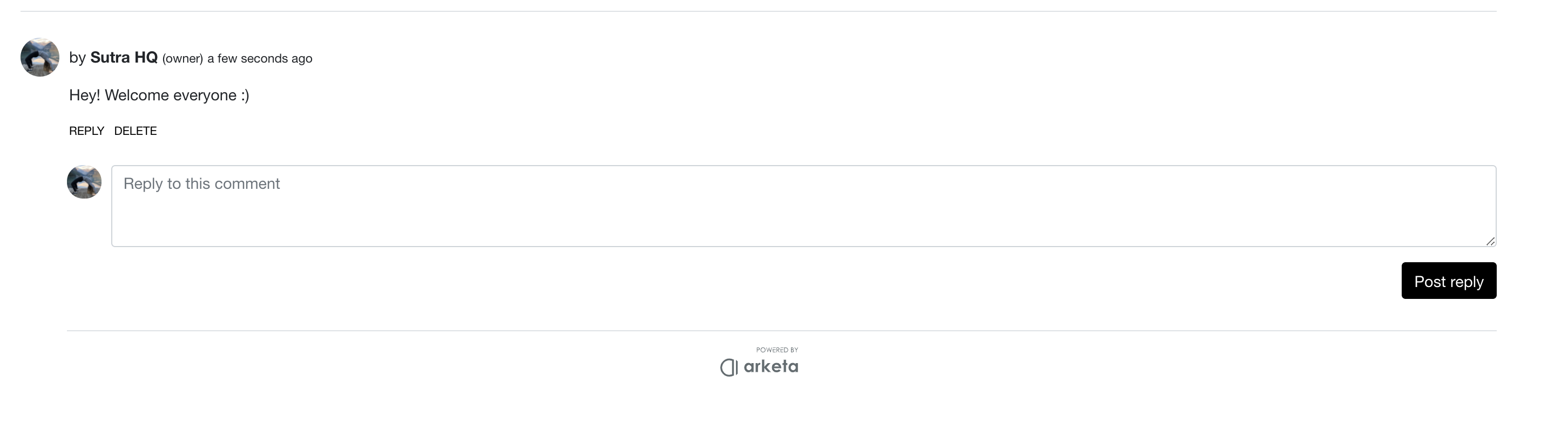
- From the video player: use View to read a comment or Delete to remove it, right on the player.
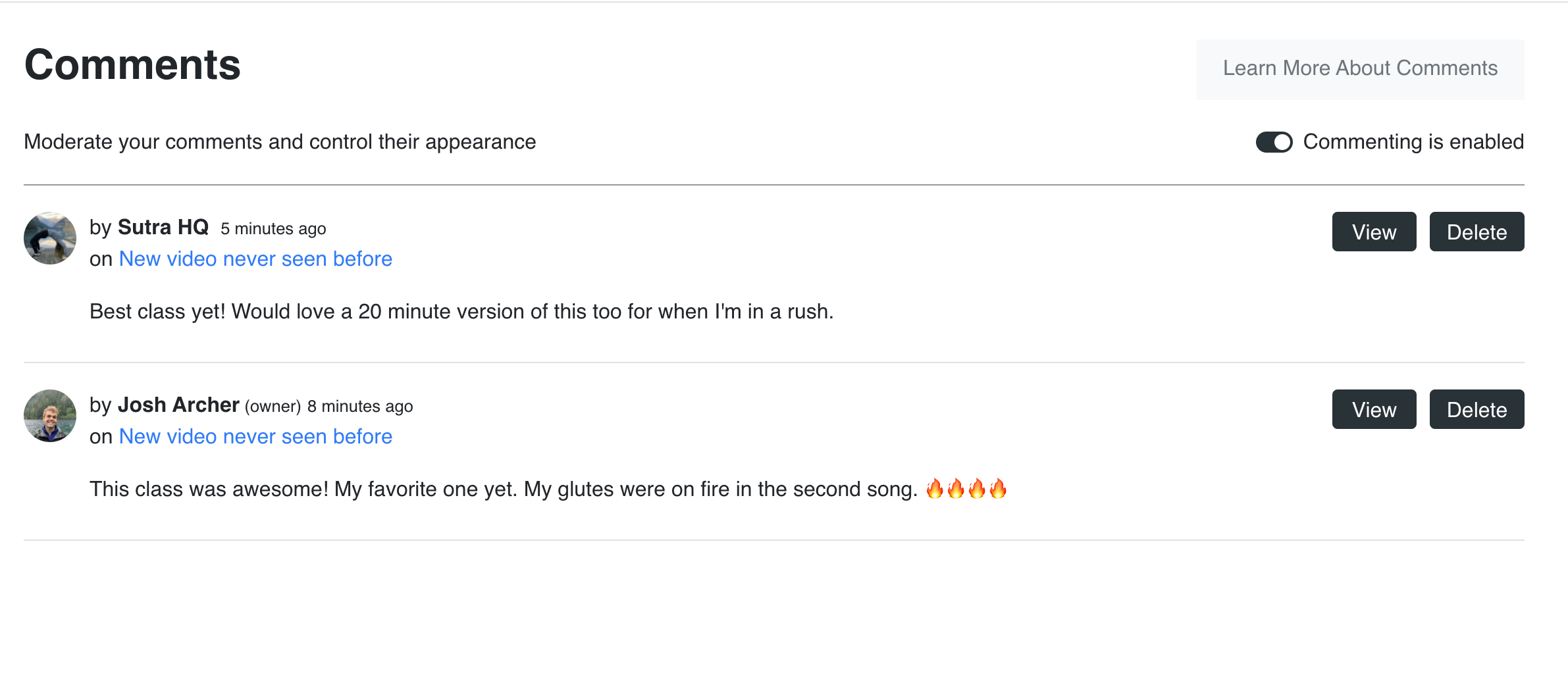
- From your dashboard: go to Customers → Comments. Each comment has an icon to open the video where it was posted and a Delete comment icon.
Delete any post that falls outside your business guidelines to keep the conversation on your videos welcoming and on-brand.
Deleting a comment is permanent — there's no undo, and the member isn't notified. Remove posts that break your guidelines, but be deliberate, since you can't restore a comment once it's gone.