
Lead management
Track and nurture potential clients from first contact through conversion.
Lead management lets you track potential clients who haven't purchased yet, move them through stages of your sales process, and automate follow-up along the way.
A lead is someone who has expressed interest in your studio — they filled out a form, messaged your chatbot, subscribed to your newsletter — but hasn't made a purchase or booked a class. Lead management gives you visibility into this pre-client stage.
How leads are created
A new lead is added to your lead list when:
- Someone submits a lead form with an email not already in your client list
- Someone messages your website chatbot for the first time
- Someone subscribes to your newsletter
A client profile is also created when a lead is added, so the lead appears in both your Clients list and your Lead Management view.
Lead management view
Go to Lead Management to see your lead list. For each contact you'll see:
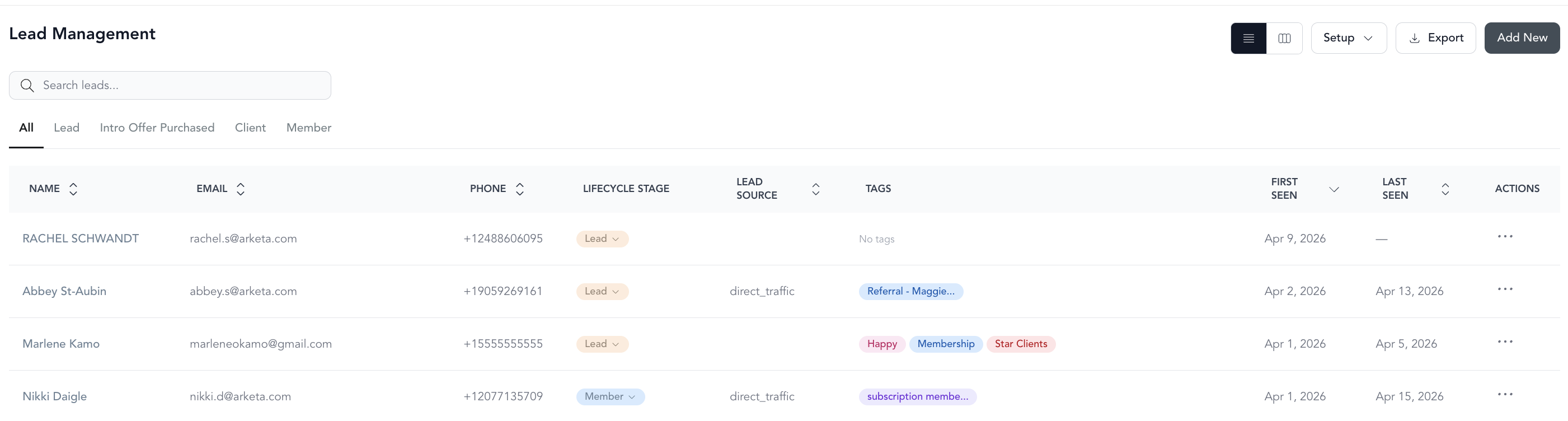
| Column | What it shows |
|---|---|
| Stage | The current lifecycle stage |
| Name | The lead's name |
| Source | Where the lead came from |
| Workflows | Active automations the lead is in |
| Last contact | When you last reached out |
| Created | When they were added |
Lead sources
| Source | Meaning |
|---|---|
| Direct traffic | Visited your site directly (typed URL or bookmark) |
| Organic search | Found you through search results |
| Engaged through Facebook | |
| Referral | Referred by another client |
| Walk-in | Came in person without an appointment |
| Manual | Added by your team |
| Chat bot | Messaged through the website chatbot |
| Form response | Submitted a lead form |
What to do with leads
Once a lead is in your system, the goal is to move them toward a purchase:
- Automated follow-up — Set up an automation with the "Form submitted" or "New lead added" trigger to send a welcome email or SMS automatically
- Manual outreach — Use Tasks in automations to remind your team to call or email personally
- Lifecycle stages — Move leads through stages (see lifecycle stages) to track progress
- Conversion — When a lead purchases, they move out of the lead stage and become a client
The most effective lead follow-up happens within minutes of submission. Use a "Form submitted" automation to send an immediate response while interest is high.