
Lifecycle stages
Define and automate the stages a potential client moves through on their way to becoming a member.
Lifecycle stages are milestones in a client's journey with your studio — from their first contact to becoming a long-term member. Unlike segments (which can overlap), each contact is in exactly one lifecycle stage at a time.
Stages vs segments
| Lifecycle stages | Segments | |
|---|---|---|
| Overlap | No — one stage at a time | Yes — can be in many at once |
Use stages to answer "where is this lead in my sales process?" and segments to answer "who are my most engaged members?"
Default stages
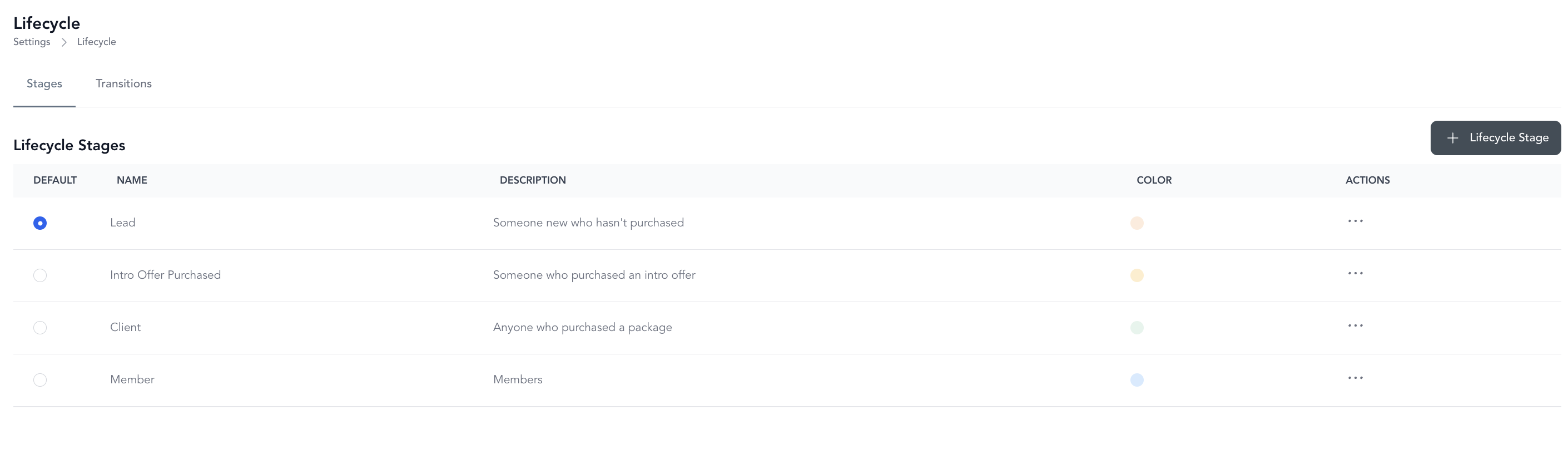
Arketa recommends three default stages:
| Stage | Who's in it |
|---|---|
| Lead | Someone who has engaged with your marketing but hasn't booked or purchased |
Create a custom stage
- Go to Lead Management → Setup → Lifecycle Settings
- Click + Lifecycle Stage
- Enter a name, description, and color label
- Click Add Lifecycle
Custom stages let you add nuance to your funnel — for example, "Trial Member," "Lapsed Member," or "Corporate Partner."
Edit a stage
- Go to Lead Management → Setup → Lifecycle Settings
- Click the three dots next to the stage → Edit
- Make changes
- Click Update Lifecycle Stage
Automate stage transitions
You can set up rules to move contacts between stages automatically when they take an action:
-
Go to Lead Management → Setup → Lifecycle Settings → Transitions
-
Click + Lifecycle Transition
-
Set:
- From stage — where the contact starts - To stage — where they should move - Trigger — what action causes the move (e.g., purchased a pricing option, booked a class, submitted a form)
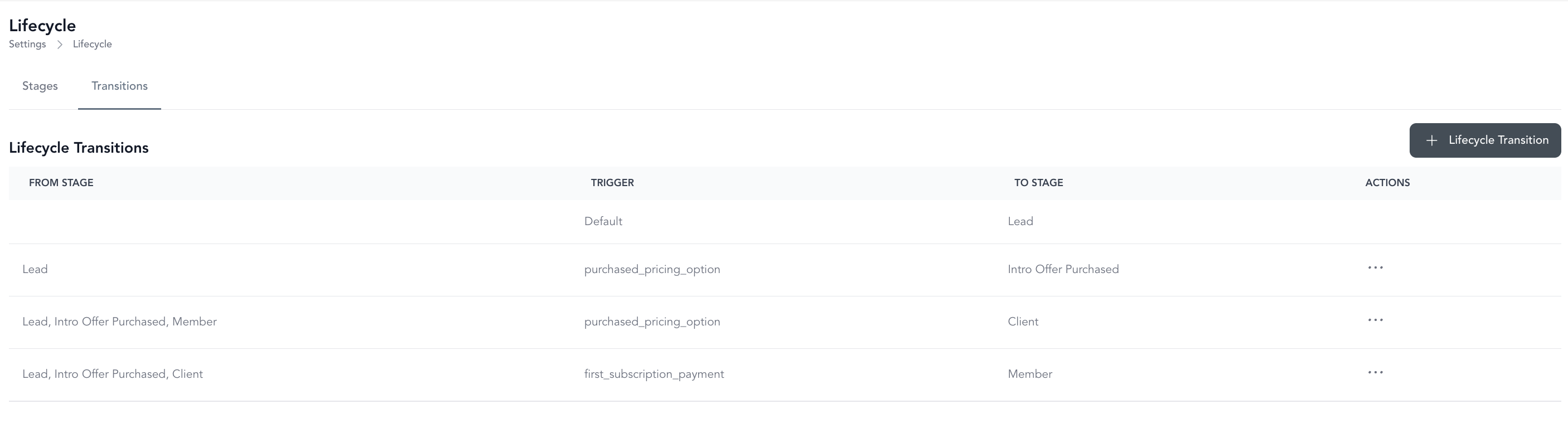
Example: A contact in the "Lead" stage who purchases a membership → automatically moves to "Member (closed won)."
Transitions run in real time — the moment a trigger fires, the contact moves to the next stage without any manual action from your team.
Available transition triggers
| Trigger | What it means |
|---|---|
| Purchased a pricing option | Client completed a purchase of any class pack, membership, or bundle |
| Booked a class | Client made a reservation for a scheduled class |
| Attended first/single class | Client was checked in to a class for the first time |
| Submitted a lead form | Client filled out and submitted an intake or lead capture form |
| Online registration | Client created an account through your booking page or widget |
| Tag added | A specific tag was added to the client's profile |
When a trigger fires, the contact moves only if they are currently in the From stage defined on that transition. If they're already in a different stage, the transition does nothing.