
Transactional messages
Configure the automated messages Arketa sends for bookings, purchases, and account events.
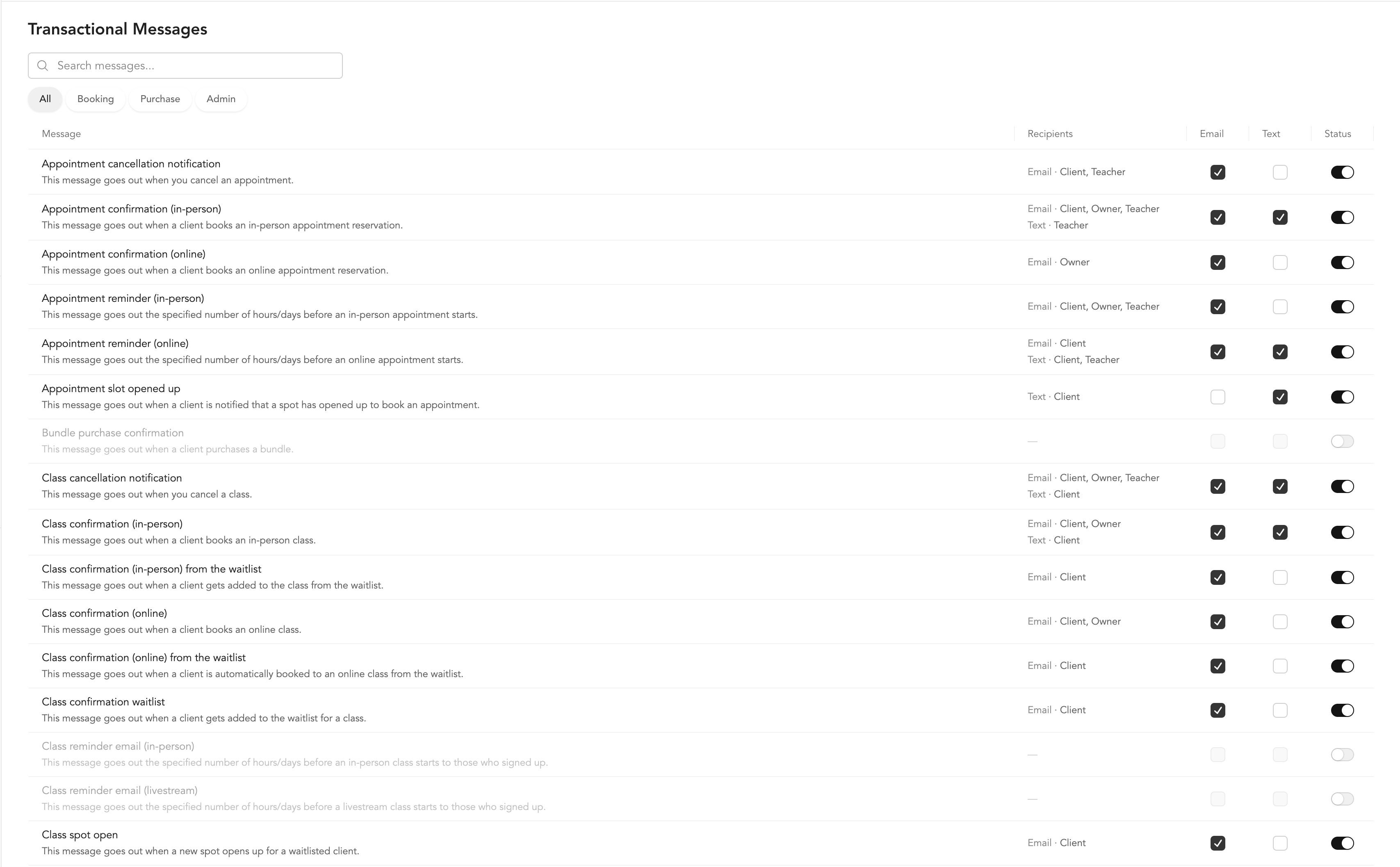
Transactional messages are system-generated and sent automatically when clients or staff take specific actions — booking a class, canceling, purchasing a membership, and more. You can customize the content, schedule, and recipients for each message type.
Access transactional messages
Go to Settings → Communications → Transactional Messages
Message types
Booking messages
| Message | When it sends |
|---|---|
| Class confirmation (in-person) | Client books an in-person class |
| Class confirmation (online) | Client books a virtual class |
| Class confirmation from waitlist (in-person) | Client moves from waitlist to confirmed spot |
| Class confirmation from waitlist (online) | Client moves from waitlist to confirmed virtual spot |
| Class confirmation waitlist | Client is added to the waitlist |
| Class reminder (in-person) | Before an upcoming in-person class |
| Class reminder (livestream) | Before an upcoming virtual class |
| Class cancellation notification | A class is canceled |
| Class updated (in-person) | An in-person class is changed (time, location, etc.) |
| Class updated (online) | A virtual class is changed (Zoom link, time, etc.) |
| Class spot open | A spot opens in a class |
| Client no-show reminder | About 1 hour after class ends, to clients who had a reservation but didn't check in. Arketa checks for missed check-ins every 15 minutes, so it can arrive up to 15 minutes past the 1-hour mark |
| Appointment confirmation (in-person) | Appointment is booked in-person |
| Appointment confirmation (online) | Appointment is booked virtually |
| Appointment reminder (in-person) | Before an upcoming in-person appointment |
| Appointment reminder (online) | Before an upcoming virtual appointment |
| Appointment cancellation notification | Appointment is canceled |
| Event confirmation (in-person) | Event booking confirmed |
| Event confirmation (online) | Virtual event booking confirmed |
| Event reminder (in-person) | Before an in-person event |
| Event reminder (livestream) | Before a virtual event |
| Event cancellation notification | Event is canceled |
| Substitute instructor notification | Instructor is changed |
| Waiver request for guest reservations | Client books on behalf of a guest who hasn't signed the waiver |
| Waiver request reminder for guest reservations | Follow-up if guest waiver is still unsigned |
Cancellation messages
| Message | When it sends |
|---|---|
| Customer canceled class booking (with credit reimbursement) | Client cancels and receives a credit back |
| Customer canceled appointment booking (with credit reimbursement) | Client cancels appointment and receives a credit back |
| Customer canceled event booking (with credit reimbursement) | Client cancels event and receives a credit back |
| Customer late canceled class | Client cancels after the cancellation window |
| Customer late canceled appointment | Client late cancels appointment |
| Customer late canceled event | Client late cancels event |
Purchase messages
| Message | When it sends |
|---|---|
| Pack purchase confirmation | Client purchases a class pack |
| Subscription purchase confirmation | Client purchases a membership |
| Bundle purchase confirmation | Client purchases a bundle |
| Community purchase confirmation | Client purchases a community |
| Retail product purchase confirmation | Client purchases a retail item |
| Referrer payout notification | Client receives a referral reward payout |
| Invoice payment failed | A subscription payment fails |
Gift card messages
| Message | When it sends |
|---|---|
| Gift card purchase confirmation | Client purchases a gift card for themselves |
| Gift card purchased as gift confirmation | Client purchases a gift card for someone else |
Configure a message
Email and text are separate channels. You can turn on a text without sending an email, and each channel has its own recipients.
To edit any transactional message:
- Go to Settings → Communications → Transactional Messages
- Find the message you want to change. Use the search box, or the category filters above the list
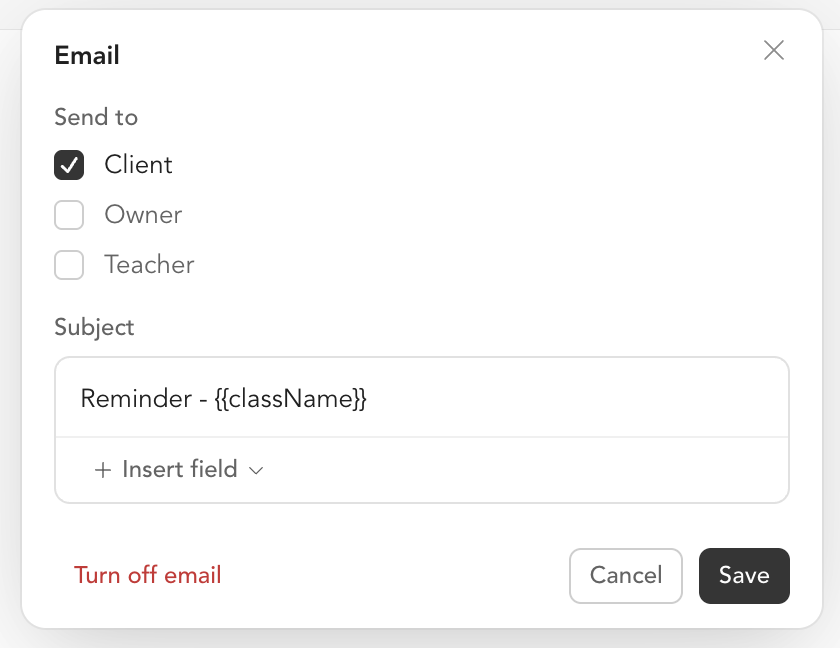
- Check Email or Text on that row to turn a channel on. Each one opens its own composer
- In the Email composer, choose who receives it under Send to, then write the subject line. Use Insert field to add variables like the client's name or the class name
- In the Text composer, check each recipient who should get a text and write their message. Clients and instructors get separate messages, so you can word them differently
- Save your changes
The Status switch at the end of each row shows whether a message is sending at all. It turns on by itself when you enable a channel, and turning it off stops both channels at once.
The Recipients column summarizes who hears from each channel, for example Email · Client, Owner and Text · Client.
Text messages cannot be sent to the business owner. To edit the email body itself, open the message and go to the Content step.
Reminder timing
For messages tied to a scheduled event (class, appointment), you can set the reminder to send:
- 50hrs before
- 24 hours before
- 3hrs before
- 45 minutes before
Sender address
By default, all transactional emails send from no-reply@notifications.arketa.co.
If you have the Marketing Suite and a verified sender domain, you can select your custom domain from the dropdown on the transactional message settings page.
View sent messages
To see a log of transactional emails and SMS messages sent to you or your instructors, go to Settings → Communications → Sent Transactional Messages.