
Handlebars (personalization)
Insert dynamic data like client names and booking details into transactional messages.
Handlebars are placeholders that automatically fill in with real data when an email sends. Use them to personalize transactional messages with client names, class details, links, and more.
The syntax is: {{variableName}}
For example, {{clientFirstName}} becomes "Sarah" when the email sends to a client named Sarah.
How to insert a handlebar
In the email subject:
- Open the Email composer from the message's row in Settings → Communications → Transactional Messages
- Click Insert field below the subject box
- Select a handlebar from the menu — it drops in at your cursor
In the email body:
- Open the message and go to the Content step
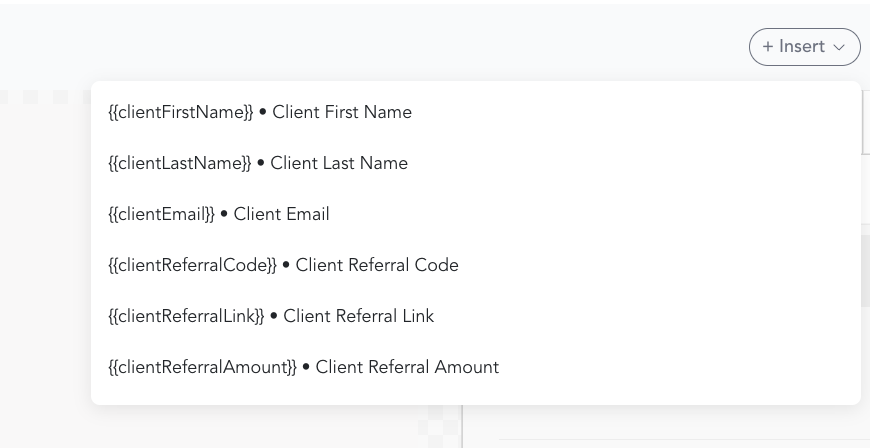
- Click Insert (top right)
- Select a handlebar — it copies to your clipboard
- Paste it where you want it in the email
In a text message:
- Open the Text composer from the message's row
- Check the recipient whose message you want to edit
- Click Insert field below their message box
- Select a handlebar from the menu
Business and branding
| Handlebar | What it inserts |
|---|---|
{{partnerLogo}} | Your logo URL (defaults to Arketa logo if not set) |
Client information
| Handlebar | What it inserts |
|---|---|
{{clientFirstName}} | Client's first name |
{{clientLastName}} | Client's last name |
{{clientEmail}} | Client's email address |
{{clientReferralCode}} | Client's referral code |
{{clientReferralLink}} | Client's referral link |
{{clientReferralAmount}} | Formatted referral reward amount |
{{facebookReferralLink}} | Link to share the referral on Facebook |
{{xReferralLink}} | Link to share the referral on X |
{{emailReferralLink}} | Link to share the referral via email |
Studio details
| Handlebar | What it inserts |
|---|---|
{{partnerEmail}} | Studio email address |
{{partnerPageName}} | Studio page name |
{{partnerWidgetName}} | Studio widget name |
{{partnerLocationMapLink}} | Map link for your business address — one fixed address for the whole account, not the address of the booked class. If you run multiple locations, use {{classLocationMapLink}} instead. |
{{partnerConfirmationEmailBody}} | Studio confirmation email body |
Class and booking details
| Handlebar | What it inserts |
|---|---|
{{className}} | Class name |
{{classStartDateTime}} | Class start date and time |
{{classEndDateTime}} | Class end date and time |
{{classDayOfWeek}} | Day of week the class falls on |
{{classLocation}} | Location name or "Livestream" |
{{classLocationAddress}} | Location street address |
{{classLocationMapLink}} | Map link for the class location |
{{classLink}} | Zoom or livestream link |
{{instructorName}} | Instructor's name |
{{classDescription}} | Class description |
{{classImage}} | Class image |
{{classExperienceType}} | Class experience type |
{{classCheckoutUrl}} | Checkout URL for the class |
{{classCheckoutConfirmation}} | Class checkout confirmation content |
{{timeToClass}} | Time until class (e.g., "in 24 hours") |
{{emailConfirmation}} | Service-level confirmation content |
{{cancelReservationLink}} | Link to cancel the reservation |
{{addToGoogleCalendarLink}} | Add to Google Calendar link |
{{addToAppleCalendarLink}} | Add to Apple Calendar link |
{{customerReviewUrl}} | Link for the client to leave a review |
{{appointmentCancellationNote}} | Cancellation note for appointments |
Purchase details
| Handlebar | What it inserts |
|---|---|
{{purchasedProduct}} | Product or offering name |
{{productDescription}} | Product description |
{{productImage}} | Product image |
{{purchaseDate}} | Purchase date |
{{purchaseConfirmationEmailBody}} | Custom confirmation body content |
{{termsLink}} | Link to purchase terms |
Gift card details
| Handlebar | What it inserts |
|---|---|
{{giftCardAmount}} | Gift card value |
{{giftCardCode}} | Gift card redemption code |
{{giftCardPurchaseDate}} | Date the gift card was purchased |
{{giftCardRecipientName}} | Name of the gift card recipient |
{{giftCardNote}} | Personal note included with the gift card |
{{giftCardImage}} | Gift card image |
Invoice & subscription details
| Handlebar | What it inserts |
|---|---|
{{invoiceAmount}} | Invoice total amount |
{{invoiceProducts}} | Products included in the invoice |
{{invoiceDashboardLink}} | Link to view the invoice in the dashboard |
Was this helpful?