
Failed payment notifications
Customize the email clients receive when a subscription payment fails.
When a subscription payment fails, Arketa automatically sends a notification to the client with a link to update their payment method. You can customize this email to match your studio's voice.
Edit the failed payment email
- Go to Settings → Communications → Transactional Messages
- Find Invoice payment failed
- Set who receives it, and the subject line, from the Email composer on that row
- Click the message and go to the Content step to update the body
- Save your changes
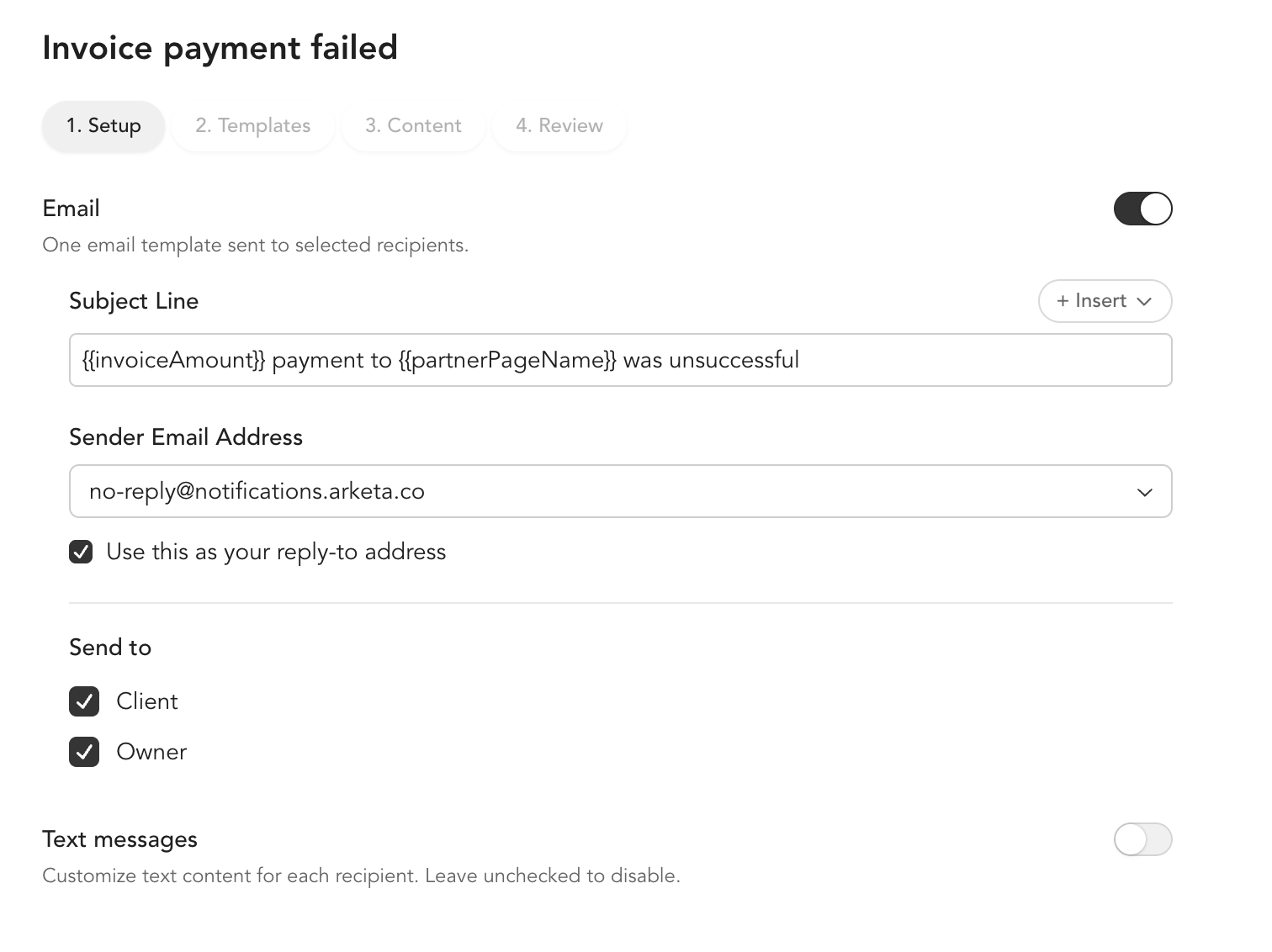
The email sends to the client automatically. The business owner also receives a copy.
What the email should do
A good failed payment email:
- Lets the client know their payment didn't go through (without being accusatory — card declines often happen accidentally)
- Gives them a clear link to update their payment method
- Lets them know what happens if they don't update (access may be restricted, but their subscription won't be canceled)
Use the {{clientFirstName}} handlebar to personalize it, and consider adding your studio phone number or email if you want clients to be able to reach you directly.
What happens after the email
Arketa retries failed subscription payments automatically. The retry schedule:
- Payment fails on the renewal date
- Arketa retries up to 8 times within 30 days, using a smart algorithm to determine the optimal time of day for each attempt
- If all retries fail, the subscription moves to Past Due
Arketa will never automatically cancel a subscription — even after all retries are exhausted. The subscription stays in "Past Due" status until a client or staff member takes action.
See subscription payment failures for the full retry process and how to manually resolve a failed payment.
Block bookings on failed payments
You can optionally prevent clients from making new bookings while they have an unpaid balance. Go to Settings → General Business Settings and enable Block bookings for clients with failed payments.