
Facebook and Meta ads
Connect Meta Pixel and the Conversions API (CAPI) so Facebook and Instagram ads optimize on real bookings and revenue.
When you run Facebook or Instagram ads, Meta needs reliable conversion data to find buyers — not just clickers. Arketa connects Meta Pixel (browser) and the Conversions API (CAPI) (server) together so your campaigns see bookings, purchases, trials, and subscriptions even when the browser Pixel is blocked.
Set up both. Pixel alone misses a meaningful share of events. CAPI is what makes your reporting and optimization trustworthy.
Why CAPI is worth setting up
The Meta Pixel runs in your client's browser. That worked well for years — but today a lot of conversion signals never reach Meta:
- Ad blockers and privacy extensions stop
fbqfrom firing - iOS and browser privacy limit what client-side tracking can see
- Paid subscriptions often convert on a server invoice after checkout, when the browser session is already gone
Conversions API (CAPI) sends the same conversion events from Arketa's servers directly to Meta. You get a second, independent path for every important action on your booking page.
What you gain
- More complete data — recover conversions the browser Pixel never recorded
- Smarter ad delivery — Meta's algorithm optimizes on real revenue, not incomplete signals
- Accurate ROI — see which ads drive bookings and memberships, not just landing-page visits
- Automatic deduplication — Arketa sends matching event IDs from browser and server; Meta counts each conversion once
- Reliable subscription tracking — Subscribe fires when the first invoice is actually paid, server-side, so failed cards don't inflate your numbers
CAPI is not a replacement for Pixel — it's the pairing Meta recommends. Arketa handles both and keeps them in sync.
What you'll need
- A Meta Business Manager account
- A Meta Pixel (create one in Events Manager if you don't have one yet)
- A Conversions API access token for that Pixel
- Your website domain verified in Meta Business Manager
Set up Meta tracking in Arketa
Copy your Pixel ID
- Go to business.facebook.com and log in
- Open Business Settings (gear icon, top right)
- Go to Data Sources → Pixels
- Select your Pixel (or click Add to create one) and copy the Pixel ID
You can also find the Pixel ID in Meta Events Manager under your dataset's Settings.
Generate your Conversions API token
CAPI requires a server access token tied to your Pixel — this is separate from your Pixel ID.
- In Meta Events Manager, open your Pixel / dataset
- Go to Settings
- Scroll to Conversions API
- Click Generate access token (or Set up manually → generate token)
- Copy the token and store it somewhere secure — Meta may only show the full value once
Use the token from Conversions API in Events Manager, not a preview or test token from elsewhere.
Verify your domain (recommended)
Domain verification helps Meta attribute events to your site and improves delivery quality.
- In Business Settings, go to Brand Safety → Domains
- Add your domain if it is not listed and follow Meta's verification steps
- Open the domain and copy the Meta Tag Verification code from Domain Details
Connect in Arketa
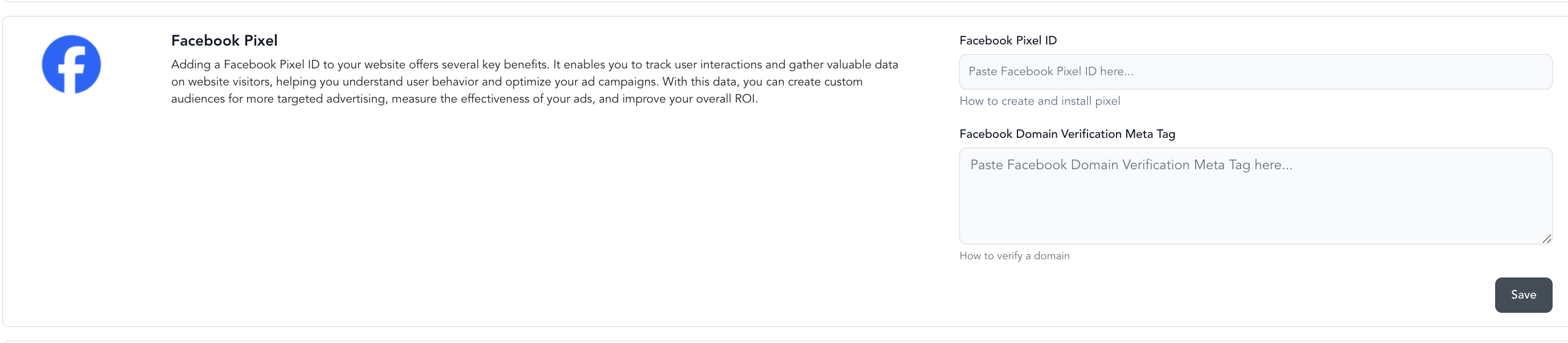
- Go to Settings → Integrations → Facebook
- Enter:
- Facebook Pixel ID
- Conversions API access token
- Facebook Domain Verification Meta Tag (if you use domain verification)
- Save
Once your Pixel ID and CAPI token are saved, server-side tracking is on. Optional: enable Track subscription renewals (LTV) if you want a custom SubscriptionRenewed event sent on each renewal (see FAQ below).
Confirm events in Meta
- In Events Manager, open Test Events
- Complete a test booking or purchase on your client-facing booking page
- You should see the event with Browser and Server sources and a Deduplicated badge
If you only see one source, check that the Pixel ID and CAPI token are saved in Arketa and try again without an ad blocker.
What Arketa sends to Meta
Arketa fires standard Meta events from your booking page (browser Pixel + CAPI):
| Event | When it fires |
|---|---|
| Schedule | Client books a class |
| Purchase | Client buys a pricing option, on-demand video, or pack |
| StartTrial | Client starts a subscription on a free trial |
| Subscribe | First paid invoice succeeds for a subscription |
| SubscriptionRenewed (custom) | Each renewal invoice, if Track subscription renewals (LTV) is enabled |
That data powers:
- Ad optimization — Meta finds more people like your actual buyers
- Retargeting — build audiences from people who visited but did not convert
- Revenue reporting — tie ad spend to bookings and memberships, not just clicks
CAPI and Pixel run on your client-facing booking page only. Purchases your staff take in the dashboard or at the front desk are not sent to Meta — those conversions are not from ad clicks, so they are excluded from campaign reporting by design.
Facebook Lead Ads
You can connect Facebook Lead Ads to Arketa's lead management with intake forms. When someone submits a Lead Ad form, their information flows into your dashboard as a new lead, and an automation can follow up right away.
See lead forms for setup.