
Visual email builder
Design branded emails for broadcasts and automations, add live class details, write or edit with AI, and send yourself a test.
The visual builder is where you design marketing emails in Arketa. It opens with your logo, colors, and fonts already applied, so every email looks like your studio from the start. You can use it for email broadcasts and for the email steps in your automations.
Start an email
- Open the email you're working on:
- Broadcast: go to Marketing → Broadcasts, create or open an email broadcast, and go to the Content step.
- Automation: open an automation and click an email step.
- Click Add Content.
- Under Visual builder, choose Start blank or a starter: Weekly update, New class, or Offer.
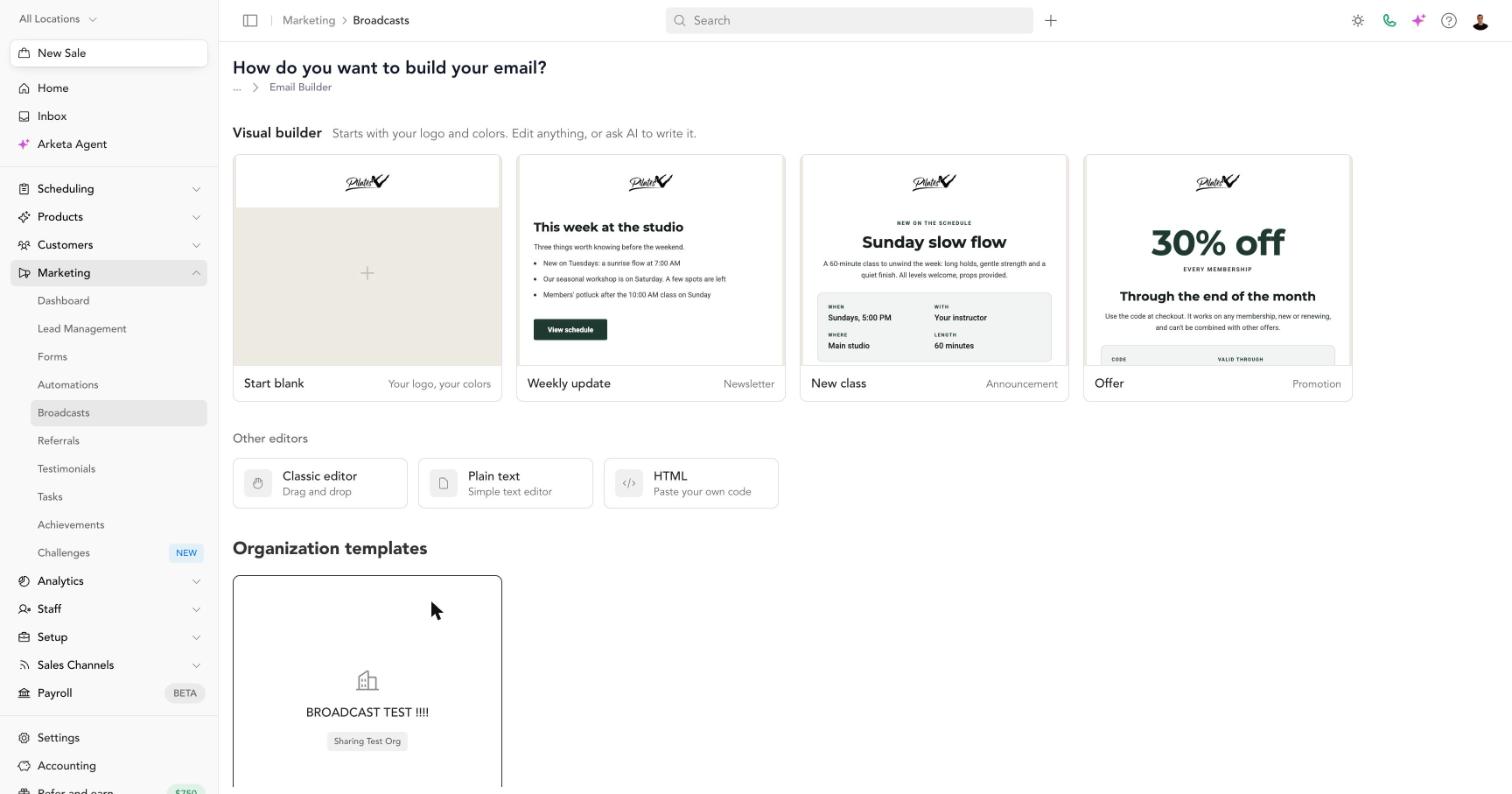
Starters are examples to edit, not finished emails. Change the text, swap the images, and remove anything you don't need.
The older editors are still available under Other editors: Classic editor (drag and drop), Plain text, and HTML.
The builder takes your brand from Settings → Email Settings → Design & Details: logo, colors, and fonts. Update them there and every new email starts with them. Emails you've already saved keep their own styles.
Find your way around
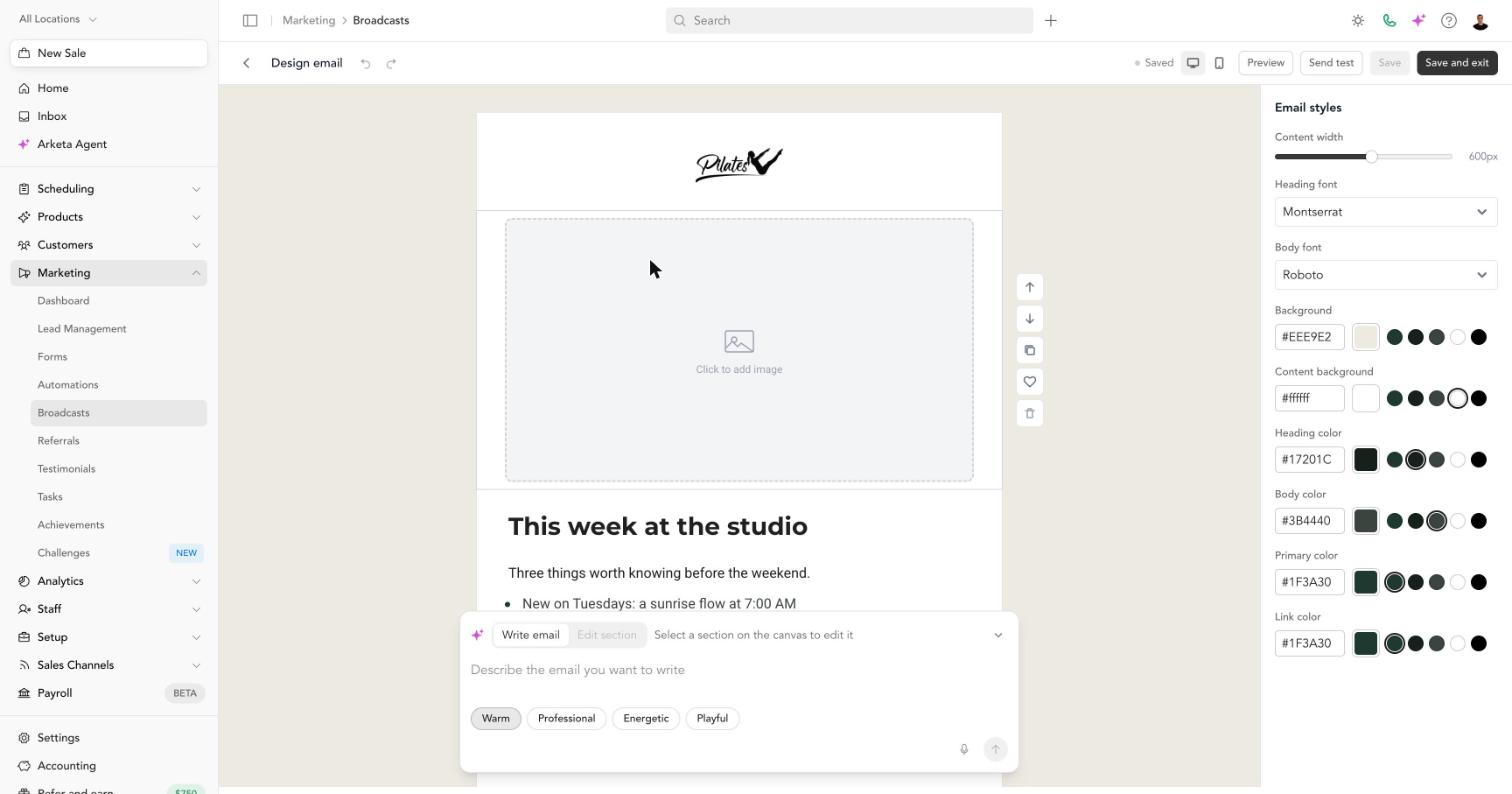
- The email is in the middle. Click any part of it to edit it. Use the arrows beside a section to move it up or down, or the icons to copy it, save it to favorites, or delete it.
- The sidebar on the right shows Email styles when nothing is selected: width, fonts, and colors for the whole email. Click a section to see its own settings. Every color field shows your brand colors as swatches, so you can match your brand in one click.
- The top bar shows whether your work is Saved or has Unsaved changes. Save only lights up when there's something new to save. The builder also saves on its own while you work, and when you click Save and exit.
- The AI panel sits at the bottom of the canvas. Collapse it with the arrow, and open it again with Ask AI.
Add blocks
Hover between two sections and click + to open the block picker.
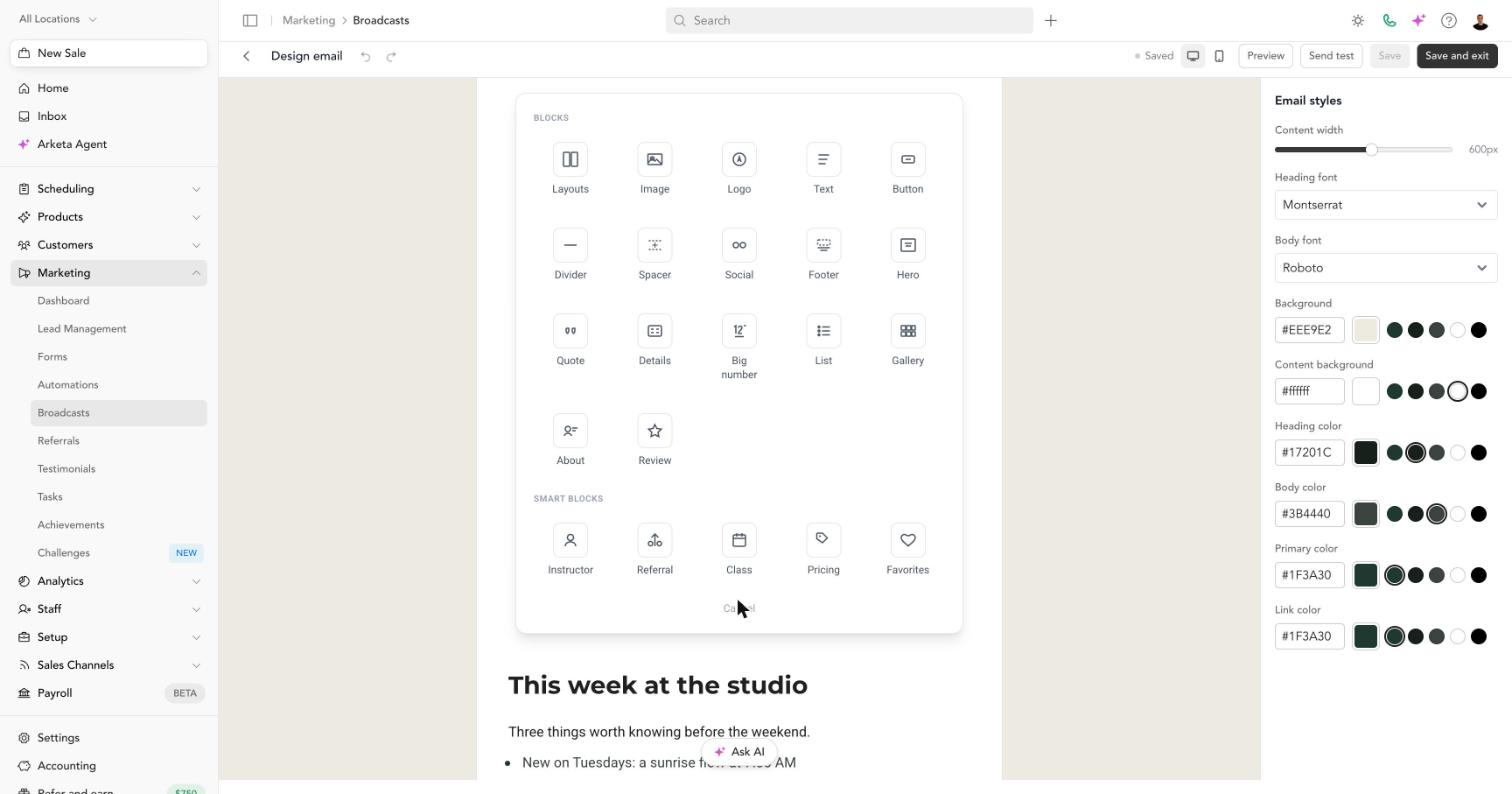
Blocks are the building pieces of an email: text, images, buttons, layouts with columns, dividers, quotes, lists, galleries, and more.
Smart blocks fill themselves in from your Arketa account:
| Smart block | What it adds |
|---|---|
| Instructor | An instructor's photo and bio |
| Referral | Your referral offer |
| Class | A class or event from your schedule, with a booking button |
| Pricing | A membership or pack with its price |
| Favorites | Sections you saved to reuse |
Add a class
- In the block picker, click Class.
- Search or scroll the list. Classes are grouped by day and show the time, instructor, location, and spots left. Use All, Classes, or Events to narrow the list.
- Click a class.
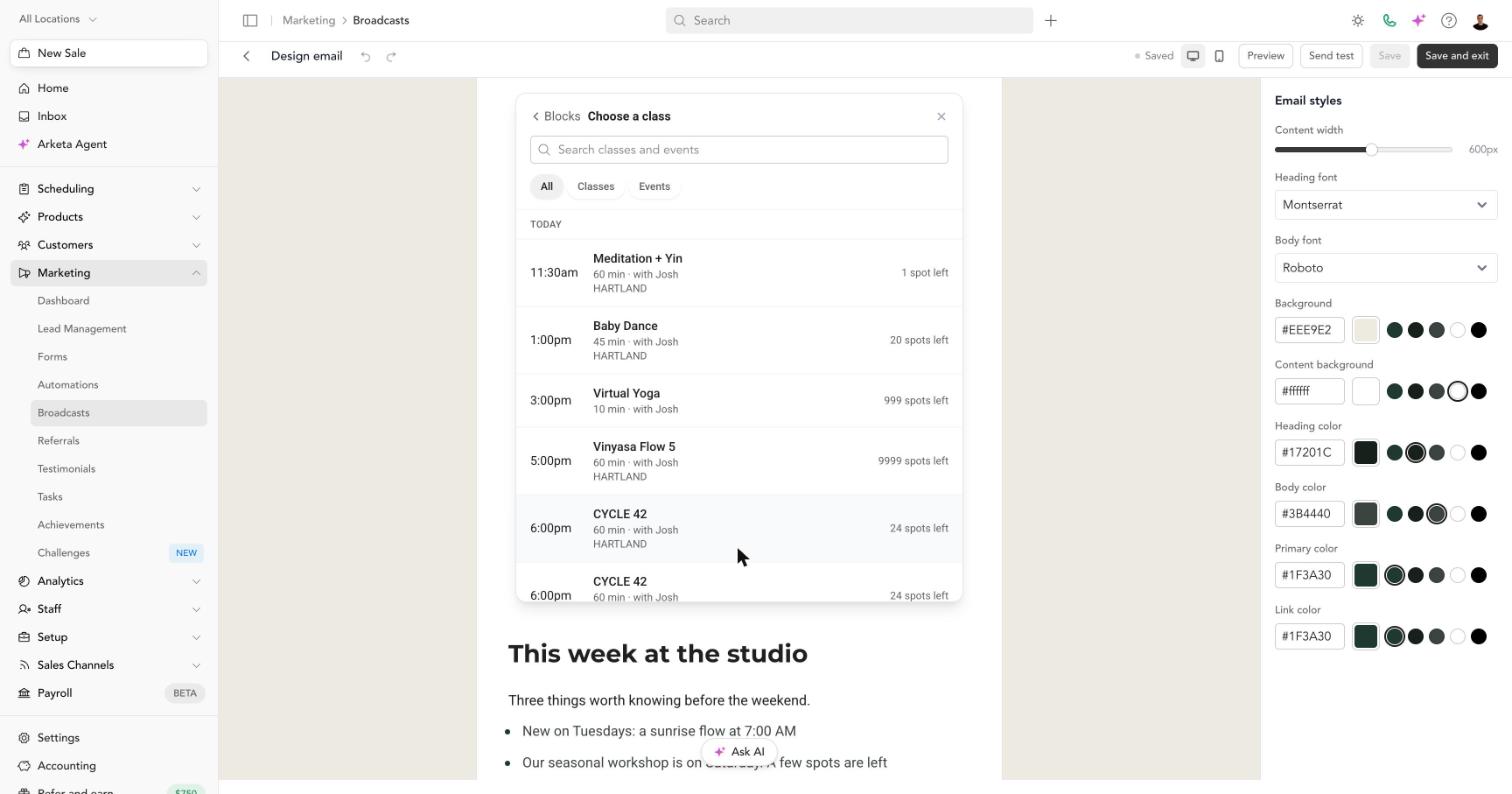
The email gets the class name, a card with When, Time, With, and Where, the class description, and a Book now button that links to the class. Full classes can't be picked.
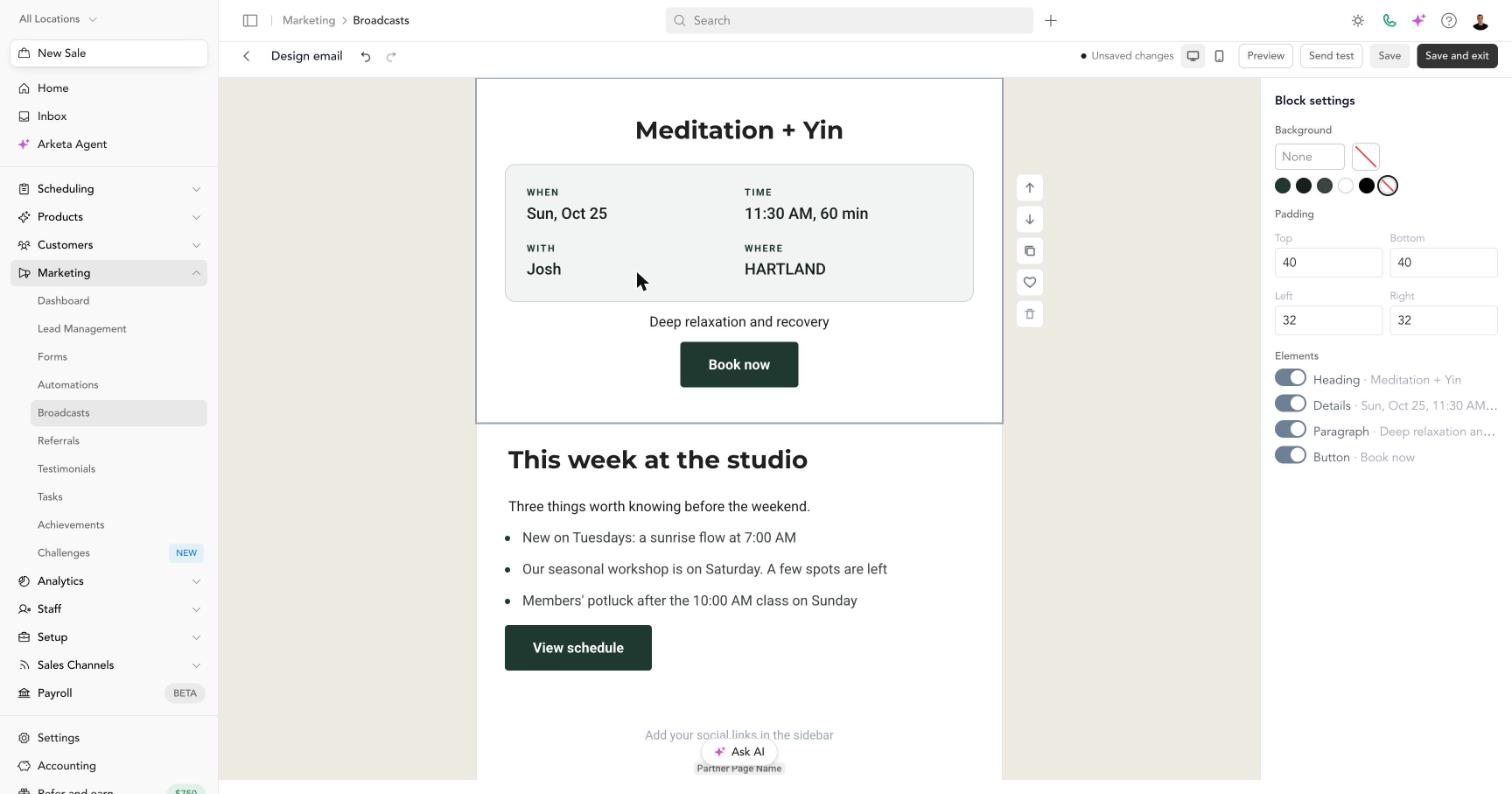
In the sidebar you can turn off any part of the block, such as the description or the button.
The email shows the details at the moment you add the class, and it doesn't show spots left, since that number would be out of date by the time clients read it. If you change the class time, add the block again.
Write or edit with AI
The AI panel can write a whole email or rewrite one section.
Write a whole email
- In the AI panel, choose Write email.
- Describe the email, for example "Announce our new Sunday slow flow class and invite members to bring a friend."
- Pick a tone: Warm, Professional, Energetic, or Playful.
- Press the arrow to send.
If your email already has content, the builder asks before replacing it.
Edit one section
- Click the section you want to change.
- In the AI panel, choose Edit section. The panel shows which section it will change, for example Editing: Text, and outlines it on the canvas.
- Describe the change, for example "Make this shorter and friendlier."
- Review the new version, then click Keep or Discard.
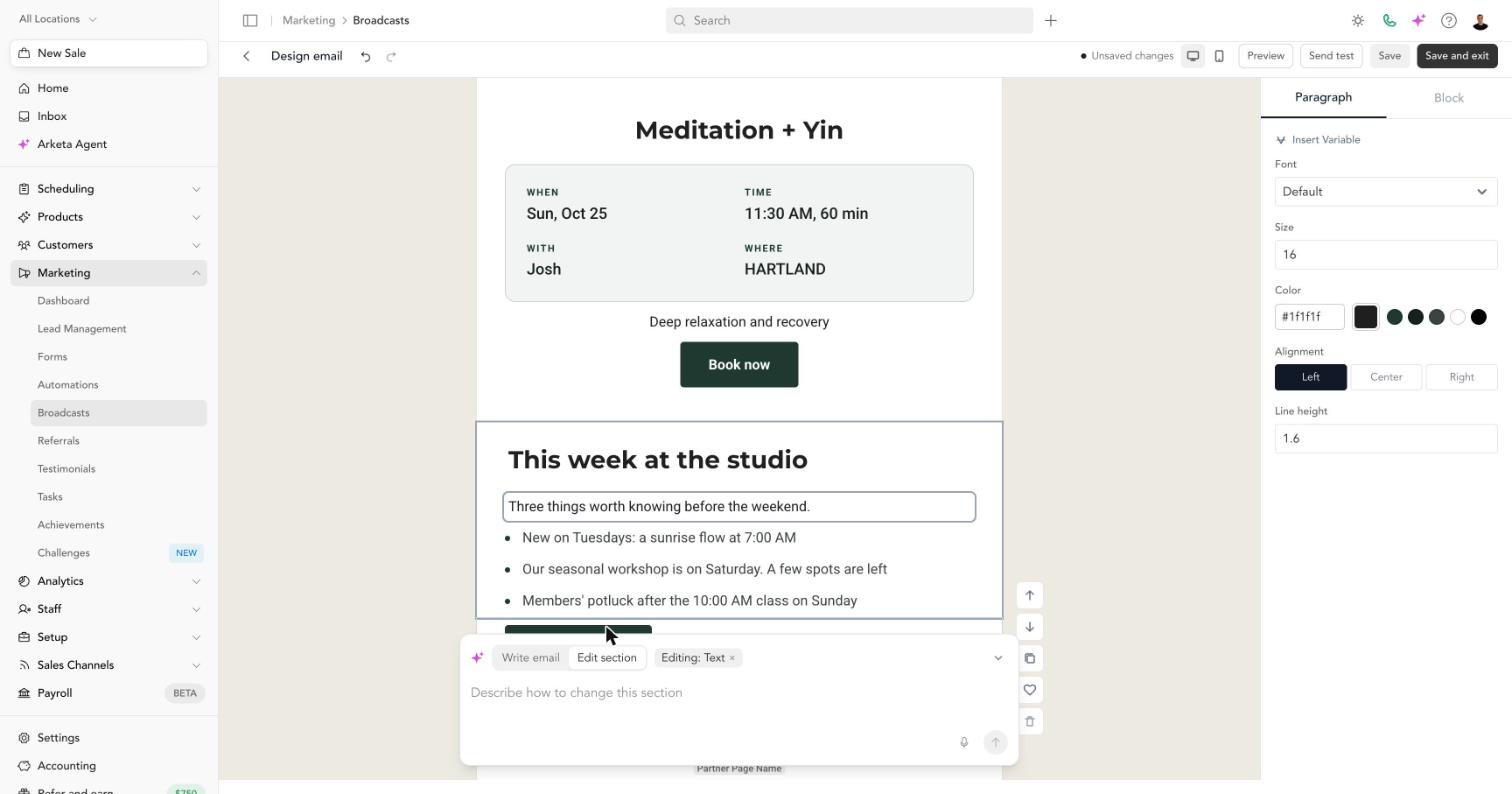
Click Stop at any time while the AI is working. Your email stays as it was.
AI writing uses your studio's AI credits. You'll see your balance in the AI panel once you've used 90% of the month's credits. See Arketa Agent for how AI credits work.
Check the mobile layout
Click the phone icon in the top bar to edit the email at phone width. Columns stack the way they do on a phone. Changes you make here apply to both the desktop and mobile layouts.
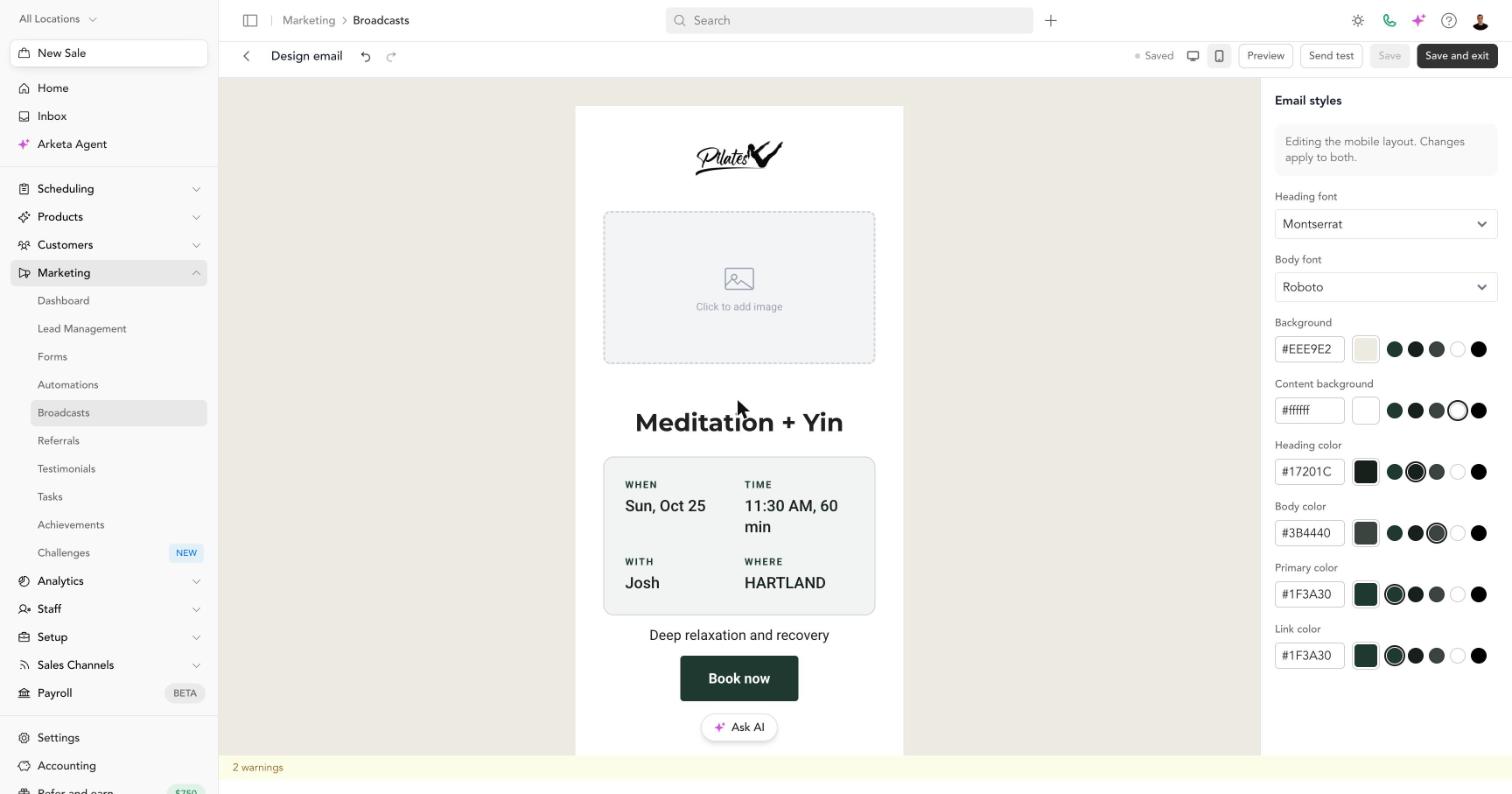
Click Preview to see the email the way clients will.
Send yourself a test
- Click Send test in the top bar.
- Choose who gets it: your own email or one of your studio's verified sender addresses.
- Click Send test.
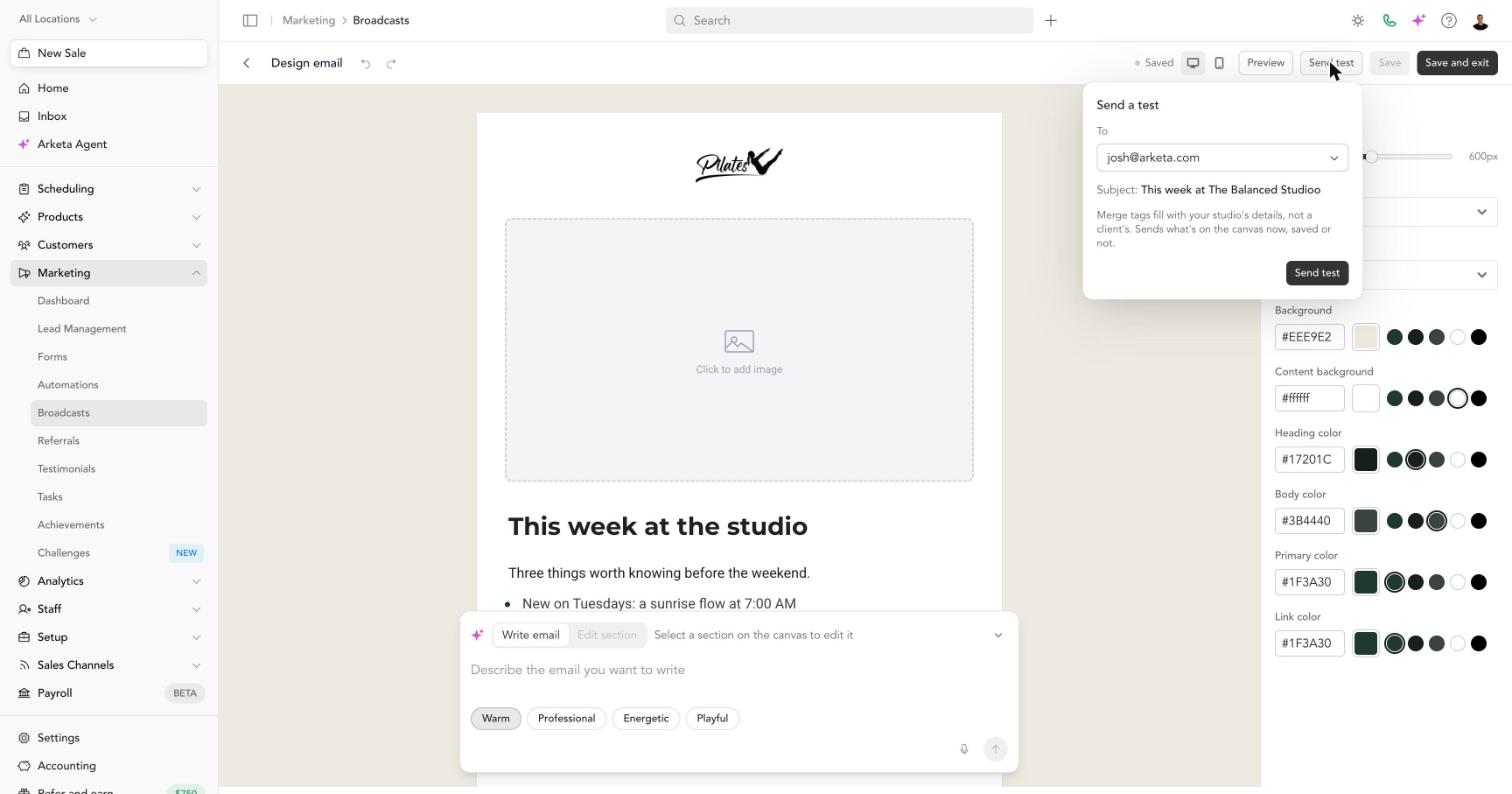
The test sends what's on the canvas right now, even if you haven't saved. Its subject starts with [Test] and uses the subject line from your broadcast or automation step.
Merge tags such as a client's first name are filled with your studio's details in a test, not a client's.