
Email broadcasts
Send a one-time email to all your clients or a specific segment.
An email broadcast is a one-time send to a group of clients — a newsletter, an announcement, a promotion, or any message you want to send right now (not triggered automatically).
Create an email broadcast
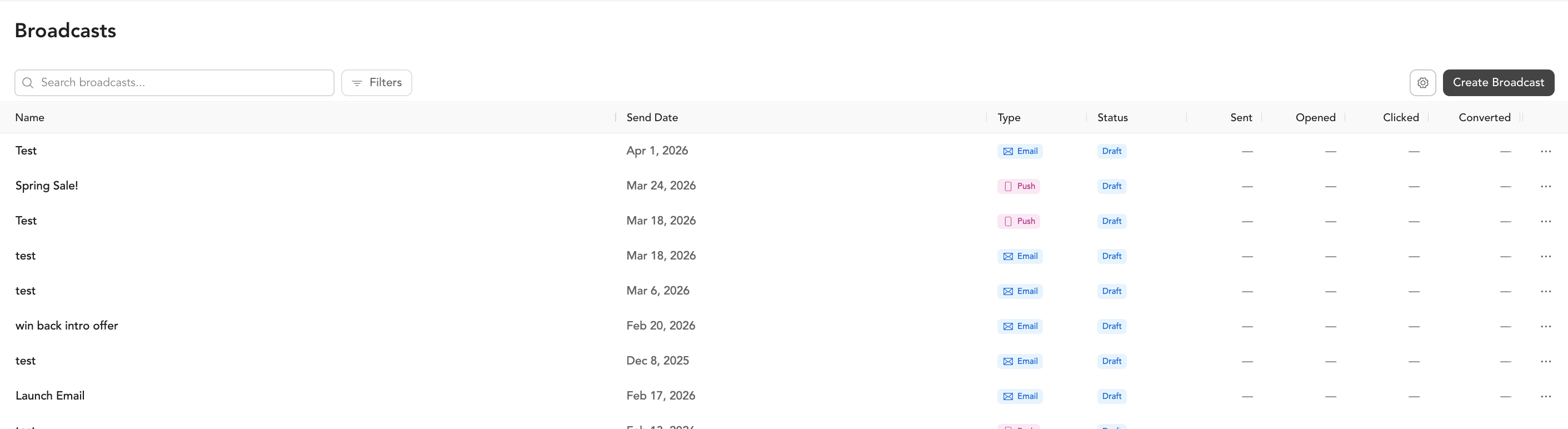
- Go to Marketing → Broadcasts
- Click Create Broadcast
- Select Email
- Fill in:
| Field | What to enter |
|---|---|
| Name | Internal name for the campaign (not shown to recipients) |
- Preview the email before sending
- Choose Send now or Schedule for a specific date/time
- Send
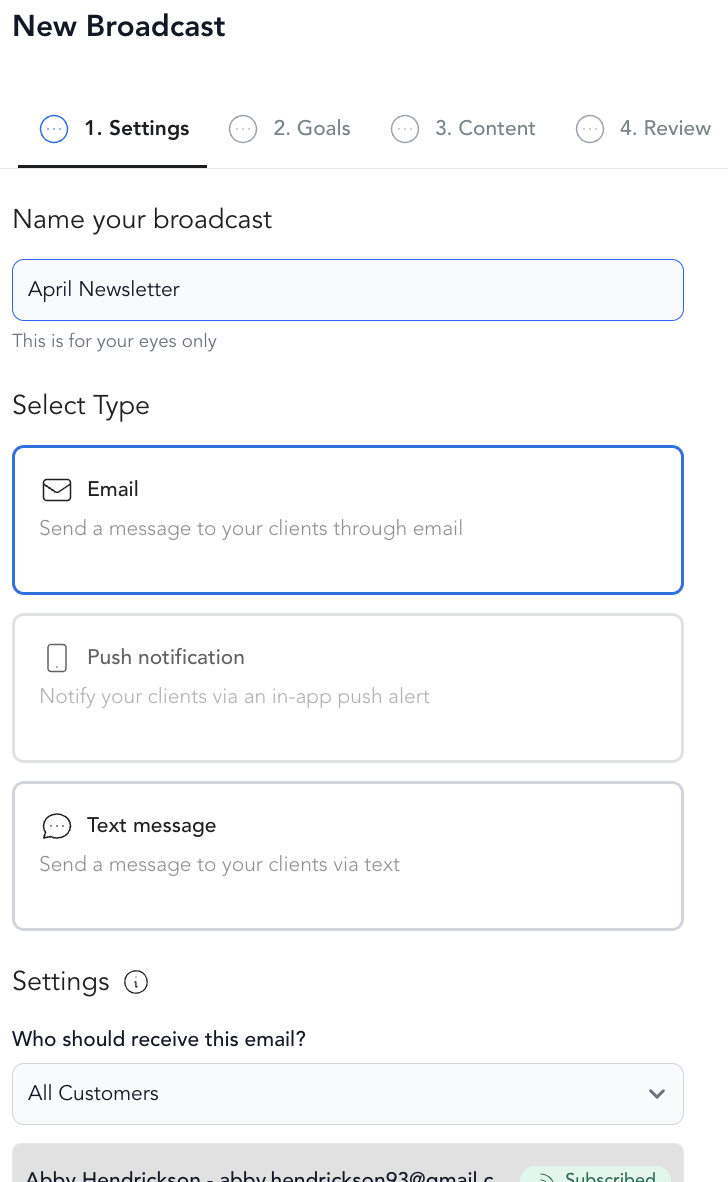
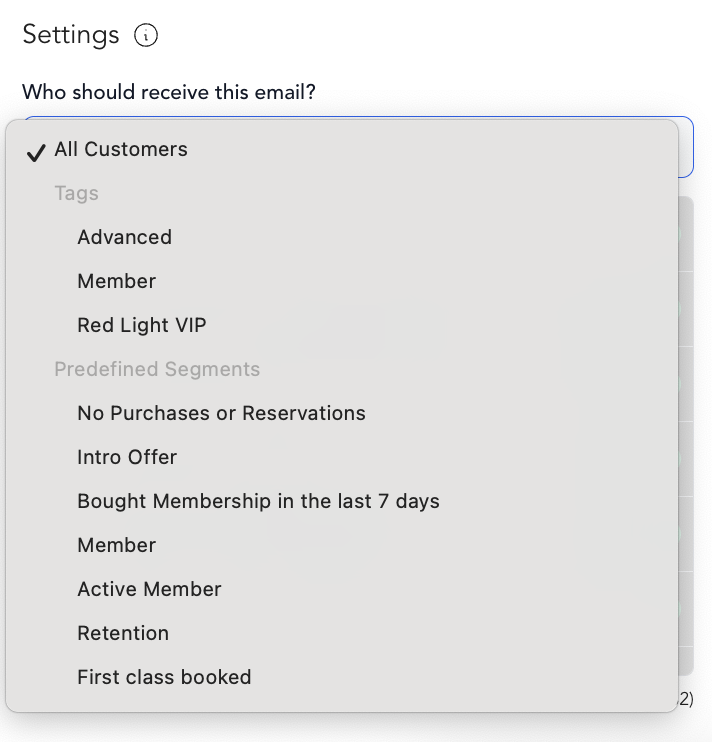
Choosing your audience
All clients — everyone on your list, including opted-in subscribers.
Tags — filter to clients with a specific tag (e.g., "active members", "intro offer")
Segments — filter by last booking date, pricing option, class attendance, location, and more. This is the most powerful way to send targeted emails.
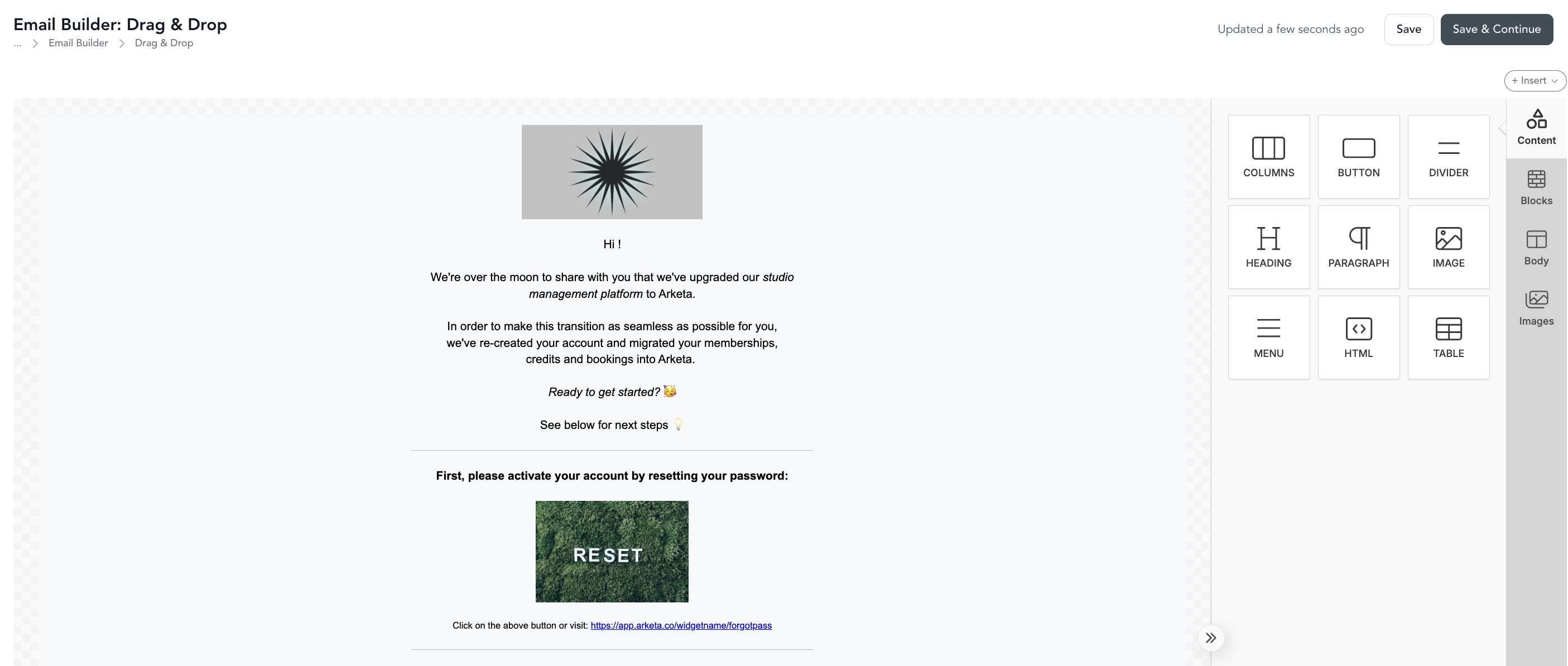
Email editor
The email editor has drag-and-drop blocks for text, images, buttons, dividers, and more. You can also embed video previews that link out to YouTube, Vimeo, or your on-demand library.
Tracking results
After sending, go to Marketing → Broadcasts and click on the campaign to see:
- Delivered
- Opens and open rate
- Clicks and click rate
- Unsubscribes
- Bounces
See broadcast results for details.
Why a sent broadcast shows no delivered count
If a broadcast shows as Sent but Delivered is blank or zero, the most common cause is that you've used up your included monthly marketing emails and overage billing is turned off. Arketa stops sending once your allocation runs out, so the remaining recipients aren't emailed — even though the broadcast is marked Sent.
To fix it:
- Go to Settings → My plan to check your remaining marketing email allocation, and either turn on overage billing or wait for your allocation to reset at the start of your next billing cycle.
- Open the broadcast and resend it — recipients who were skipped are not emailed automatically.
A blank delivered count can also mean none of the selected clients are opted in to marketing emails.
Legal requirements
All marketing emails must include an unsubscribe link — Arketa adds this automatically. Clients who unsubscribe are removed from future marketing emails but still receive transactional emails (booking confirmations, receipts).