
Write a broadcast with AI (beta)
Describe a broadcast in a sentence and the AI writes it, picks who gets it, and sets a goal. Then change anything by asking, including making a new segment.
This is in beta and rolling out to studios gradually. If you don't see Ask Arketa Agent to write the broadcast for you when you create a broadcast, it isn't on for your studio yet.
Tell the AI what you want to send, like "Email our members about the new Saturday 9am reformer class", and it drafts the whole broadcast: who gets it, the subject line, a designed email in your brand, and a goal to measure it by. You review everything on one page, ask for changes in plain words, and send when you're happy. Nothing goes out until you click send.
Draft a broadcast
- Go to Marketing → Broadcasts and click Create new.
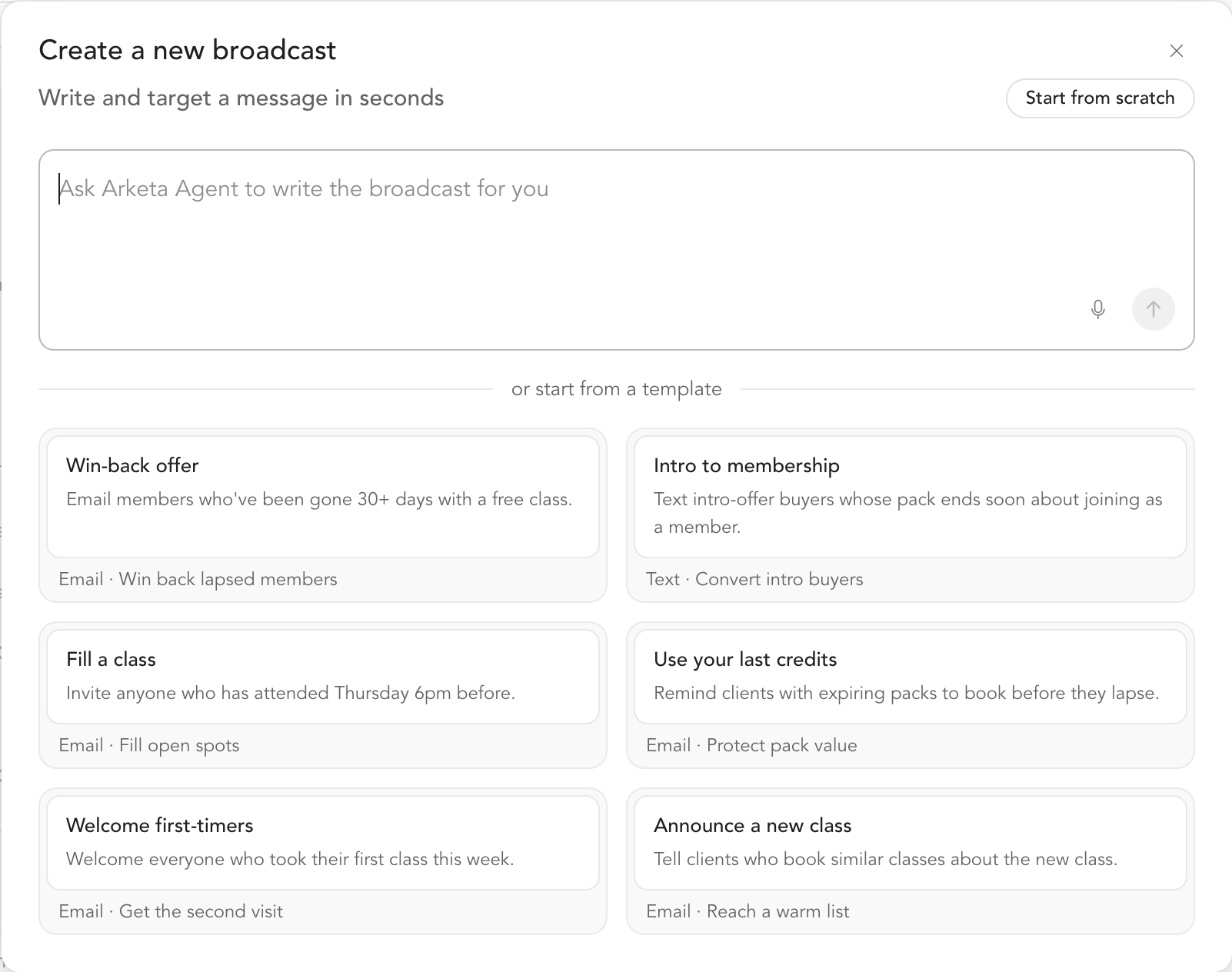
- Describe the broadcast in the box, or pick a template such as Win-back offer, Fill a class, or Announce a new class. Click the microphone to dictate instead of typing.
- Click the arrow to send.
The AI takes about half a minute. It finds the audience, writes the message, and shows you a draft with:
- The broadcast's name and how many clients it will reach
- To: the segment or tag it picked
- The sender, subject line, preview text, and the start of the email
- Goal: what counts as success, for example "books a class within 7 days"
- Assumed: anything it had to guess, such as which clients count as members
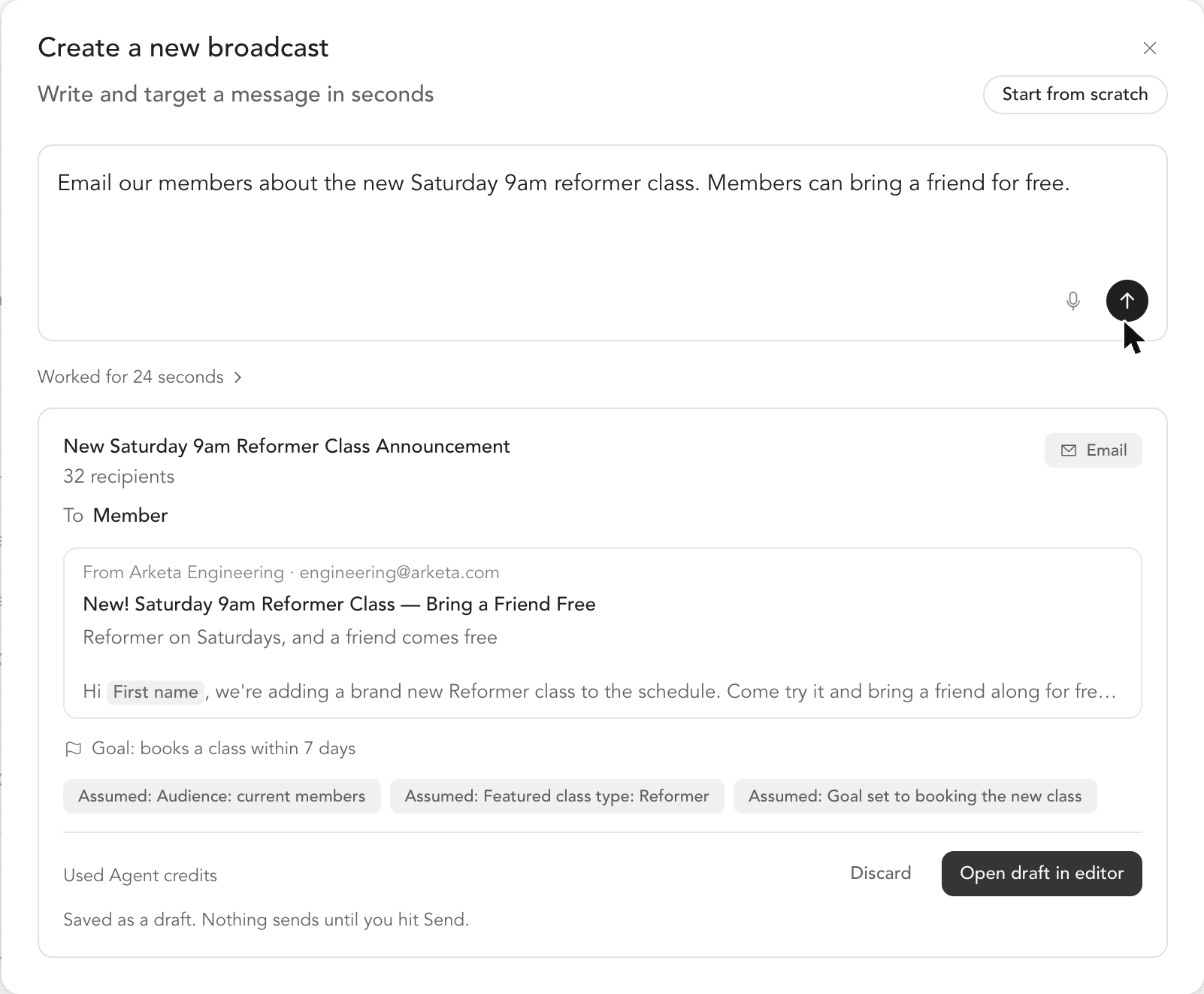
Click Open draft in editor to review it, or Discard to throw it away. The draft is already saved, and nothing sends until you click send.
Prefer to do it yourself? Click Start from scratch to build a broadcast without AI.
Review it on one page
The draft opens on a single page with everything you need before sending.
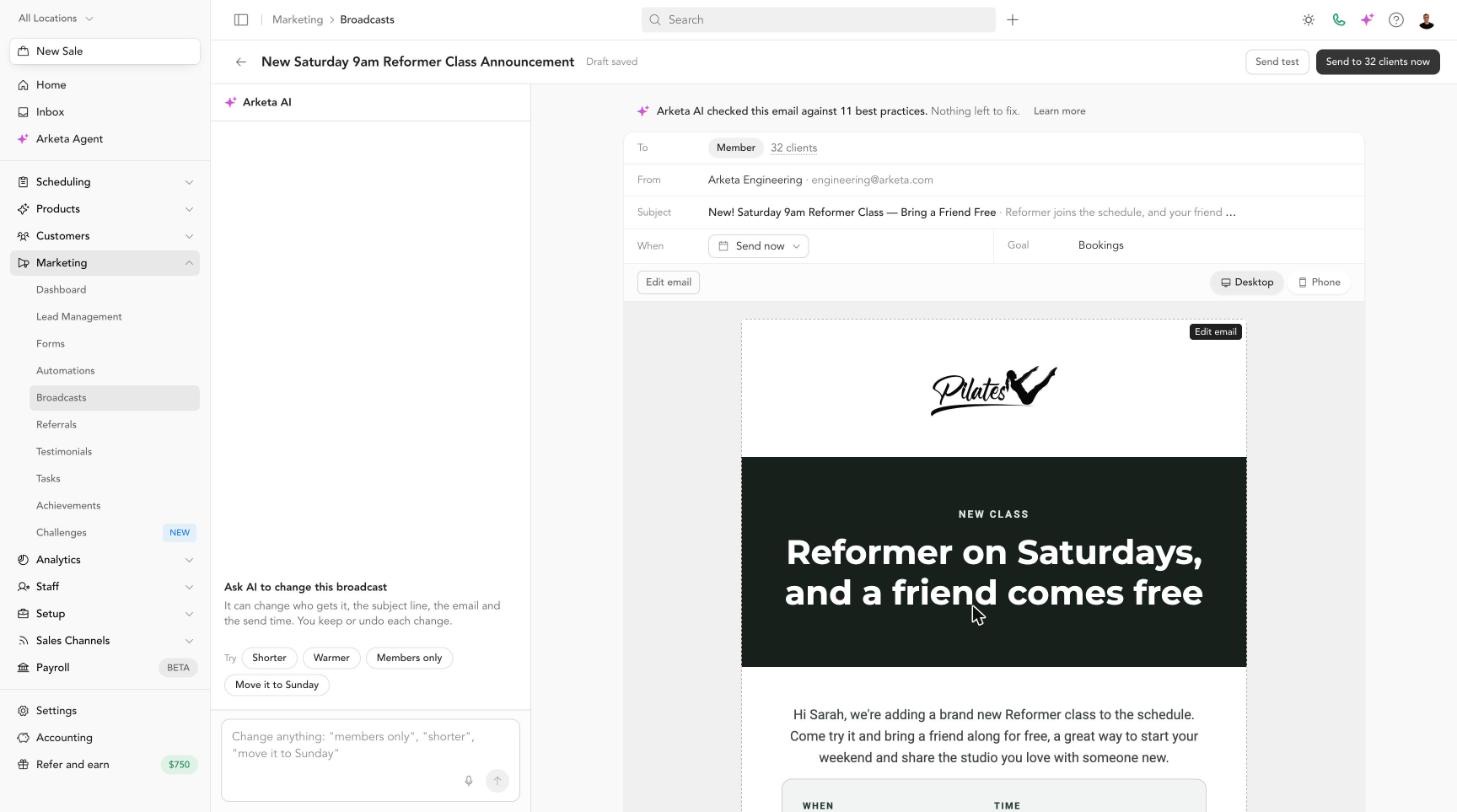
- To shows the audience and how many clients will actually get it. Click the count to see who they are.
- From, Subject, and When show the sender, the subject and preview text, and whether it sends now or at a scheduled time.
- Goal shows how the broadcast's results are measured.
- The email preview shows exactly what clients will see. Switch between Desktop and Phone, or click Edit email to open it in the visual builder.
- Above the preview, the AI checks the email against 11 best practices, such as an empty subject line, broken links, or a missing image. If something needs fixing, it says what.
When you're ready, click Send test to see it in your own inbox, then the send button at the top right. It says who it will reach, for example Send to 31 clients now, or the scheduled time.
Change it by asking
The Arketa AI panel on the left changes the broadcast for you. Type what you want, or click a suggestion such as Shorter, Warmer, Members only, or Move it to Sunday. It can change:
- Who gets it: name a segment or tag, say "everyone", or describe a new group (see below)
- The subject line and preview text
- The email itself: shorter, warmer, a new offer, a detail added
- When it sends: "send it Thursday at 9am" or "send it now"
You can ask for several changes at once, like "send it Thursday at 9am and make it a bit shorter".
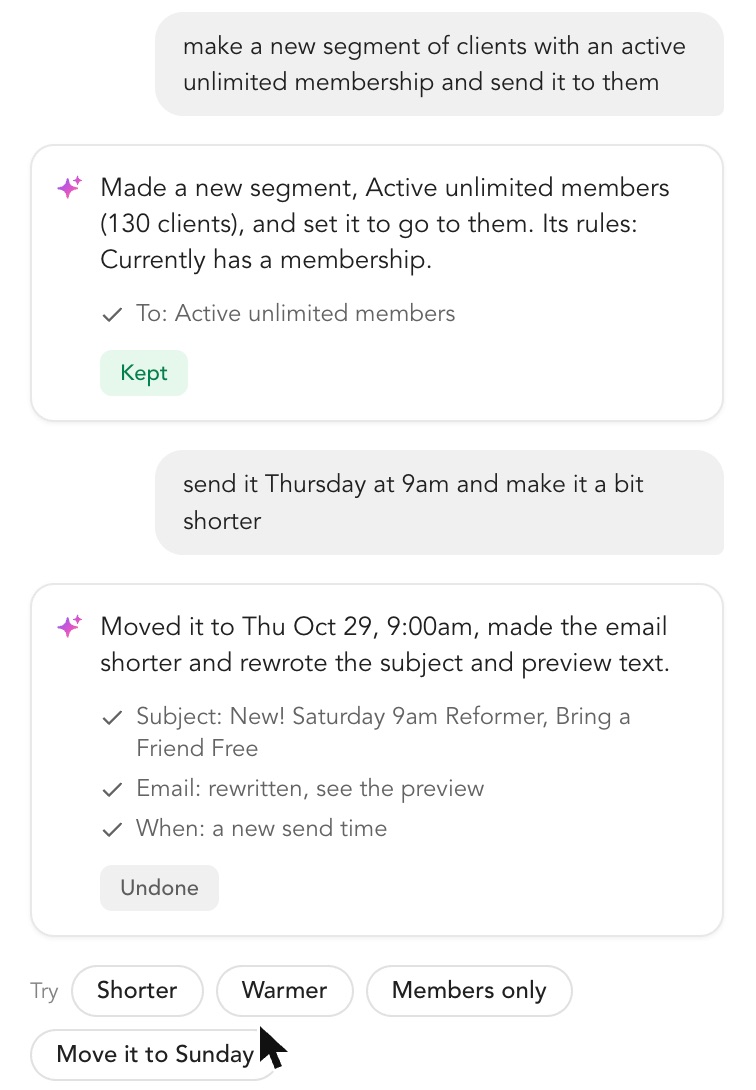
Each change shows on the page right away and is listed in the panel. Click Keep to save it or Undo to put things back. You need to keep or undo a change before asking for the next one.
Broadcasts can be scheduled between 30 minutes and 30 days ahead. If you ask for a time outside that window, the AI says so and leaves the send time as it was.
Send to a new segment
If the group you have in mind doesn't exist yet, describe it: "make a new segment of clients with an active 8x a month membership and send it to them". The AI builds the segment, saves it, and points the broadcast at it. Its reply tells you the segment's name, how many clients are in it, and the rules it used, so you can check it matched what you meant.
- Every version of a plan counts. Studios often sell one plan under several names, such as "8x/ Month" and "Founding 8x Month". The AI includes every version of the plan you name, and lists them in its reply.
- It never saves an empty segment. If no clients match, it says what it looked for and leaves the audience unchanged.
- It reuses a segment you already have if one with the same name and rules exists.
- The new segment is saved in Customers → Segments, where you can edit or delete it. Clicking Undo changes who the broadcast goes to back, but leaves the segment in your list.
To make a new segment you need permission to create segments, and Segments must be part of your plan. Otherwise, name an existing segment or tag, and the AI suggests the closest ones it has.