
Add Arketa to your website
Embed your class schedule, pricing, video library, or booking widget directly into your website.
You can embed Arketa's scheduling widget directly into your existing website — Squarespace, Wix, WordPress, Webflow, Showit, and others. Clients can book, purchase memberships, and watch videos without ever leaving your site.
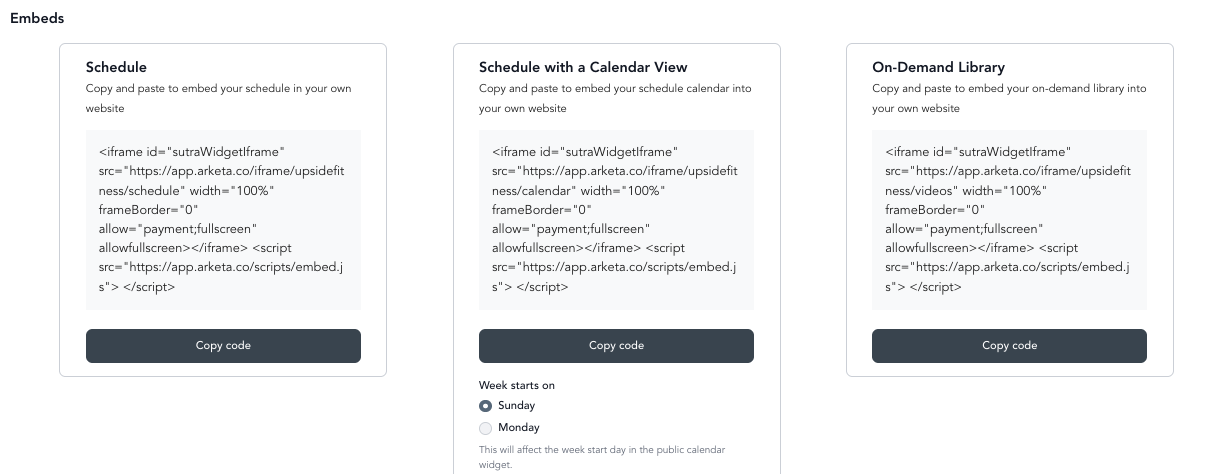
Get your embed code
Before embedding, find your code in the dashboard:
- Go to Sales Channels → Website Integration
- Select the widget you want to embed (schedule, pricing, video library, etc.)
- Copy the embed code
Each widget has its own code — make sure you're copying the right one for what you want to display.
You can only use one Arketa embed per page. If you need multiple widgets, place each one on its own page.
Squarespace
Make sure your Squarespace account is updated to the latest version before embedding.
Add a Code Block
In your Squarespace editor, add a new Code Block to the page where you want the widget to appear. Squarespace embed guide →
Paste your embed code
Click on the Code Block, clear any existing text, paste your Arketa embed code, and make sure HTML is selected in the dropdown.
Publish
Save and publish your changes.
Squarespace requires a Business or Commerce plan to use JavaScript or iframes in Code Blocks. If you're on a Personal plan, the embed won't work.
Fix a cut-off embed on Squarespace
Sometimes an embedded widget — or a pop-up window inside it — gets clipped or cut off by your Squarespace template. This shows up most often with the On-Demand Library embed, where the video pop-up opens larger than the space the template gives it. A few different things can cause it, so work through the fixes below one at a time.
Before you make changes, duplicate your site so you can revert if needed, and test each change on an unpublished (staging) page rather than your live site. That way a broken layout never reaches your clients.
Still cut off after trying these? Chat Arketa support and include your page URL so we can take a look at your specific setup.
Wix
Add an Embed element
In the Wix editor, click Add Elements → Embed Code → Popular Embeds → Embed HTML.
Paste your code
Paste your Arketa embed code into the Add your code here field.
Resize and position
Drag the embed element to position it, and resize it to fit your layout.
Fix full screen not working on an embedded video library
Clients watching your on-demand videos in an embed may find the full screen button does nothing — it appears in the player, but tapping or clicking it has no effect and shows no error. This happens most often on Wix, and it is caused by your website builder rather than by your Arketa embed code.
Browsers only allow full screen inside an embed if every layer around it passes the permission through. Your Arketa embed code already includes it. But some builders wrap the code you paste in a frame of their own, and when that wrapper doesn't pass the permission along, full screen is switched off for everything inside it.
To work around it:
Full screen still works normally on your Arketa branded website, in the Arketa mobile app, and on your direct video library link. Only embeds placed on a third-party website builder are affected.
WordPress
Copy your embed code
Get your embed code from Sales Channels → Website Integration in your Arketa dashboard.
Add a Custom HTML block
In the WordPress block editor, add a Custom HTML block to the page where you want the widget.
Paste your code
Paste the Arketa embed code into the HTML block and update/publish the page.
Need help with a specific WordPress setup or page builder (Elementor, Divi, etc.)? Chat us and we'll walk you through it.
Webflow
Add a new HTML Embed element to your page and paste your Arketa code. Webflow handles iframes natively.
Showit
In the Showit editor, add a Widget element and paste your embed code into the HTML field.
Other website builders
Most website builders support iframe/HTML embeds in some form. The general process is:
- Find where your builder lets you add custom HTML or embed code
- Paste your Arketa embed code there
If you're on a builder not listed here, chat us and we'll help you figure it out.
Remove gift cards from the pricing widget
If you want to embed your pricing page but hide the gift card option, add ?giftcard=false to the src URL in your embed code:
<iframe
  id="sutraWidgetIframe"
  src="https://app.arketa.co/iframe/YOUR_URL_HERE/pricing/cards?giftcard=false"
  width="100%"
  frameBorder="0"
  allowfullscreen>
</iframe>
<script src="https://app.arketa.co/scripts/embed.js"></script>
Replace YOUR_URL_HERE with your scheduling URL.
Add a client login page
You can embed the Account Information widget to create a dedicated login page on your website. Clients use it to manage their bookings, purchases, and profile straight from your site.
- Go to Sales Channels → Website Integration
- Select the Account Information widget and copy its embed code
- Paste it onto its own page, using the steps for your website builder above
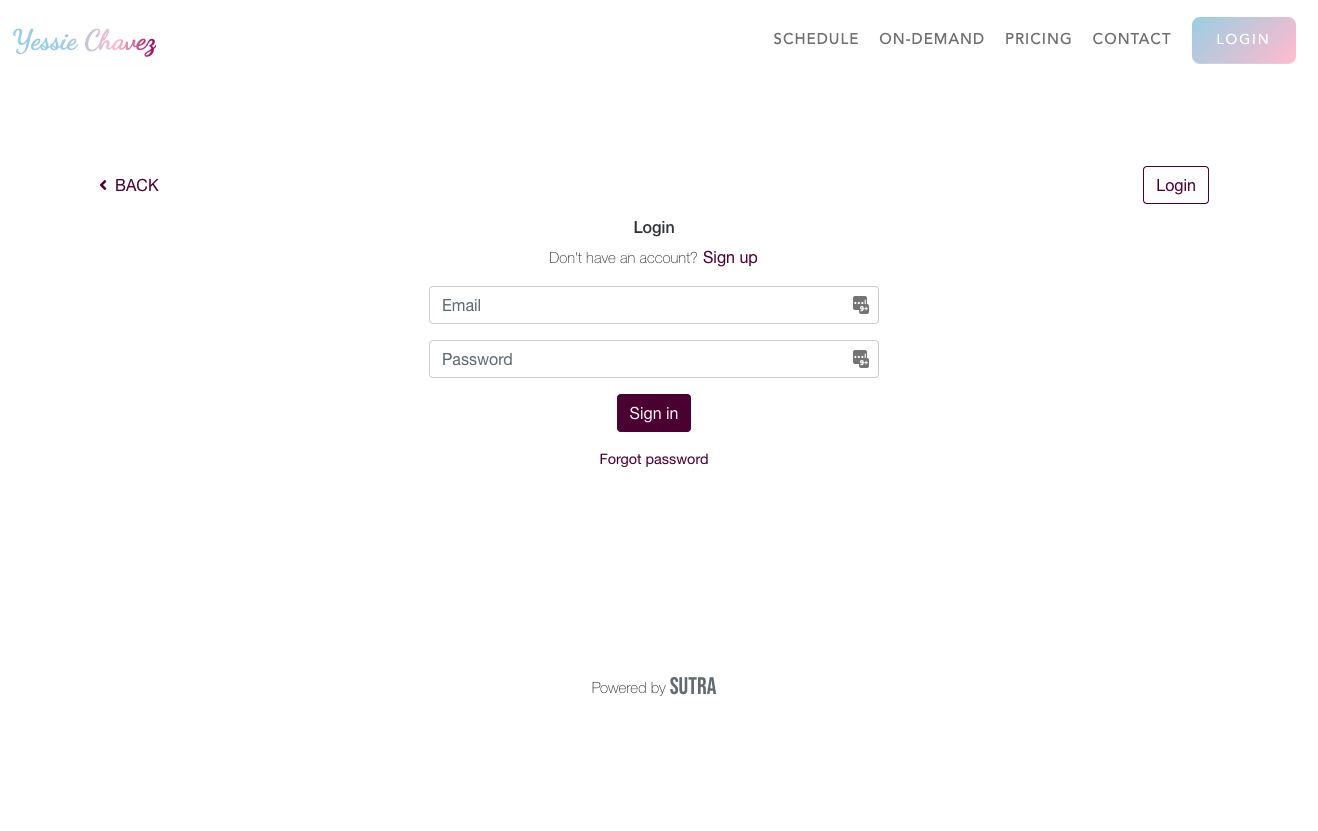
A standalone login page is optional — every Arketa embed already includes a Log in option in the top right corner, so clients can sign in from any widget you've placed.
Using Arketa's branded website instead
If you don't have an existing website, or want to move everything onto one platform, Arketa's branded website builder handles hosting, design, and embedding automatically — no code required.