
Schedule an appointment
Book an appointment for a client from your dashboard.
You can book appointments for clients directly from your dashboard — useful when a client calls in, walks up, or you're scheduling someone without going through the client-facing booking flow.
How to schedule an appointment
- Go to Classes → Appointments
- Find the day and time slot on the calendar
- Drag and drop into the time slot — or click directly on the slot
- Select the service, instructor, and payment method
- Click Book appointment
Handling payment at booking
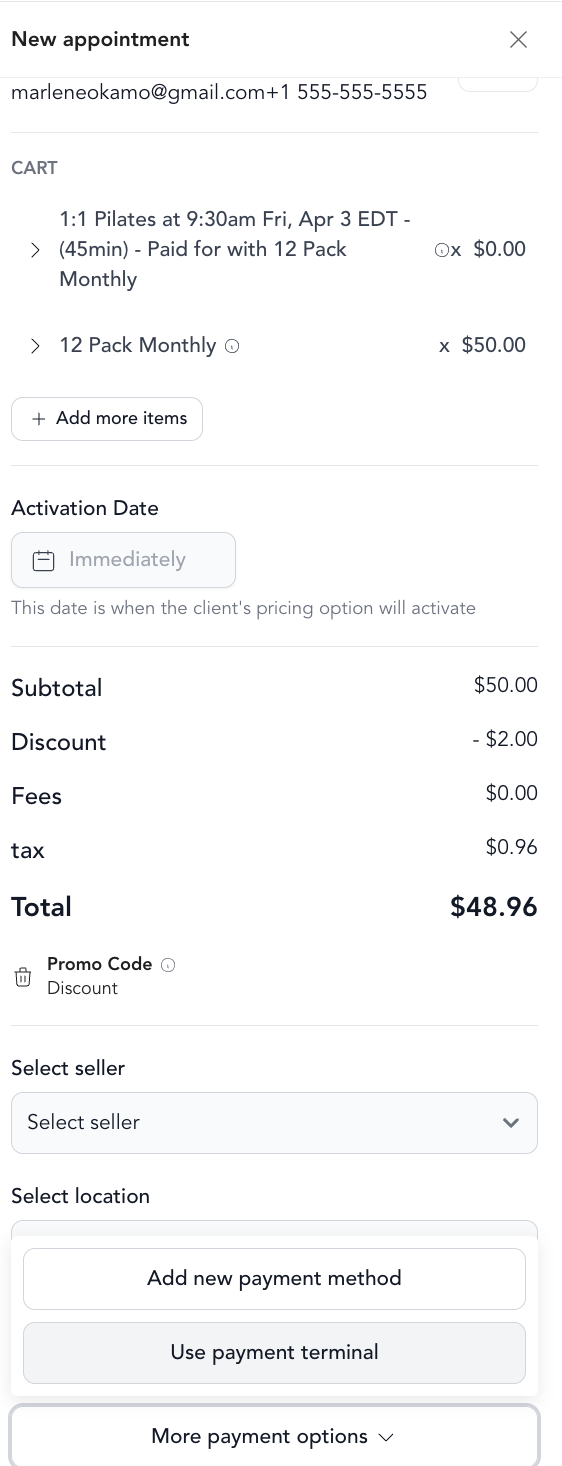
If a payment method is required, the point-of-sale screen will open automatically. From there you can:
- Add multiple items to the booking
- Apply a gift card or promo code
- Use account credit
- Charge by card, cash, or terminal
The client's booking confirmation is sent by email once the appointment is saved.
Appointment waitlist
If a time slot is fully booked, clients can join the waitlist and be notified if a spot opens. They can specify a preferred time range, and Arketa sends an alert automatically when availability opens up.
A waitlist notification is triggered when:
- An appointment is canceled
- A class is canceled or deleted
- The appointment duration or start time changes
- The instructor or room changes
- Capacity is increased
After booking
The appointment appears on the calendar in the dashboard. You can edit, reschedule, cancel, or add notes directly from the calendar view. See modify an appointment for the full list of actions.