
Go live and publish
Publish your Arketa website and make it accessible to the public.
Publish your site
- In the website editor, click Publish (top right)
- If the site was previously published, click Republish
- A payment/plan selection page appears — select your plan and continue
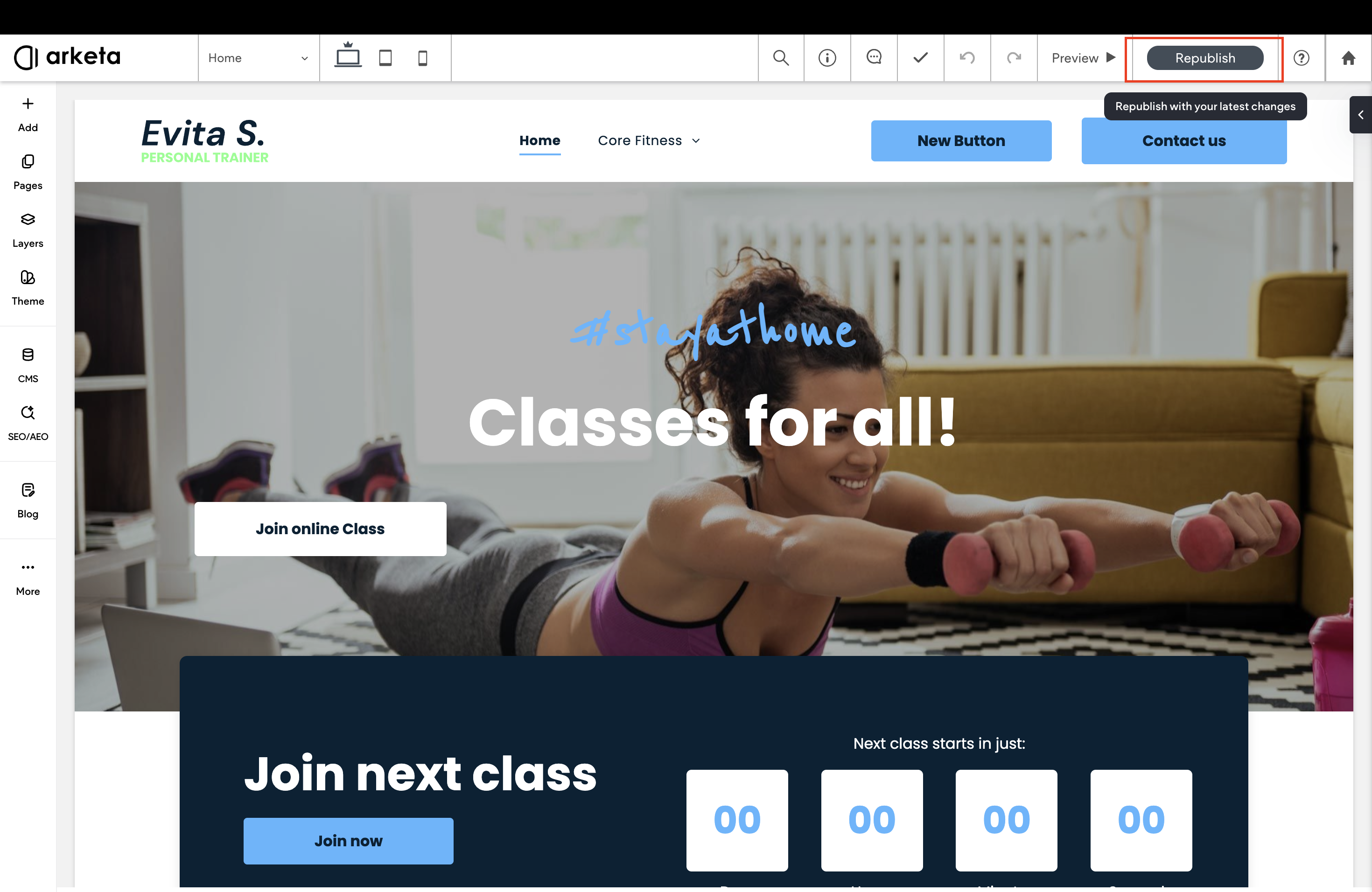
Your site won't be publicly accessible until published.
Set up your domain
After publishing, you're prompted to choose a domain option:
| Option | What it means |
|---|---|
| Default domain | A subdomain hosted by the website builder. Not ideal for SEO. |
To use your own domain, add www. before the URL when entering it.
To change your domain later: go to Settings → Site URL → Change Site URL inside the editor.
Go live checklist
Before publishing, confirm:
- All pages have accurate content and working links
- Your Arketa widget embeds are in place (schedule, pricing, etc.)
- Contact information is correct
- Your domain is connected (see connect a domain)
- SSL is set up (see SSL/HTTPS)
- You've tested the site on mobile
Announce your launch
Once live, let clients know:
- Email your list announcing the new site
- Post on social media
- Update your Google Business profile with the new URL
Was this helpful?