
Build your app
Configure tabs, content, and home page sections for your branded app.
Configure tabs
- Go to Sales Channel → Mobile App
- Turn tabs on or off — you can display up to 5 tabs
- Drag and drop to reorder them on the left hand side, if you hover, a drag and drop feature will appear.
- Click Save in upper right corner.
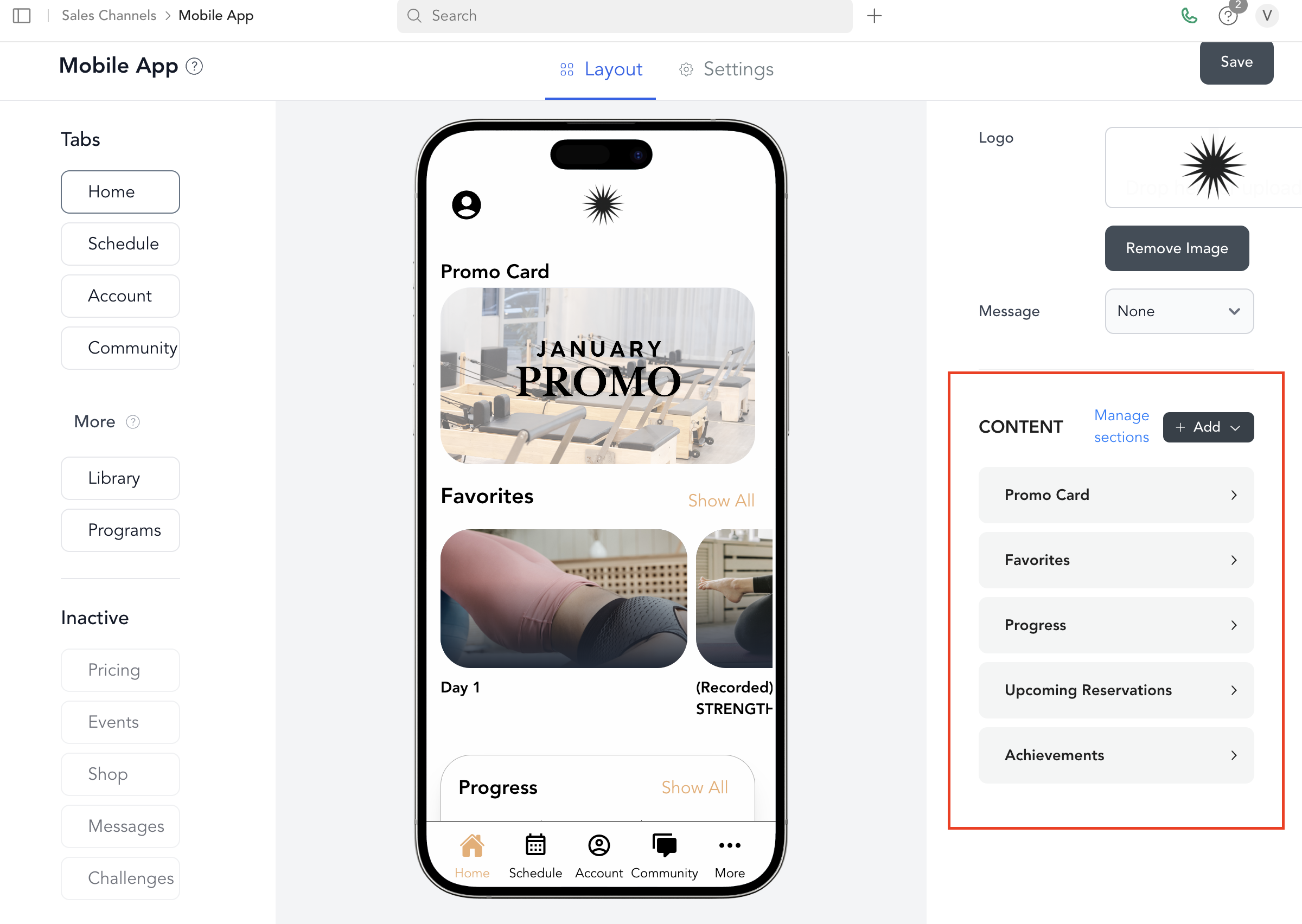
Changes update in the app immediately. Clients need to refresh or reopen the app to see them.
Home page sections
If you have the Home tab enabled, you can configure what appears on the home screen:
| Section | What it shows |
|---|---|
| Milestones | Client's visit milestones |
| Promo card | Featured image that links to a section — use to highlight upcoming classes, a new program, or a sale |
| Upcoming reservations | Client's next bookings |
| Top rated | Highest-rated on-demand videos |
| Favorites | Videos the client has marked as favorites |
| Recently added | Newest on-demand content |
| Featured preview | Most recently released classes |
Enable the Shop tab
To show retail products in the app:
- Enable the Shop tab in tab configuration
- Mark retail items as Add-on purchase and On your website in Beyond Classes → Retail Items
- Save
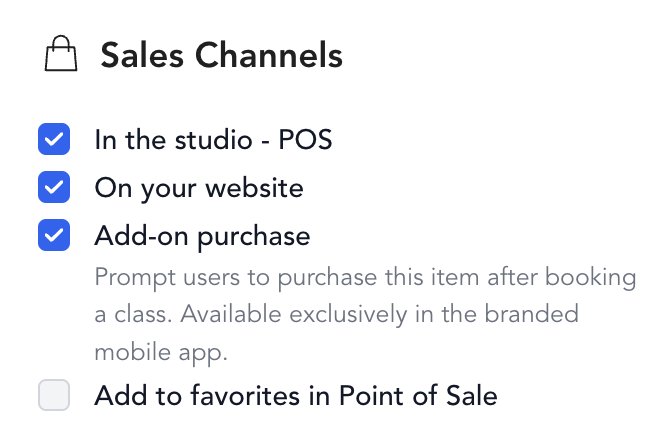
Enable the Community tab (Bulletin Board)
- Enable the Community tab
- Make sure you've created posts in Beyond Classes → Bulletin Board
The Community tab shows posts from your bulletin board — not from community forums.
Promo cards
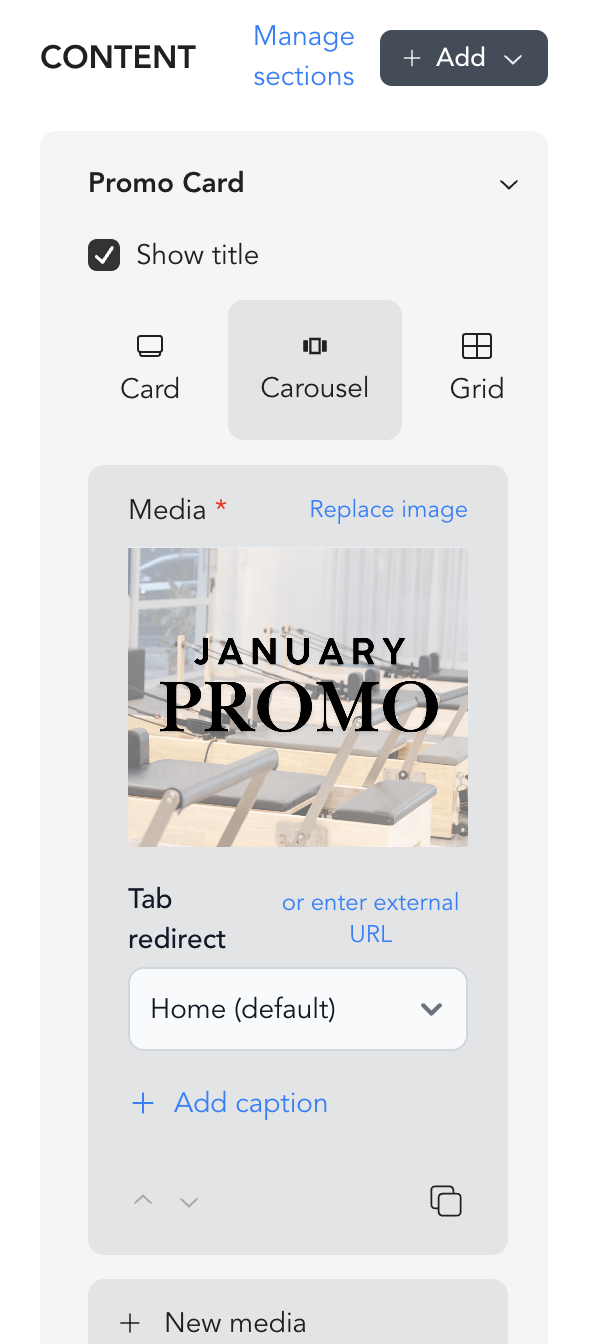
Toggle on the Promo Card in home page settings, then select what section it should navigate to when tapped. Use it to drive clients to a new program, a limited-time offer, or a featured class.
Video pricing in the app
You control which pricing plans clients see when they try to watch an on-demand video in the app.
- Go to Sales Channel → Mobile App
- Select the pricing options you want to display
The plans appear in the order you add them to the field, so add them in the order you want clients to see them.
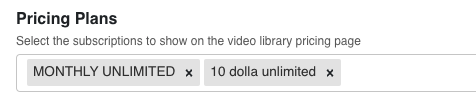
Clients can only unlock videos in the app with a subscription that includes access to all on-demand videos. The app works this way to stay compliant with Apple's App Store policies around in-app purchases. Drop-ins, rentals, and class packages cannot unlock videos inside the app — allowing them would subject those payments to Apple's 30% in-app purchase cut. Only all-video subscriptions belong in this field.
Live and in-person class pricing in the app
When clients book a live or in-person class through the app, all your normal pricing options apply — drop-ins, packs, and memberships — exactly like your website or booking widget.
This differs from video pricing because live and in-person services are delivered outside the app (Zoom, in studio, and so on), so they aren't subject to Apple's in-app purchase rules.