
Manage spots
Edit, rename, or mark spots as unavailable in your room layout.
After your spot map is created, you can update it at any time — rename spots, remove them, or mark individual spots as unavailable when equipment is out of service.
Edit or delete a spot
-
Go to Settings → Locations
-
Click into your location
-
Select Edit Room
-
Click on the spot you want to change
-
You can:
- Edit the spot name -- change the label or number
- Mark as unavailable -- removes it from booking without deleting it
- Delete the spot -- permanently removes it from the map
-
Click Save Spot
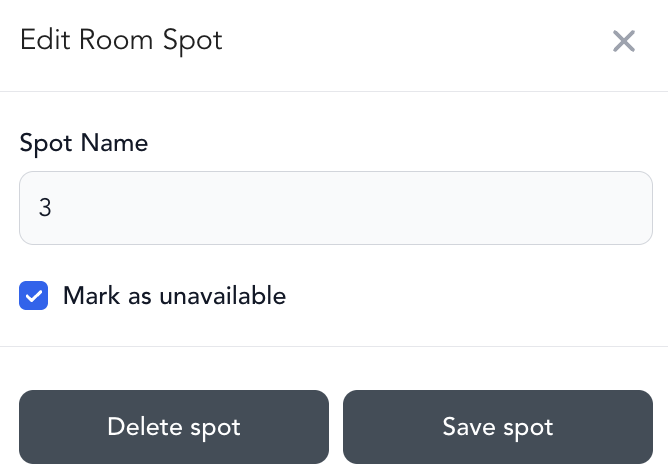
Marking a spot as unavailable
Use this when a piece of equipment is temporarily out of service. The spot still shows on the map but can't be booked. When the equipment is back in use, edit the spot again and uncheck the unavailable flag.
Marking a spot as unavailable won't affect clients who've already booked that spot. You'll need to manually move them to another spot from the class roster.
Adding more spots
You can add spots to an existing room at any time from the same room editing screen. Just click Add Client Spot and position it on the map.