
Timezones
Understand how Arketa handles timezones for class scheduling and how to configure timezone display for your clients.
By default, Arketa shows class times to clients in their local timezone — wherever they are when they visit your booking page. If you want to display classes in your studio's timezone instead, you can turn that on.
Default behavior
When a client views your schedule, class times automatically adjust to match their local timezone based on their browser or device settings. A 9am class at your studio in New York shows as 6am for a client in Los Angeles.
This works well if your clients are in different time zones — they always see the time that's relevant to them.
Show classes in your studio's timezone
If you'd prefer all clients to see class times in your local timezone (regardless of where they are), you can enable that:
- Go to Settings → General Business Settings
- Scroll down to Timezone Display
- Toggle it on
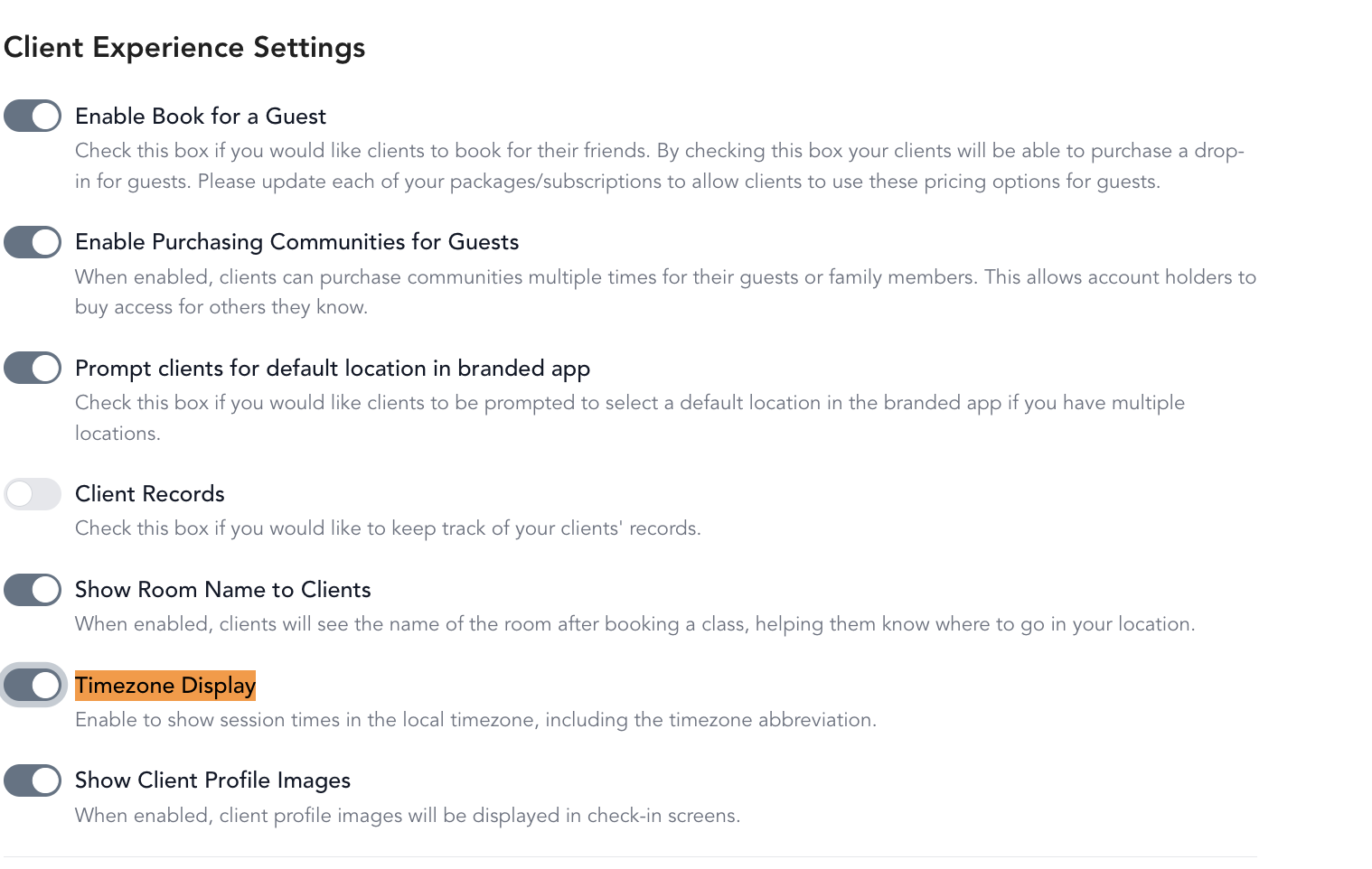
Timezone display is currently only available in the mobile app, not on the web booking page. Web support is coming soon.
Set your business timezone
Your business timezone determines how emails and notifications display class times. To update it:
- Go to Settings → Business Settings
- Find the Timezone dropdown
- Select your timezone
- Click Save changes
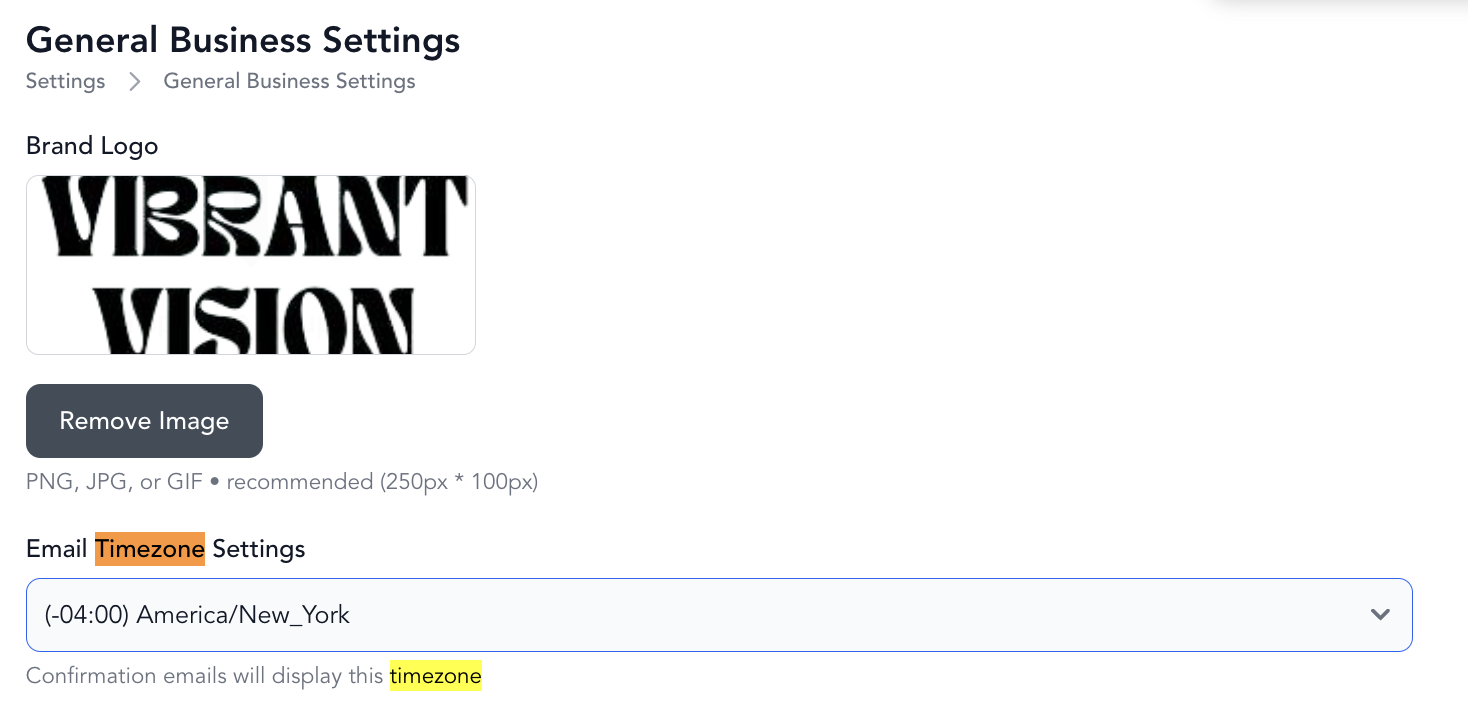
Client-facing emails will show class times in your business timezone, so make sure this is set correctly before you start sending booking confirmations.
Timezone abbreviations follow daylight saving time automatically. For example, US Eastern time shows as EST (Eastern Standard Time) in the winter and EDT (Eastern Daylight Time) in the summer — both refer to the same America/New York timezone and are correct. You don't need to change anything when the clocks change; Arketa updates the label for you.
Don't see your timezone in the dropdown? Email support@arketa.com and the team can add it.