
Class types & templates
Create service type templates to speed up class scheduling and keep your offerings organized.
Service types are templates for your classes, appointments, and events. Instead of entering the same details every time you schedule a class, you create the template once and reuse it. They also let you manage your entire recurring schedule from one place.
What's in a service type
A service type defines the default settings for a class: name, format, location, duration, capacity, pricing, and more. When you add a class to your schedule using a template, all those defaults pre-fill.
Service types also let you:
- See every scheduled instance of a class in one view
- Mass edit or cancel an entire recurring series
- Set up specific class type booking allowances in Pricing Options, allow certain discounts using Promo Codes, and more.
Create a service type
Go to Setup → Service Types
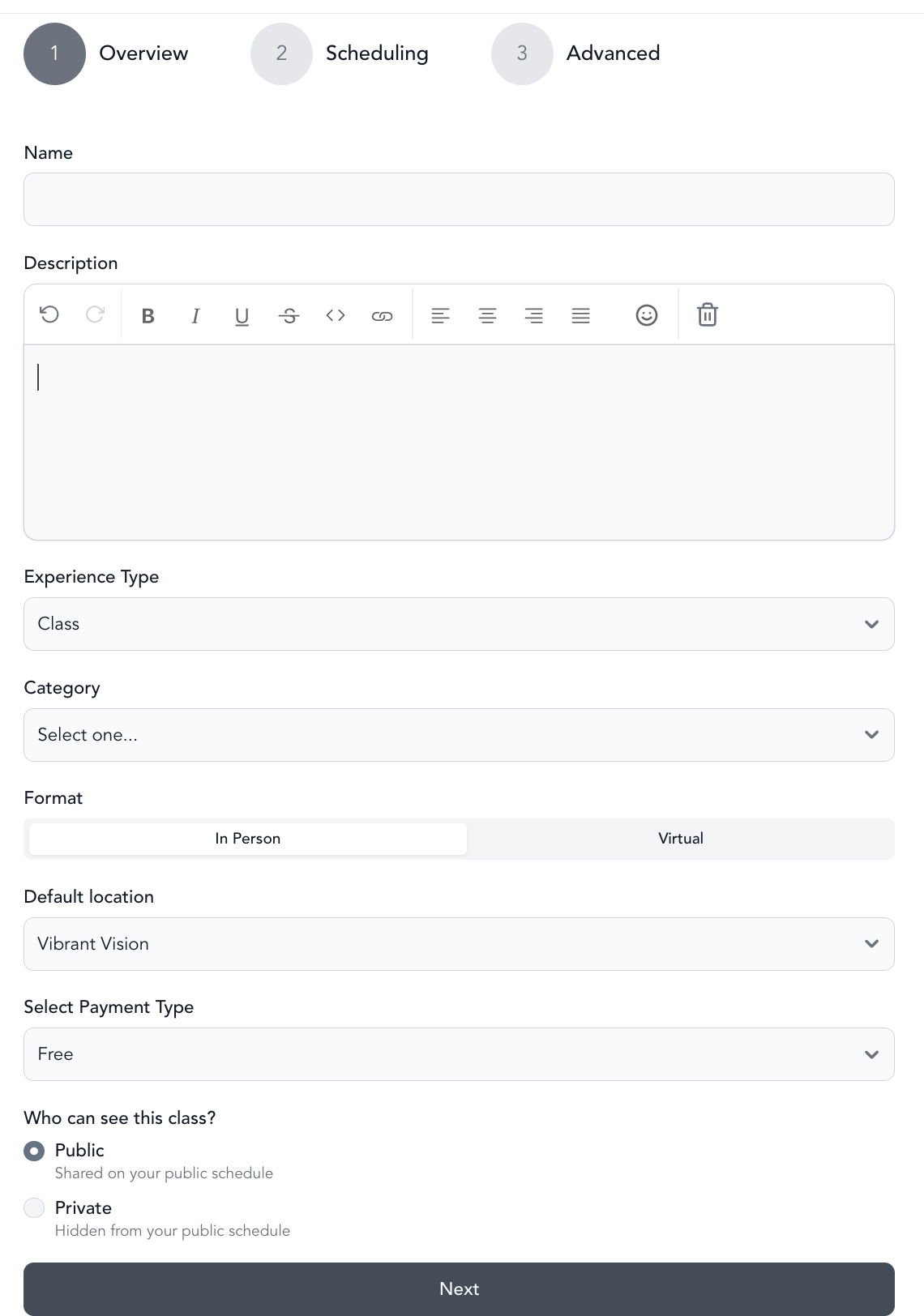
Click New Class Type (or New Appointment / New Event depending on what you're creating).
Set scheduling defaults
- Start date
- Frequency — specific date, weekly, bi-weekly, or monthly
- Duration in minutes
- Capacity
Set pricing and access
- Pricing option — how a single class is paid for (free, drop-in, package & subscription only)
- Visibility — public or private
- Buffer time (appointments only) — time between sessions
Assign locations and rooms
- Locations — which of your locations offer this class
- Available rooms — which rooms within those locations
- Eligible team members — which instructors can teach this class
Add filters (optional)
Filters apply when the class is uploaded to your video library:
- Workout type
- Area of focus
- Intensity
- Equipment
Save
Click Save. The service type is now available to use when scheduling classes.
Manage service types
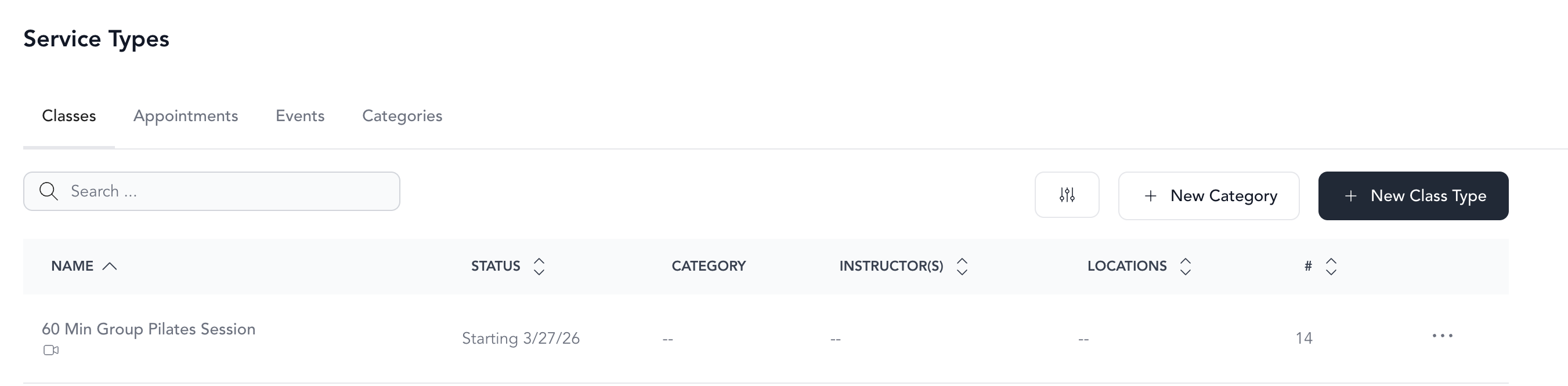
From Setup → Service Types, each service type shows:
| Column | What it means |
|---|---|
| Name | The class name |
| Status | Active (has scheduled classes), Inactive (no future classes), or ending on a specific date |
| Category | Which category it belongs to |
| Instructors | Eligible instructors |
| Locations | How many locations it's available at |
| # | How many scheduled instances exist |
Actions available on each service type:
- Schedule — add new class instances for this service type
- Edit — update the template (changes apply to all future scheduled instances)
- Duplicate — copy the template to create a similar one quickly
- Delete — remove the template (does not delete already-scheduled classes)
Editing a service type updates all currently scheduled classes that use it. If you only want to change one or two specific class instances, edit those directly from Full Schedule instead.
Manage individual class instances
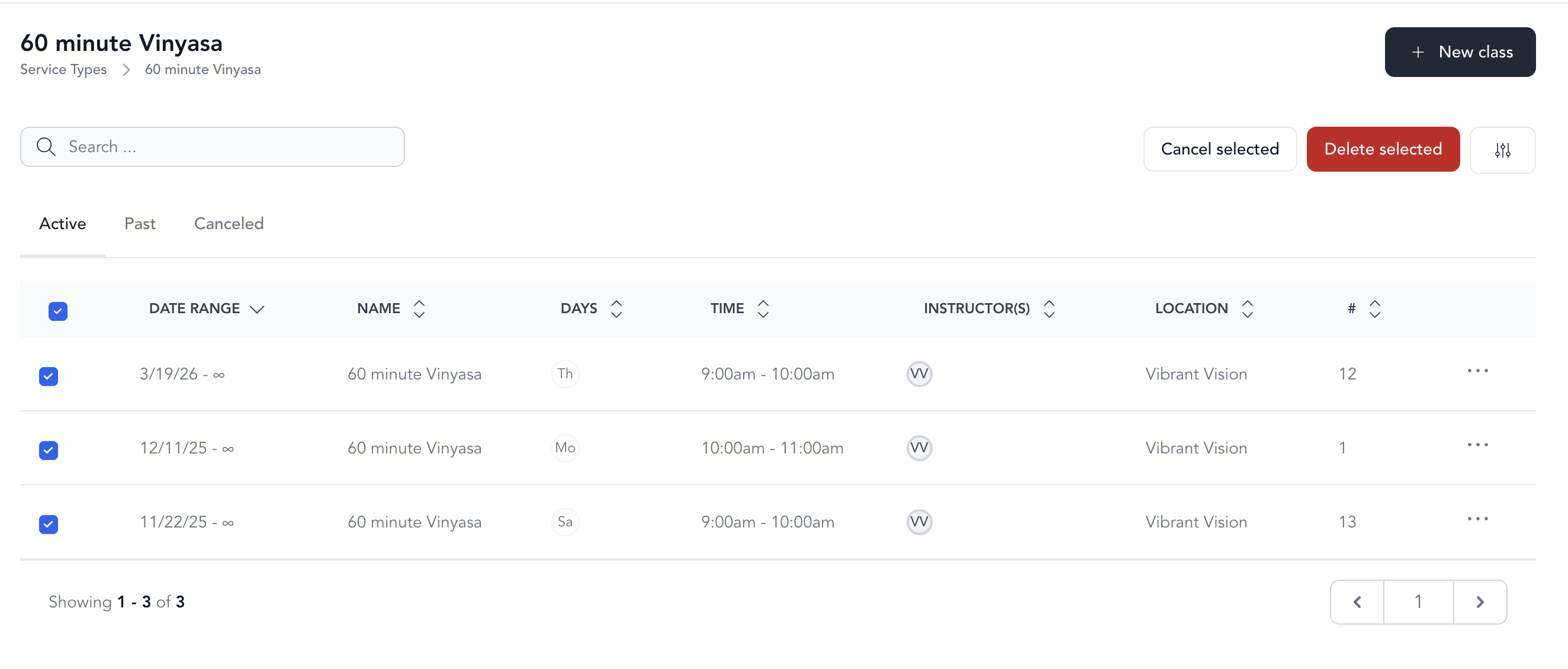
Click into a service type to see all scheduled instances (active, past, and cancelled). From this view you can:
- Mass edit all classes: change location, start time, duration, or instructor across the entire series
- Mass cancel selected classes and optionally notify + refund enrolled clients
- Mass delete selected classes
- Edit a single class — tap the edit icon next to any instance to modify just that one
Add categories
Categories help you organize your service types (e.g., by style, level, or format). To add one:
- Click New Category in the upper right
- Enter a name and click Save
Categories also appear as filters on your booking page, helping clients find the classes they're looking for.