
Community pricing
Create pricing options that give clients access to your community portals.
Community pricing options control access to your Arketa community portals — discussion forums, bonus content, videos, and programs that live inside a community. You can offer community access as a standalone purchase or bundle it into memberships.
Create a community pricing option
-
Go to Setup → Pricing Options
-
Click Add New
-
Select Community
-
Configure:
- Name — what clients see
- Price — one-time or recurring charge for access
- Community — which community portal this grants access to
- Duration — how long access lasts (or ongoing for memberships)
-
Save and make active
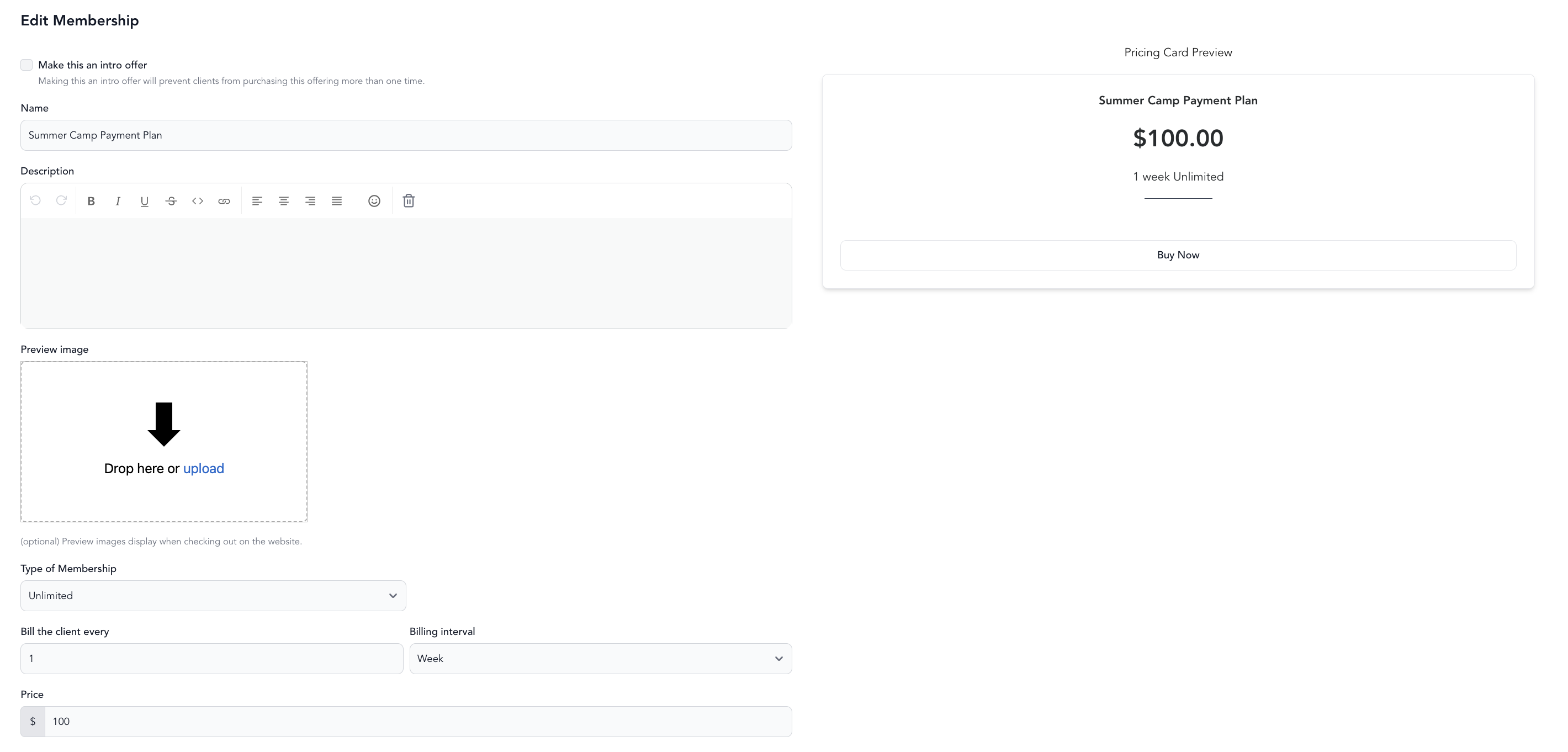
Bundle community access into a membership
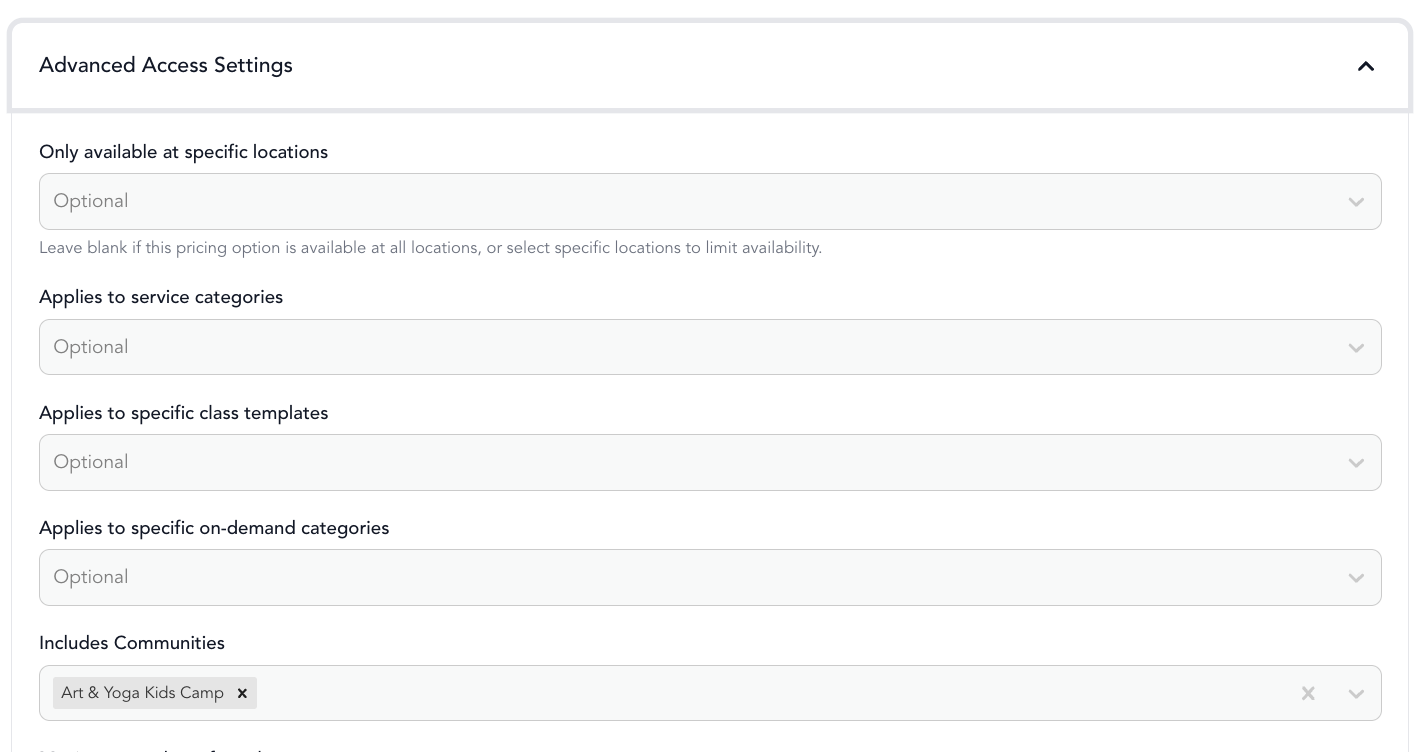
The most common approach is to include community access as part of a membership, not as a separate purchase. When creating or editing a membership:
- Go to the membership settings
- Look for Include Community
- Select which community/communities the membership includes
Members will automatically have access to the selected communities while their membership is active. When the membership expires or cancels, community access ends.
Add multiple pricing options to a community
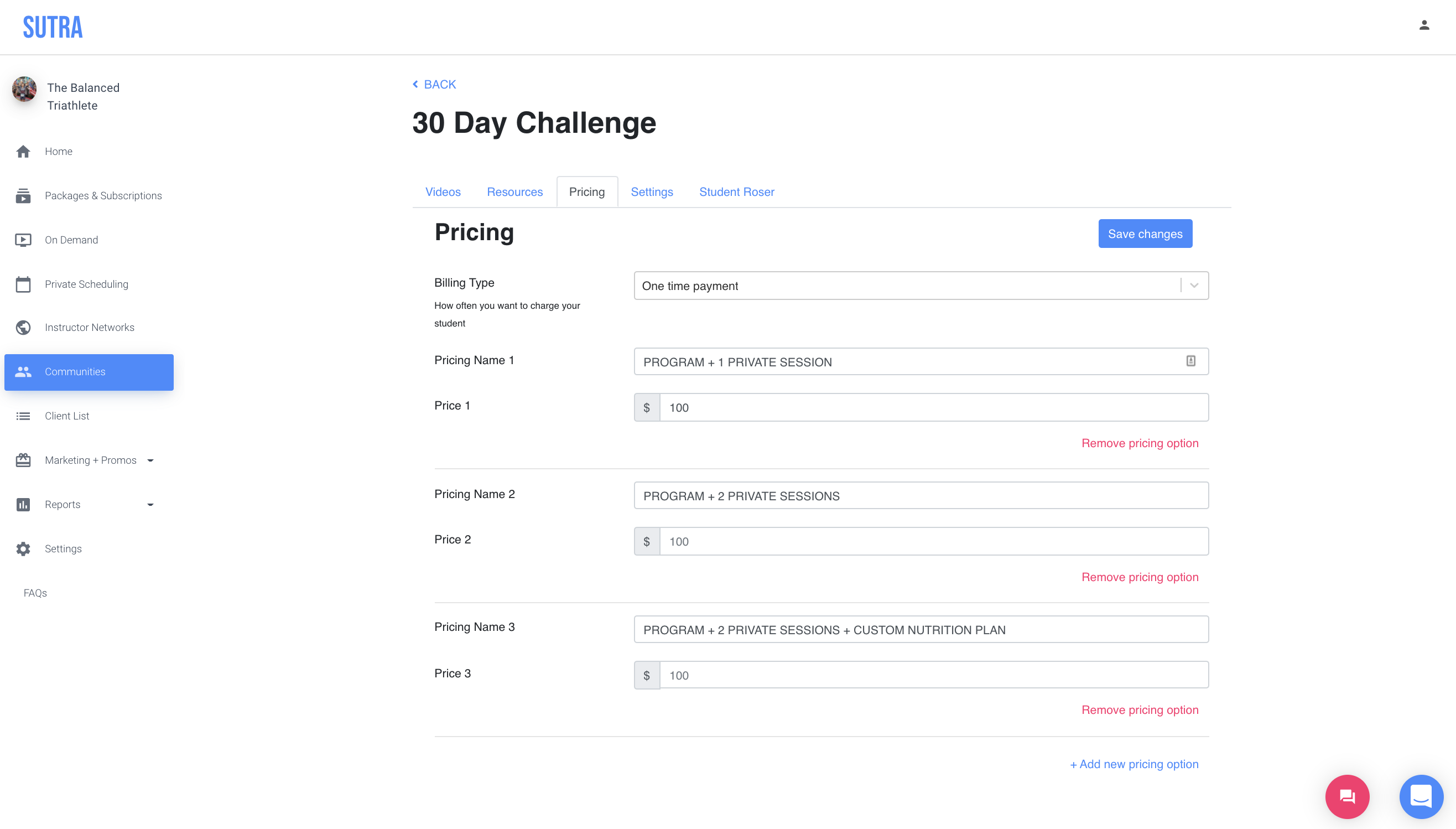
You can offer as many pricing options as you'd like on a single community. This is useful when you want to sell add-ons alongside the main access — such as private sessions, room types, or goodie bags.
- Go to the Communities tab and open the community you want to edit
- Open the Pricing tab
- Set the Billing Type to One-time payment
- Add as many options as you'd like
Multiple pricing options are great for special add-ons such as private training sessions, goodie bags, or room types for retreats.
Use cases
- Premium tier — your main membership includes classes; an upgraded tier adds community access
- 30-day challenge — sell one-time community access for a specific program
- Online-only community — for clients who want to participate in your content without attending classes
- Coaching program — a community portal with bonus videos, resources, and discussion for program participants