
Edit, duplicate, and delete pricing options
Manage your existing pricing options — update prices, duplicate configurations, or remove options.
Edit a pricing option
- Go to Setup → Pricing Options
- Click the three dots next to the option → Edit
- Make your changes and save

What changes affect existing clients:
| Change | Effect on existing subscribers |
|---|---|
| Price change | Only affects new purchases — existing clients keep their current rate |
| Credit amount | Changes apply to existing clients at their next renewal |
| Service types / access | Changes apply to all existing holders immediately |
| Locations | Changes apply to all existing holders immediately |
| Expiration | Affects new purchases only |
Adding a location restriction to an existing pricing option applies to clients who already hold it. If you restrict an option to one location, clients who bought it for a different location can no longer use their remaining credits there, and will be prompted to buy a new option when they try to book.
When you open a new location, duplicate the pricing option and set the location on the copy — don't edit the original. Editing the original renames and re-points the option your existing clients are already on, so they appear under the new location's option while continuing to be billed at their original rate.
This means you can safely adjust prices for new clients without disrupting existing ones. If you want to raise prices for everyone, you'll need to update existing subscriptions individually or communicate the change to clients — see Raise the price for an individual subscriber for the steps, or grandfather existing members onto their current rate.
Duplicate a pricing option
Duplicating is useful when you want to create a similar option with minor changes — like a slightly different pack size, a different price for a promo, or a hidden version for selling to a specific client.
- Click the three dots → Duplicate
- Edit the duplicated option as needed
- Save
The duplicate starts in the same state as the original. If you want it hidden from the public, mark it as hidden before making it active.
Delete a pricing option
- Click the three dots → Delete
Deleting a pricing option removes it from the public pricing page. Any clients who currently hold that option keep their access until their credits or membership period expires — deleting doesn't revoke access. If you want to prevent new purchases only, hiding the option is safer than deleting.
When to hide vs. delete
- Hide — you want to stop selling it but may want to bring it back, or existing clients still use it
- Delete — you're certain you no longer need it and want to clean up your pricing list
Raise the price for an individual subscriber
Editing a pricing option's price only changes what new clients pay — existing subscribers keep the rate they signed up at. To raise (or lower) the price for someone who already holds a subscription, update their subscription directly from their client profile:
- Go to Customers → Clients and open the client's profile
- Find their active subscription
- Tap the pencil (edit) icon
- Update the price and click Save changes
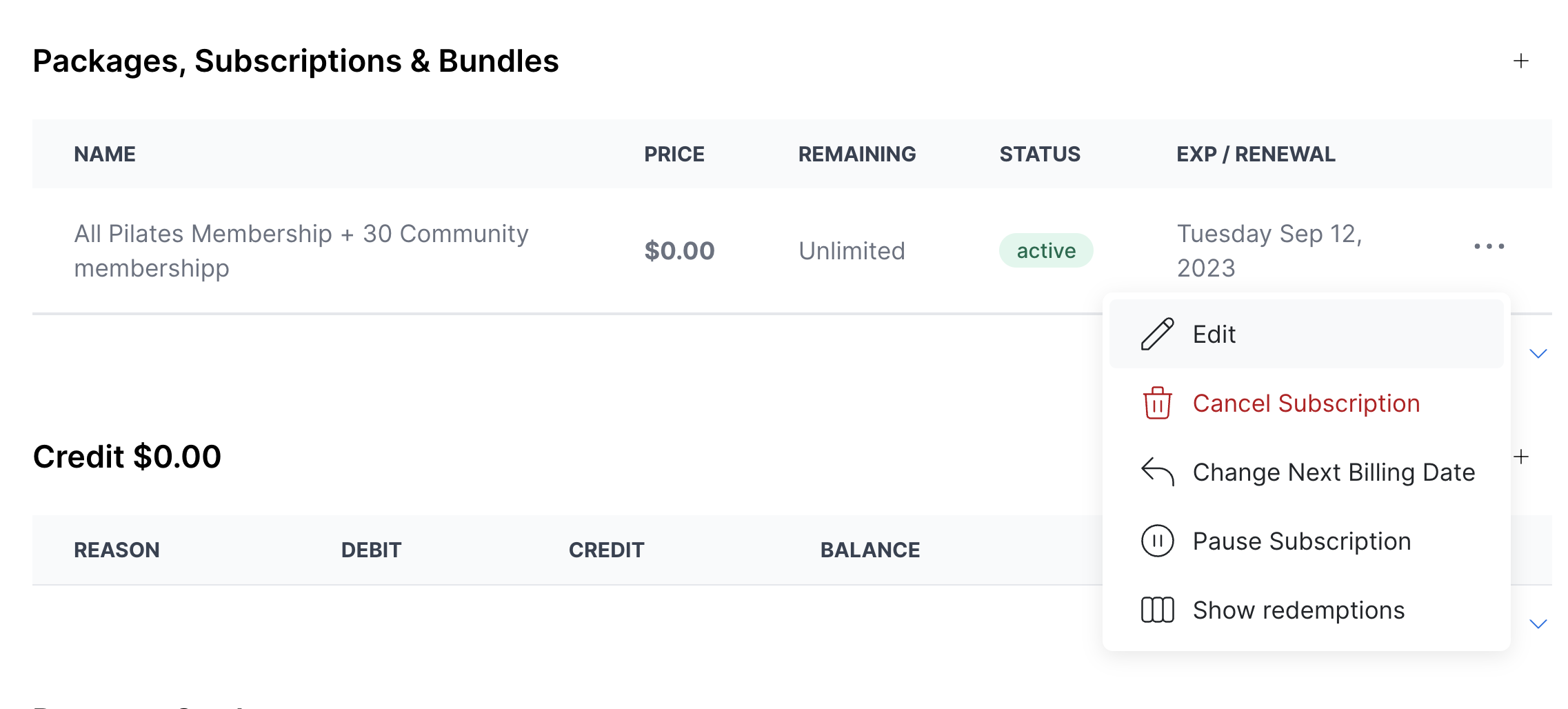
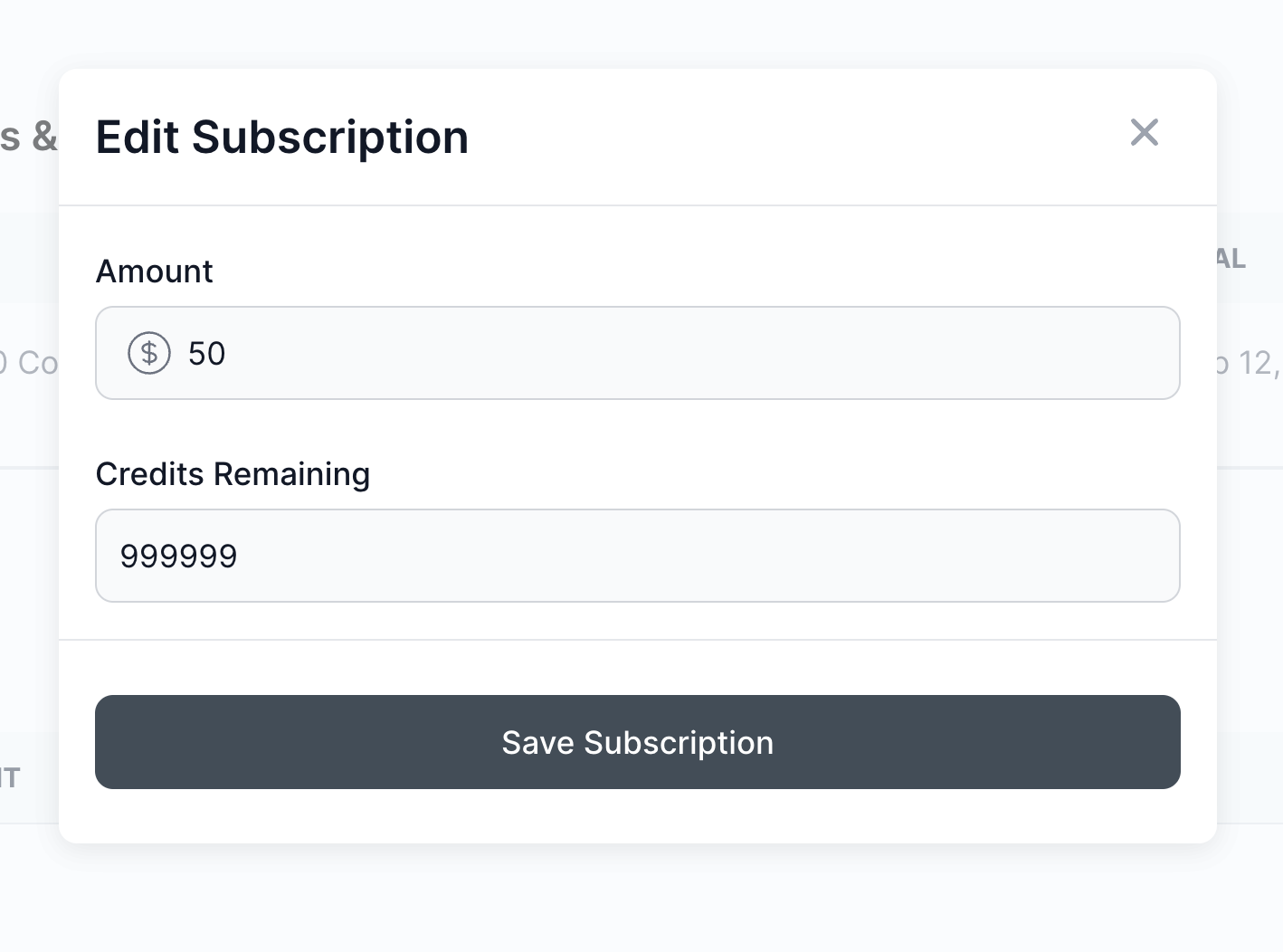
The new rate takes effect on the client's next renewal, not immediately. Pricing changes are made one client at a time.
To roll a new price out to many members at once — without editing everyone's subscription by hand — use the grandfathering strategies below.
Grandfather existing members onto their current rate
Memberships lock in at the rate they were purchased. Editing a pricing option's price never changes existing members' rates automatically, so you can adjust pricing without disrupting current members.
Roll out new pricing to new members only:
- Duplicate the pricing option (see Duplicate a pricing option)
- Set the new price on the duplicate
- Hide the original so new sign-ups can't get the old rate (see When to hide vs. delete)
Existing members stay on the original option at their current rate, while everyone new buys the duplicate at the new price.
Persist a reduced rate for one member: apply a recurring discount to that client's subscription. Unlike a one-time discount, a recurring discount carries across every billing cycle, so the member keeps the reduced rate on each renewal.
Move an existing member to a new rate
When you do want to bring an existing member onto a new price, you have two options:
- Option 1 — Update the renewal rate manually. Edit the price directly on the client's subscription. See Raise the price for an individual subscriber above. The new rate applies at their next renewal.
- Option 2 — Expire and re-purchase. Expire or cancel the current membership, then re-purchase it at the new price.
Communicate any price increase to the client before it takes effect at their next renewal.