
Promo codes
Create discount codes clients enter at checkout for a reduced price.
Promo codes are alphanumeric discount codes clients enter at checkout. You control the discount amount, what it applies to, how many times it can be used, and when it expires.
Who can use a code
A code works for any client who types it in, whether or not you shared it with them. Arketa checks that the code exists, is active, hasn't expired, and applies to what's being bought — it does not check how the client learned the code.
That means an easy-to-guess code name like BIRTHDAY10 or WELCOME10 can be discovered by a client simply trying it at checkout. When a discount is meant for one person or a small group:
- Use a code name that isn't easy to guess (add a few random characters, e.g.
BIRTHDAY10-K4QP) - Set a per-customer limit and an expiration date
- To tie a discount to who the client is rather than to a code they type, use member perks discounts instead
Create a promo code
- Go to Setup → Promo Codes
- Click Add New
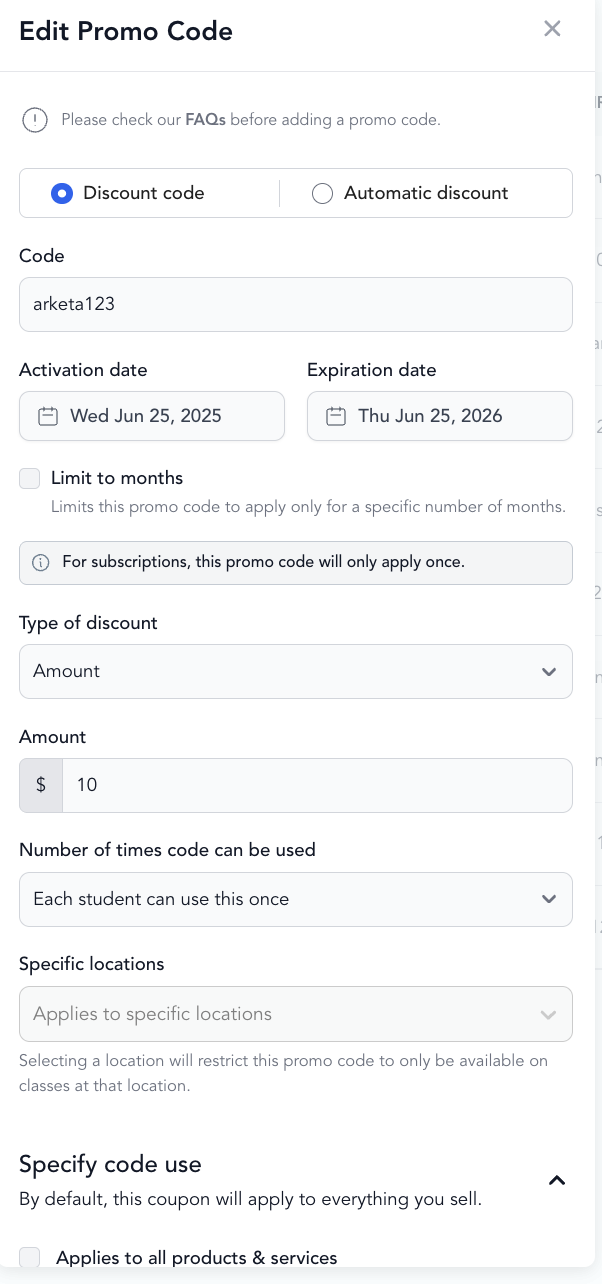
- Configure:
| Setting | What it does |
|---|---|
| Discount code vs. Automated discount | Manual input vs. auto applying to all clients |
| Code name | The code clients type at checkout (e.g., WELCOME20) |
| Type of discount | Percentage off or fixed amount |
| Discount amount | How much off |
| Usage limit | Total number of times the code can be used (blank = unlimited) |
| Per-customer limit | How many times one person can use it (blank = unlimited) |
| Expiration date | When the code stops working (expires at 11:59pm in your timezone) |
| Limit to months | Apply the discount for a limited number of months over time on subscriptions |
| Applies to | All products, or specific service types, pricing options, or locations |
- Click Create Code
What to apply it to
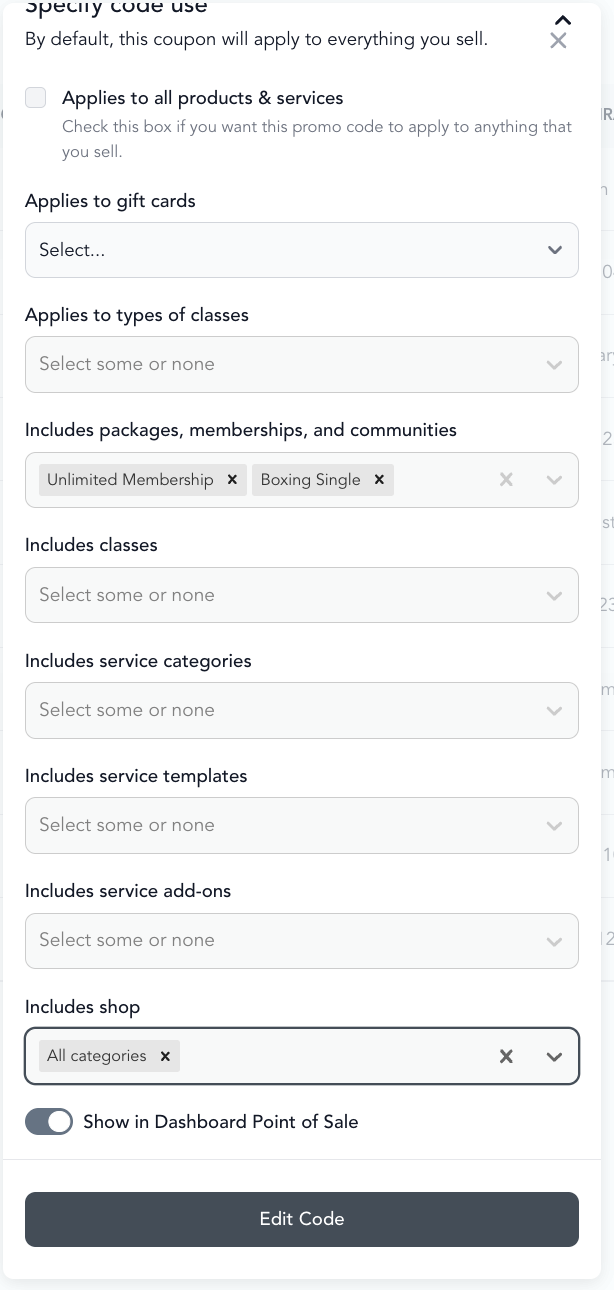
By default, a promo code applies to everything. To restrict it:
- Uncheck Applies to all products and services
- Select specific items
Note: If you select a location, it overrides all other selections — the code applies to everything at that location.
How promo codes work with subscriptions
- Percentage discount — applies to every billing cycle forever. A 25% off code on a $100/month membership locks that client into $75/month indefinitely.
- Fixed amount discount — applies as a one-time account credit. $50 off a $100 subscription = first month $50, second month $100. If the credit exceeds the price, it is added to the client account balance to be used into the future until depleted.
If you only want to discount the first month, use an intro offer instead, or use a fixed amount discount (which only applies once).
View promo code usage
- Go to Setup → Promo Codes
- Click the eye icon next to a code
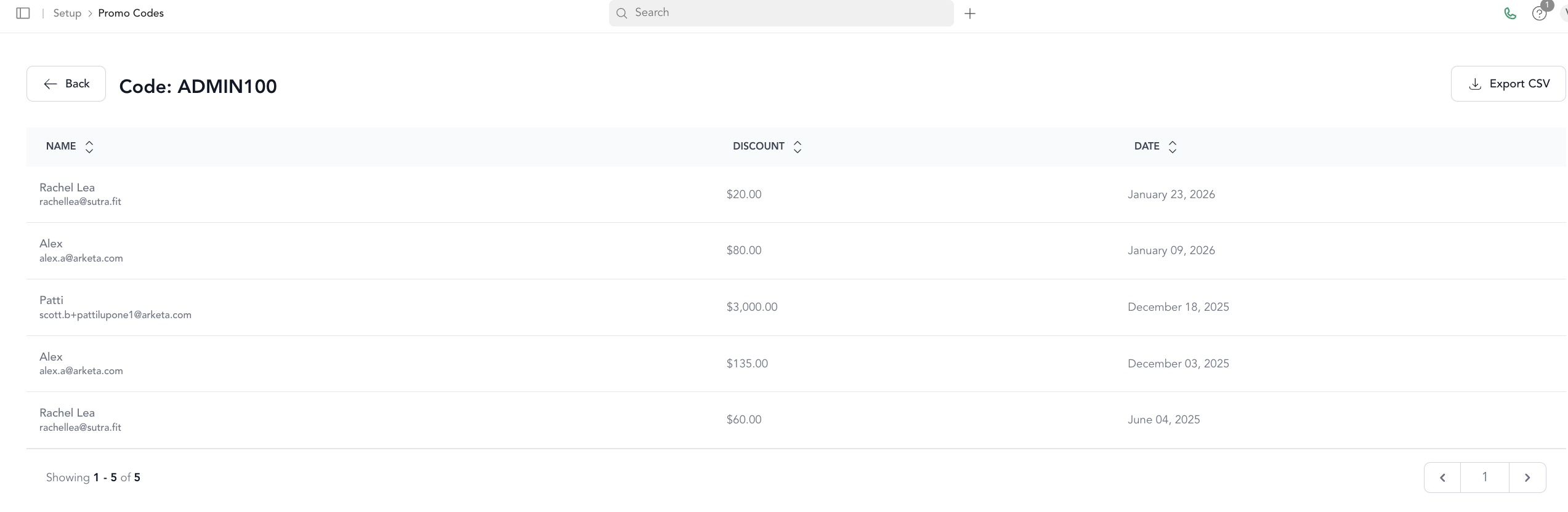
- See who's redeemed it (name, email) or export to CSV
You can also see the promo code applied to individual payments from a client's profile → Payments → tap the payment.
Managing existing codes
Under Actions for each code, you can:
- Edit — change settings
- Delete — remove the code
- View usage — see redemptions
Edits are not retroactive. A change to a code only affects checkouts that happen after you save it. Past purchases keep whatever discount was in effect at the time they were made. This matters most when you switch a code between Discount code and Automated discount: a code that was a discount code when a client checked out had to be typed in at checkout, so it will not appear on that purchase even after you convert it to an automated discount. To give a client the difference on an earlier purchase, issue a refund or account credit from their profile.
Best practices for seasonal sales
Running a Black Friday, Cyber Monday, or holiday promotion? A few tips to help it convert:
- Choose one offer. Multiple discounts confuse clients — pick a single, clear deal.
- Create urgency. Set an expiration date. A sale that lasts forever gives no one a reason to buy now.
- Make it easy to redeem. If the offer is confusing, you'll lose clients at the moment they try to understand it. Keep the code and terms simple.
- Don't forget to share. Your offer won't sell itself. Promote it by email, on social, and with a navigation banner at the top of your website — the banner is the easiest to add and to remove once the sale ends.
- Use multiple channels. Reaching clients across email, social, and your site helps you cut through the noise of other brands during busy shopping periods.
Troubleshooting
- Promo codes are case-sensitive — make sure clients type it exactly
- Check for extra spaces in the code
- Confirm the code is eligible for the item being purchased
- Check if the code has a usage limit that's been reached