
YouTube and Vimeo videos
Link YouTube or Vimeo content directly to your Arketa video library without re-uploading.
Instead of uploading a video file, you can paste a YouTube or Vimeo link. The video plays through Arketa's library interface — clients don't need a YouTube or Vimeo account to watch.
Adding a YouTube or Vimeo video
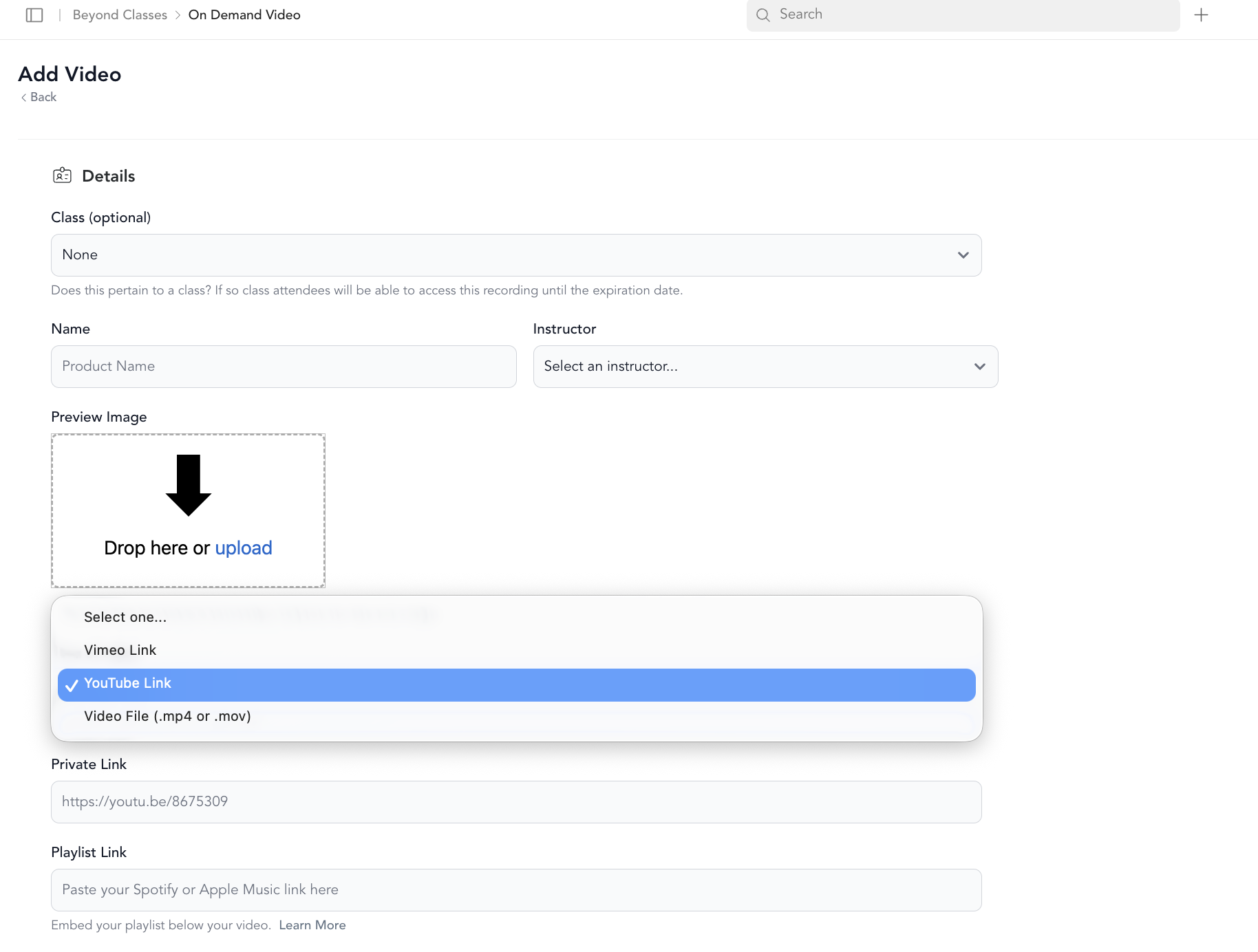
When adding a new video, set the Type of video to YouTube or Vimeo, then paste your link.
Go to Beyond Classes → On-Demand Video → Add New → Video, then under Details, select your video type.
Vimeo setup
- Go to vimeo.com/manage/videos
- Find your video and click Copy Link
- Set the video privacy to Private
- Add Arketa's domains to the allowed list:
arketa.com,app.arketa.co,dashboard.arketa.com - Paste the link when uploading in Arketa
If your privacy settings don't include Arketa's domains, the video won't play for clients — even though it looks fine on your Vimeo account.
Vimeo OTT note: If you're migrating from Vimeo OTT (also known as VHX), those videos won't appear in your standard Vimeo account. Contact your Vimeo account manager to transfer them to Standard Vimeo before linking.
YouTube setup
- Sign in to YouTube Studio
- Go to Content in the left menu
- Click the video you want to share
- Click the three dots to get the shareable link
- Make sure the video is Unlisted (not Private — Private videos won't play outside YouTube)
YouTube live replay links won't work in Arketa. If you recorded a YouTube live session, download the video file and re-upload it directly, or use Zoom with automatic upload to your library instead.
Advantages of direct file upload vs. linking
| Direct upload | YouTube/Vimeo link | |
|---|---|---|
| Playback quality | Depends on your file | Depends on their platform |
| Works offline | No | No |
| Setup time | Upload time | Instant |
| Requires external account | No | Yes |
| YouTube ads shown | N/A | Possible (YouTube) |
For serious video libraries, direct file upload usually gives you more control. YouTube and Vimeo links work great for supplemental content or when you already have a large video catalog on those platforms.