
Upload audio
Add audio-only content to your video library by converting it to MP4 first.
Arketa's video library accepts audio content — meditation tracks, music mixes, guided sessions — but the upload process requires converting your audio file to MP4 format first.
Convert your audio file
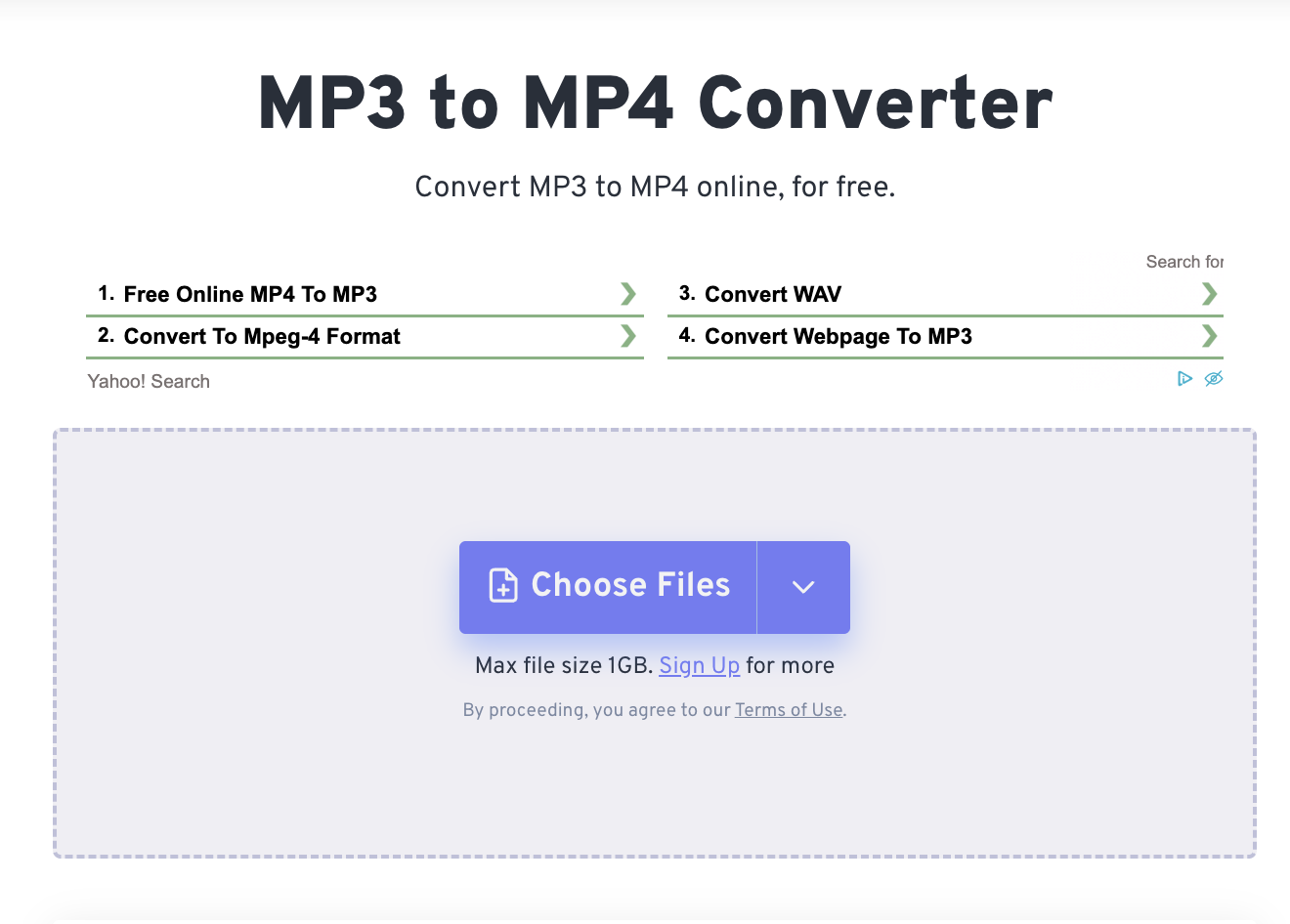
- Go to freeconvert.com/mp3-to-mp4
- Upload your MP3 (or other audio file)
- During conversion, you can add a thumbnail image — this becomes the static image clients see while listening
- Download the resulting MP4
Upload to your library
Once you have your MP4, upload it like any other video:
- Go to Beyond Classes → On-Demand Video
- Click Add New → Video
- Set the type to Video file and upload your MP4
- Add your title, description, categories, and pricing
- Save
Adding a thumbnail during conversion makes your audio content look polished in the library — clients see a still image (a class photo, your logo, or a mood image) while the audio plays.
Was this helpful?