
Video categories
Organize your library into carousels so clients can browse and discover content easily.
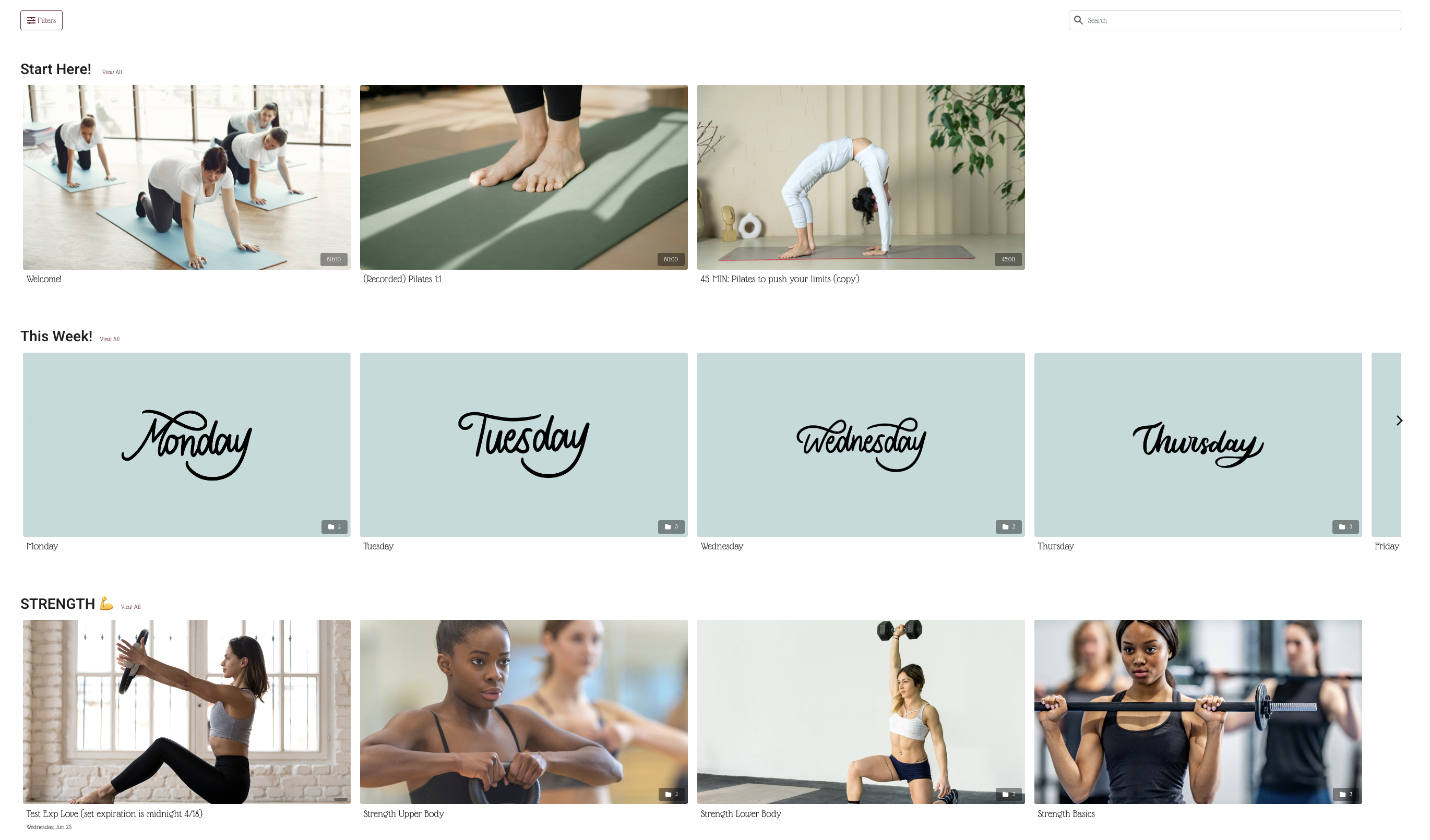
Categories are horizontal carousels on your video library page — similar to rows on Netflix. Each category groups related videos together so clients can quickly find what they're looking for.
Examples: "New? Start Here", "Weekly Schedule", "Yoga", "HIIT", "Strength & Conditioning", "Stretch & Recovery"
Create a category
-
Go to Beyond Classes → On-Demand Video
-
Click Add New → Category
-
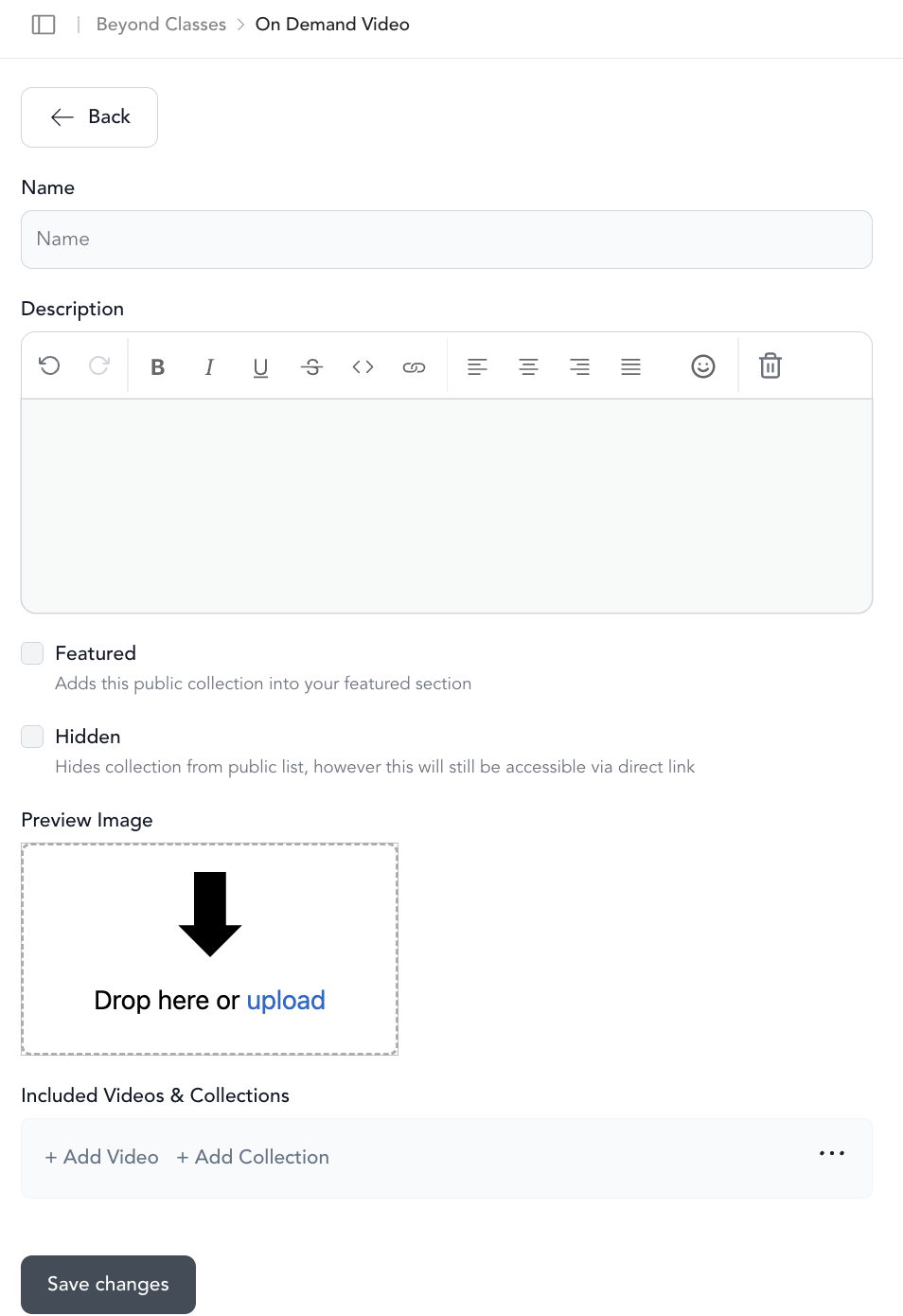
Fill in:
- Name — what clients see as the carousel heading
- Description — optional, shown on the category page
- Preview image — shown when using the "featured categories" library layout
- Featured — pulls this category to the top of the featured categories view
- Hidden — category won't show in the library (only accessible via direct link)
-
Click Save Changes
Reorder categories
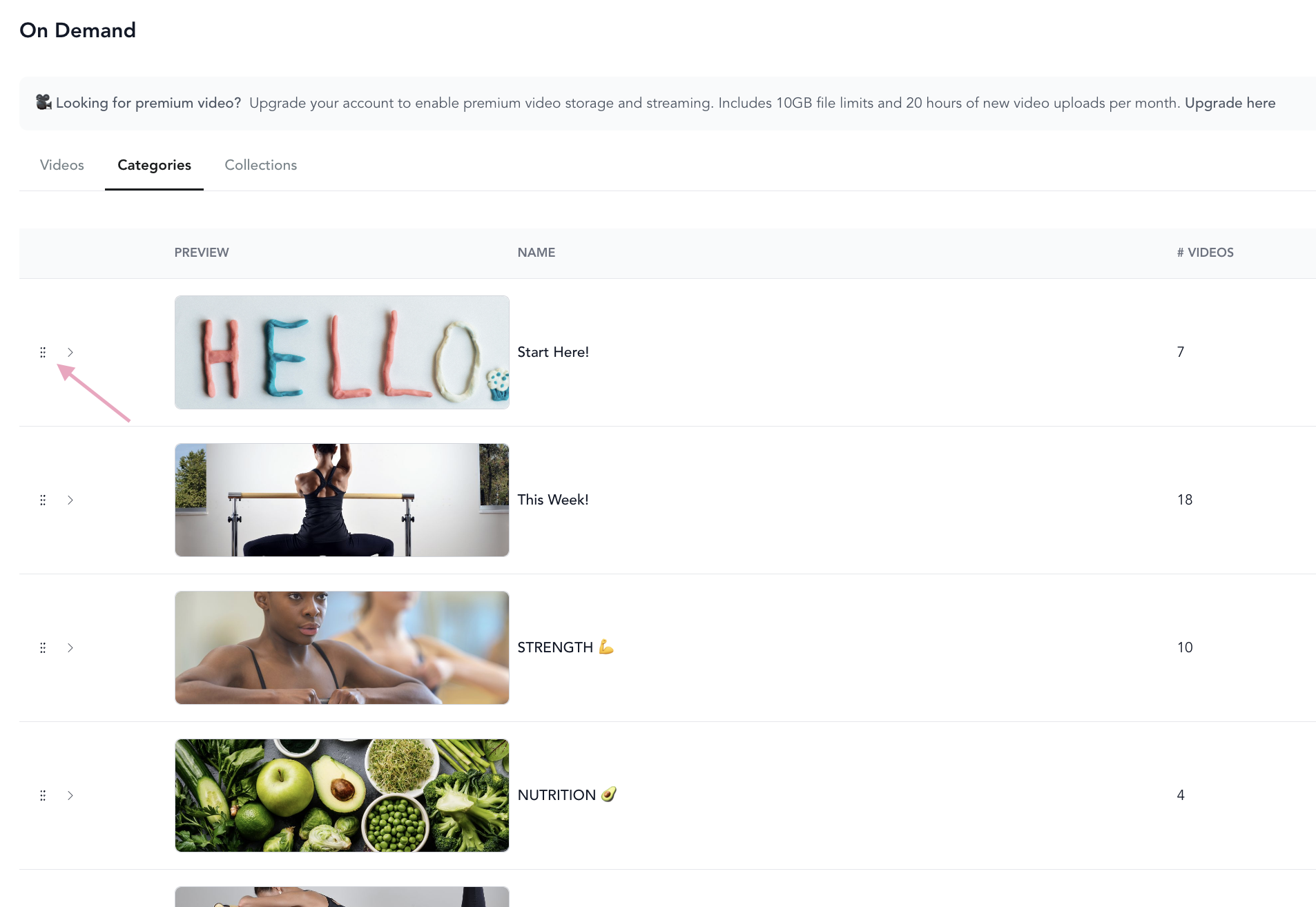
- Go to Beyond Classes → On-Demand Video → Categories
- Use the drag handle on the left (the
::icon) to drag categories up or down - The order here is the order clients see on your library page
Add videos to a category
You can add a video to a category when uploading or editing it:
- Open the video (Add New or edit existing)
- Go to Categories & Filters
- Select one or more categories from the dropdown
A video can belong to multiple categories.
Reorder videos within a category
By default, videos sort newest-to-oldest. To customize the order:
- Go to On-Demand → Categories
- Tap into the category
- Drag and drop the videos into your preferred order
Hidden categories
Marking a category as hidden removes it from your public library, but it's still accessible via a direct link. This is useful for:
- Setting up content before you're ready to launch it
- Creating private content only certain clients have access to
Start with a "New? Start Here" category for new clients and a "Favorites" or "Most Popular" category for returning ones. It gives everyone a clear entry point.